Showing posts with label pixelated. Show all posts
Showing posts with label pixelated. Show all posts
Pixelated Picture
Final view

Step 1:
Take a Image to Pixelate.

Make a duplicate layer by pressing Ctrl+J.
Take a Image to Pixelate.
Make a duplicate layer by pressing Ctrl+J.
Step 2:
Go to Filter ---> Pixelate ---> Mosaic
And set cell size to 15 ---> hit OK.
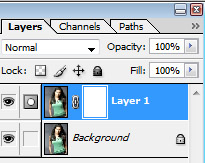
Go to Layer ---> Add Layer Mask ---> Reveal All
Step 3:
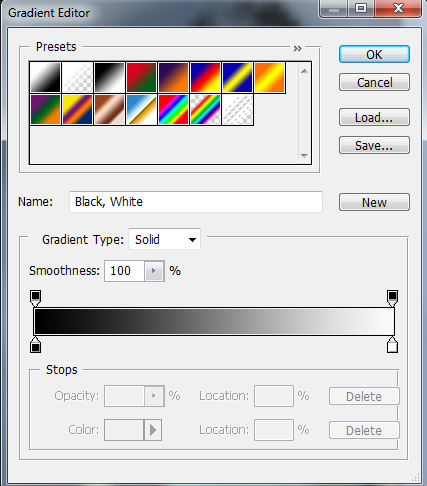
Select Gradient fill tool and select the black-white color..and hit OK.
Step 4:
Now drag the cursor from left to right on image...

Now drag the cursor from left to right on image...
Done..!!



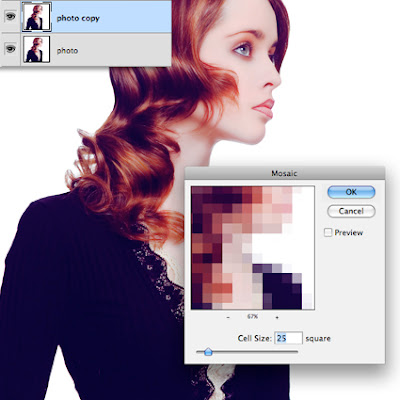
Select the copied layer and go to Filter>Pixelate>Mosaic.
The Cell Size you use will depend on the size of your photo, for this one Ive used 25.
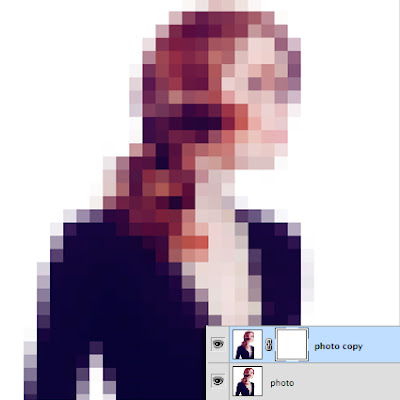
Next give the layer a layer mask by clicking on the layer mask button.
Select the Gradient Tool and use a black to white Linear Gradient.
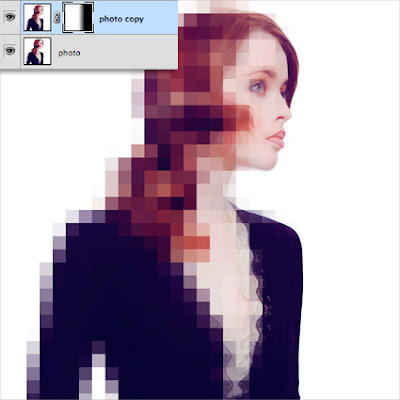
With the layer mask thumbnail selected, draw the gradient horizontally across a small part of the front of the face, or wherever you want the pixels to begin.
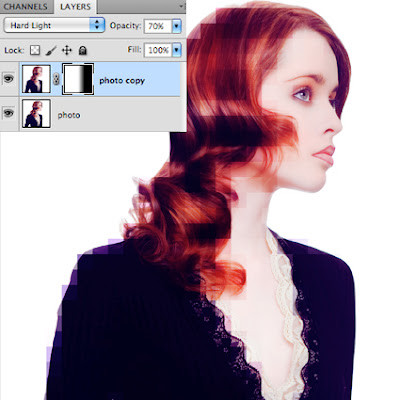
Finally set the Layers blending mode to Hard Light, and take its Opacity down to 70%.
Subscribe to:
Posts (Atom)


- Follow Us on Twitter!
- "Join Us on Facebook!
- RSS
Contact