Showing posts with label contrastive. Show all posts
Showing posts with label contrastive. Show all posts
Wednesday, March 18, 2015
a,
contrastive,
make,
more,
photo
0
comments
Make a photo more contrastive
Make a photo more contrastive
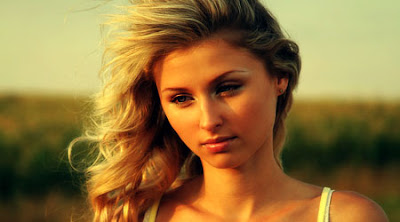
This tutorial will show you how to turn a normal image into a contrastive one!
Step 1: First download the original photo below:
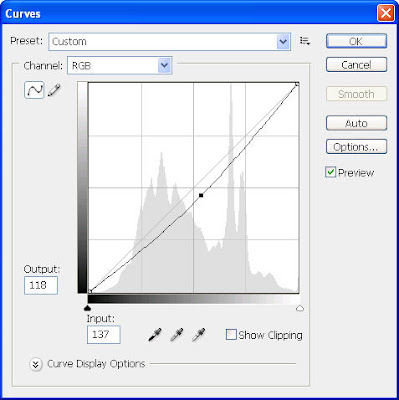
Step 2: Next we use some popular tools to adjust its contrast and brightness like Curves tool (Image>Adjustments>Curves)
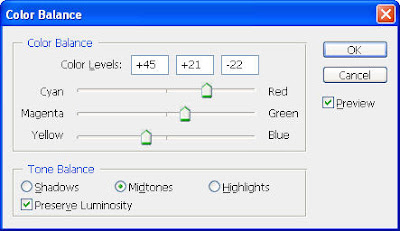
and Color Balance (Image>Adjustments>Color Balance) with these settings:
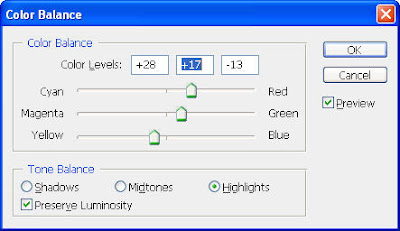
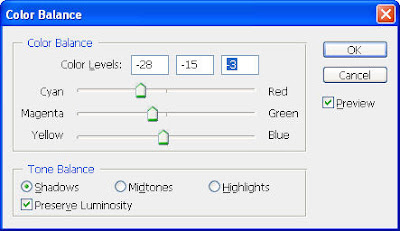
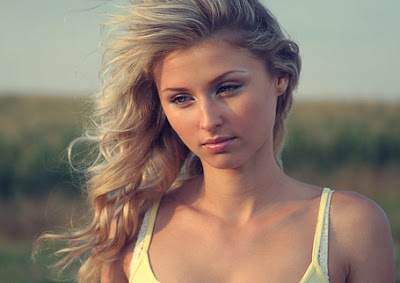
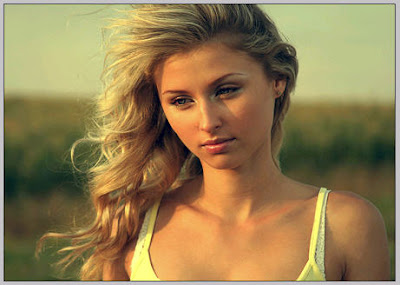
Our photo now looks like this:
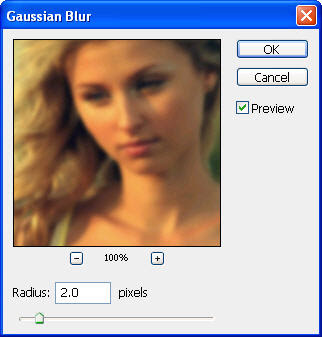
Step 3:Duplicate your photo (Ctrl-J) and go to File>Blur>Gaussian Blur and choose a radius of 2 pixels to blur this layer a bit
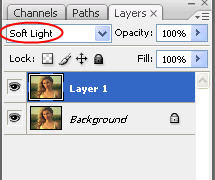
Step 4: Then from the Layers tab, change the blending mode of this layer to Soft Light
And your photo will become more contrastive like the photo below:
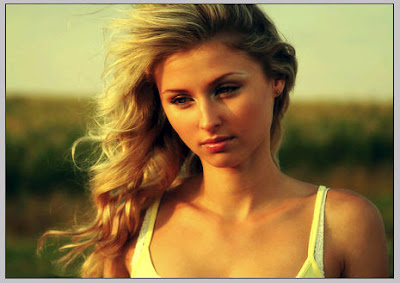
This method is commonly used to emphasize something you want on a photo by making it more contrastive with the background. The model now looks lovely and lively!
Read more »
This tutorial will show you how to turn a normal image into a contrastive one!
Step 1: First download the original photo below:
Step 2: Next we use some popular tools to adjust its contrast and brightness like Curves tool (Image>Adjustments>Curves)
and Color Balance (Image>Adjustments>Color Balance) with these settings:
Our photo now looks like this:
Step 3:Duplicate your photo (Ctrl-J) and go to File>Blur>Gaussian Blur and choose a radius of 2 pixels to blur this layer a bit
Step 4: Then from the Layers tab, change the blending mode of this layer to Soft Light
And your photo will become more contrastive like the photo below:
This method is commonly used to emphasize something you want on a photo by making it more contrastive with the background. The model now looks lovely and lively!

Subscribe to:
Posts (Atom)


- Follow Us on Twitter!
- "Join Us on Facebook!
- RSS
Contact