Showing posts with label splatter. Show all posts
Showing posts with label splatter. Show all posts
Friday, April 3, 2015
effect,
exploding,
image,
or,
splatter
0
comments
Exploding Image or Splatter Image Effect
Tutorial for Exploding Image
Final view
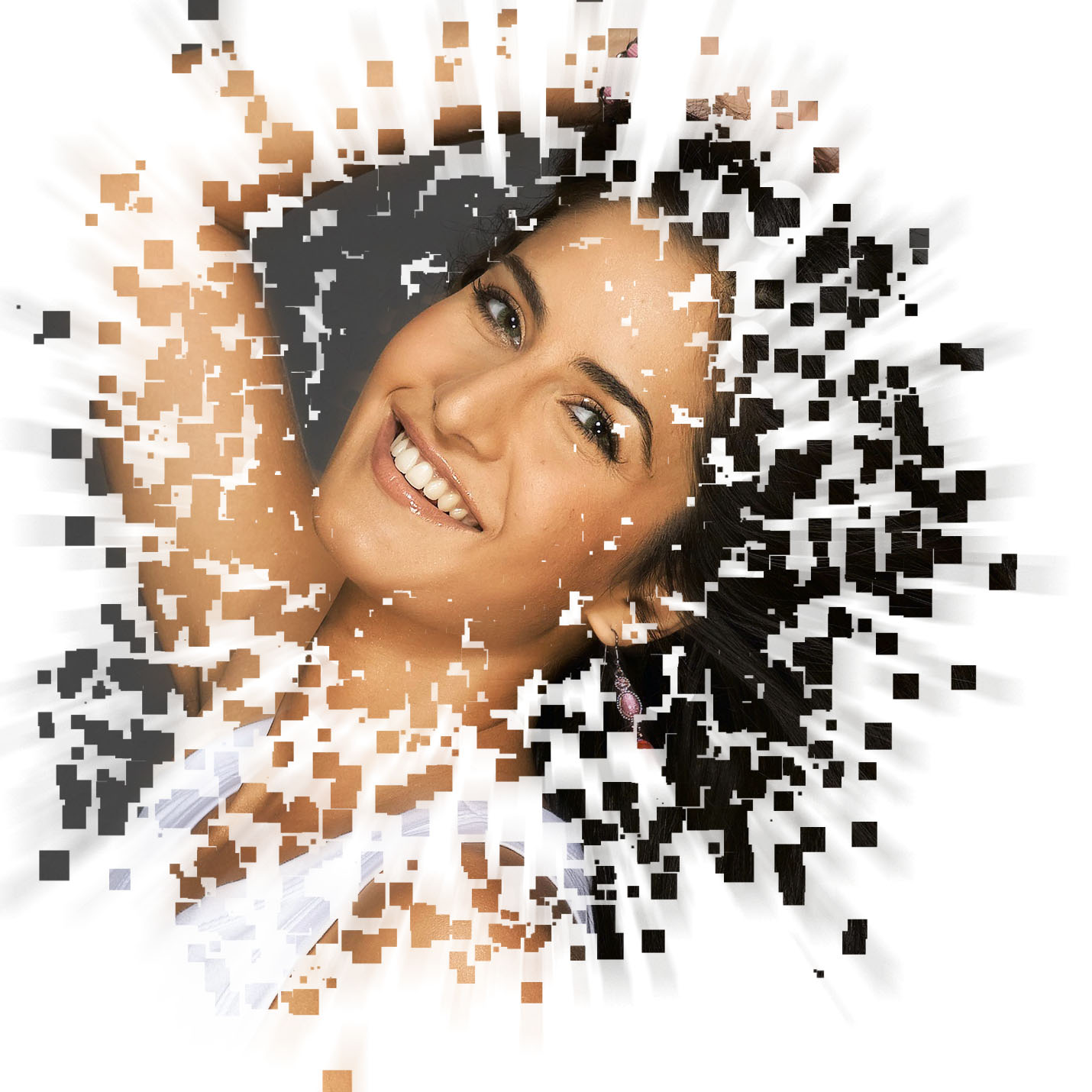
Step 1:
Create New File.
Paint The background with white color.

Step 2:
Add your image/object on at center .

Step 3:
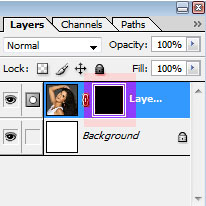
Go to Layer---> Add Layer Mask ---> Hide All.
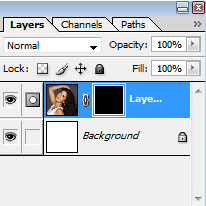
Step 3:
Select the Square brush. (24-28 px).


Step 3:
Select the Square brush. (24-28 px).
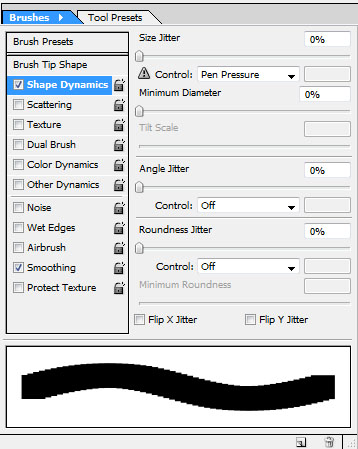
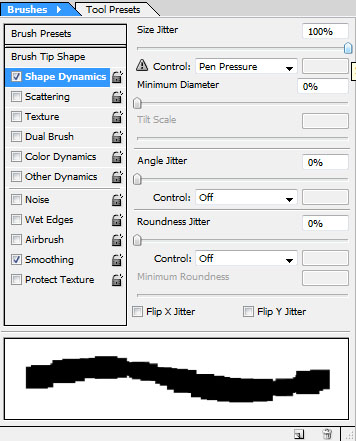
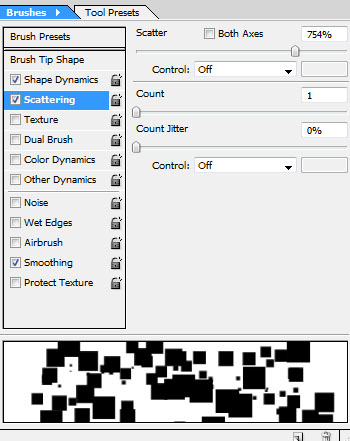
Now go to Window ---> Brushes.
You will see following window.
Select first check box of "shape dynamics", and increase site jitter to 100%.
Now select 2nd check box Scattering and increase Scattering to 750% to 760%.
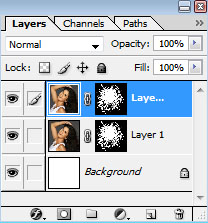
Now come to image, and give strikes on the masked layer, which appears Black as shown below.
Step 4:
Now make a duplicate layer by pressing Ctrl+J.
Step 5:
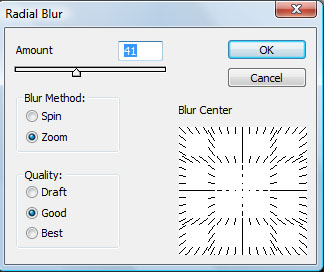
Now go to Filter ---> blur ---> radial blur.
set blur method to zoom and amount to 40/50.
And press OK.
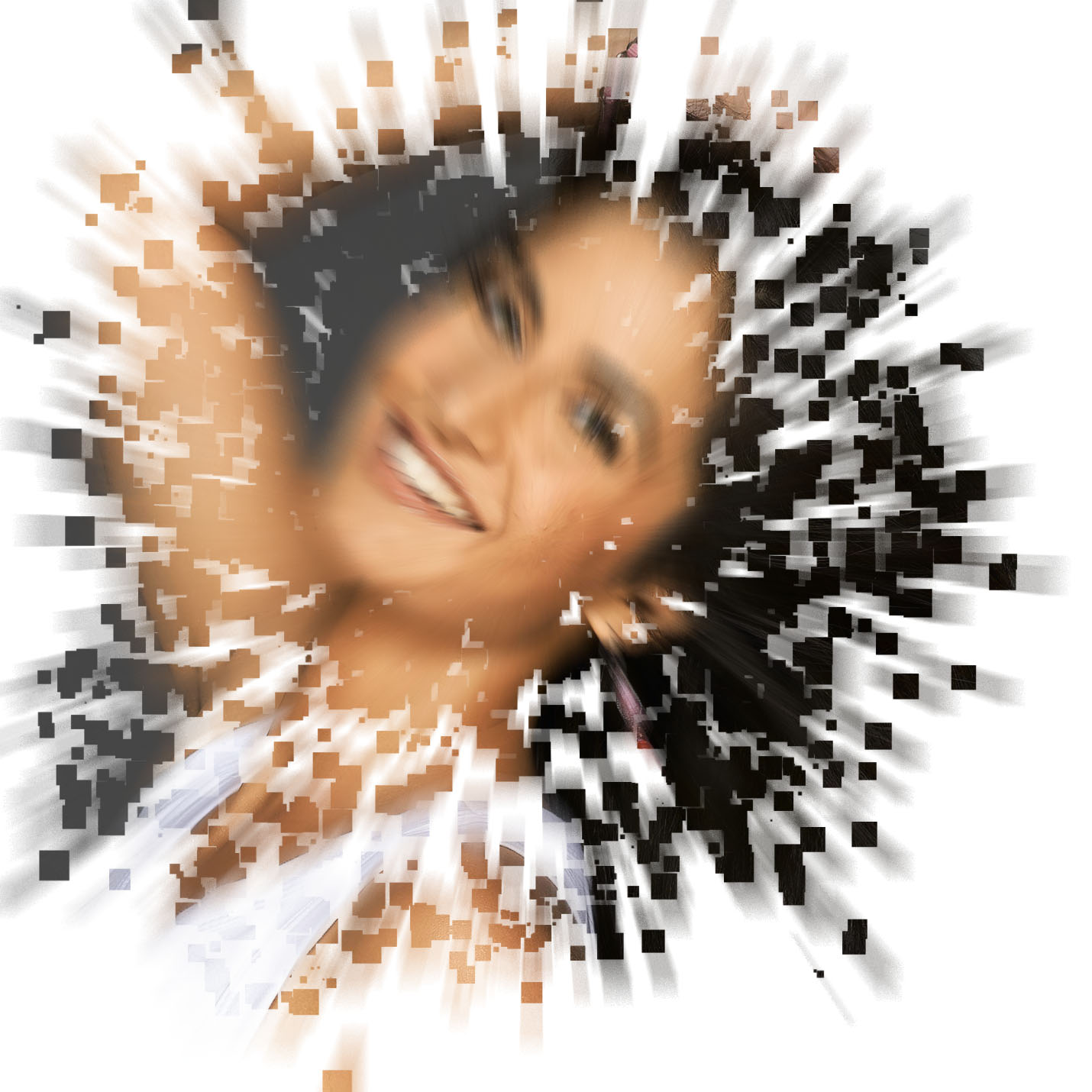
set blur method to zoom and amount to 40/50.
And press OK.
Step 6:
Now set the opacity of this layer to 50% to 60%.
Select the Eraser toll and erase some blurred area near object(face).
Select the Eraser toll and erase some blurred area near object(face).

Monday, March 30, 2015
brushes,
image,
masking,
splatter,
using
0
comments
Image Masking Using Splatter Brushes
Image Masking Using Splatter Brushes
Final view
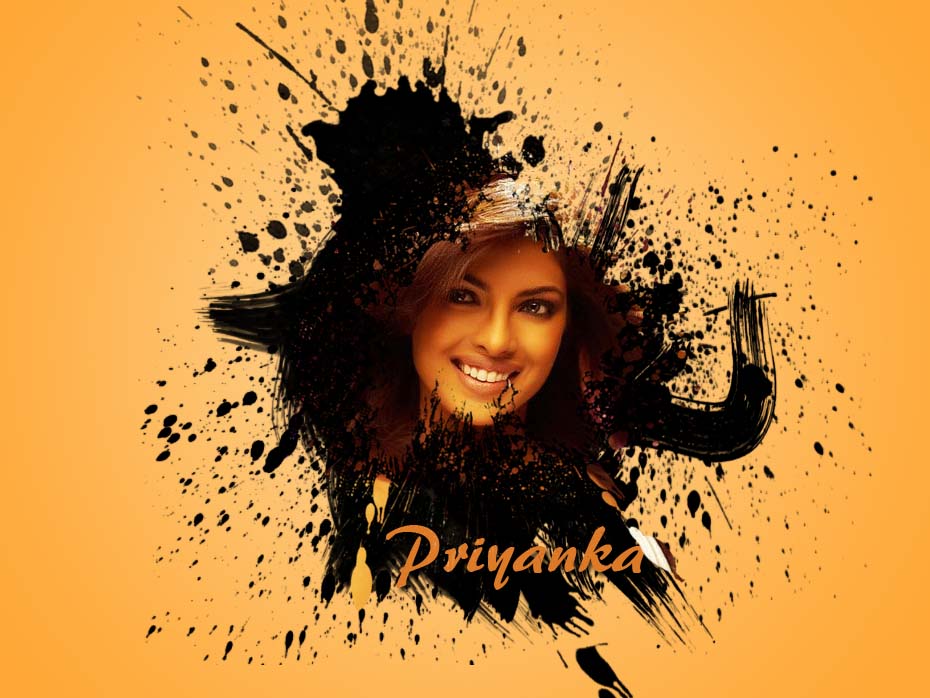
Step 1:
Create New file in photoshop.select Gradient fill tool from tool box and with round fill tool. fill the gradient by dragging cursor from centre to corner.


Step 2:
Create new layer by pressing Ctrl+J.And drop some Splatter brushes in the layer by selecting brush tool.
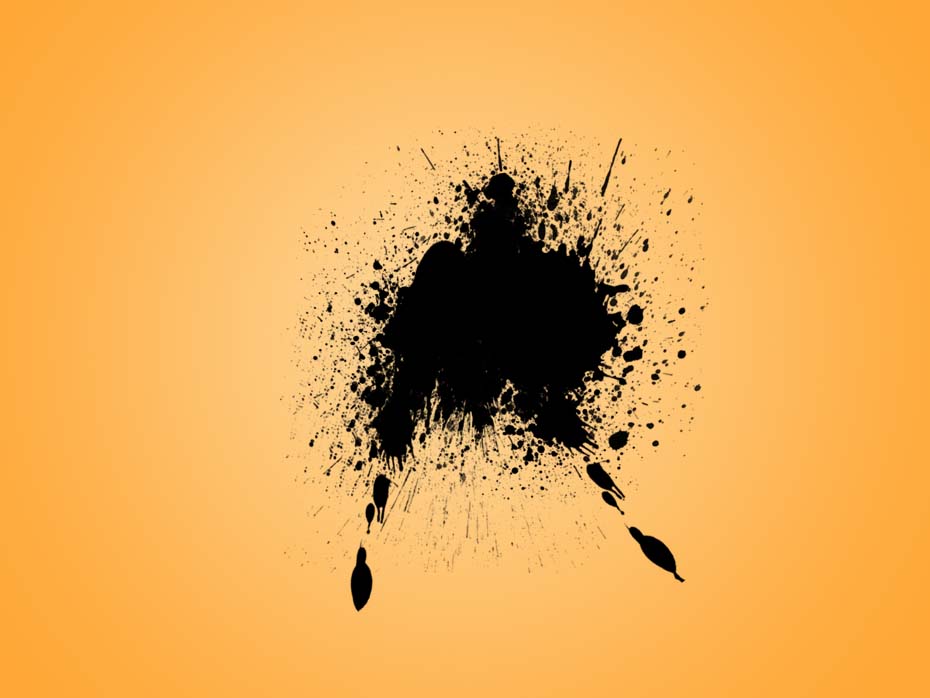
Step 3:
Now choose your image for masking . and drag it in to the project or copy-paste it. I named it layer 8
The image which is to masked is appears on the top of all layers..
Press and Hold "ALT" key and take the cursor to border of layer 1 and Layer 8, when the cursor changes look, just click on the border.
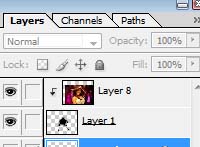
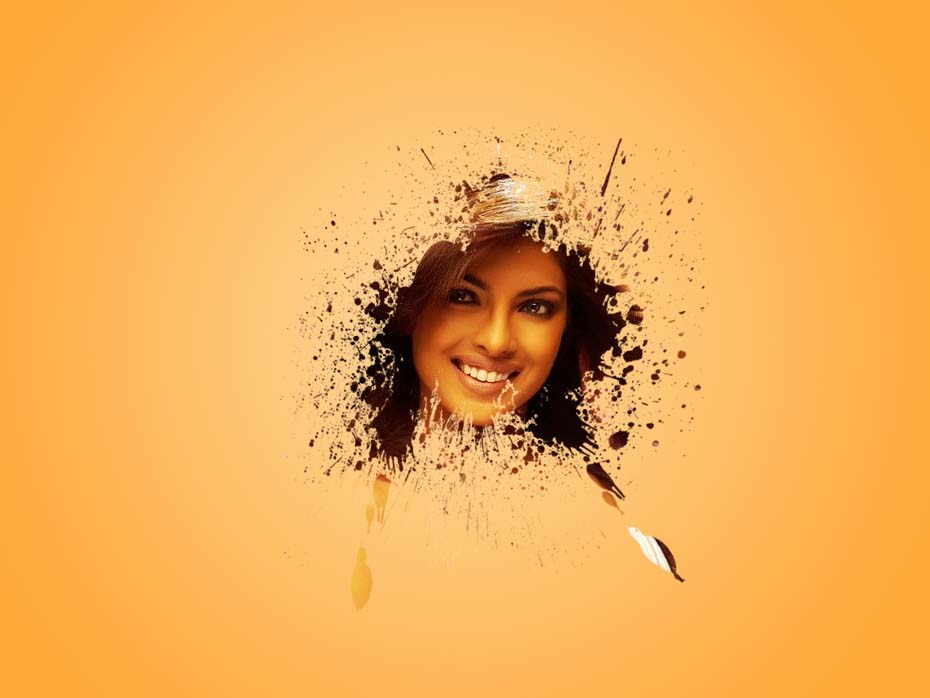
Step 4:
hide the layer 1 and layer 8.
Create new layer below layer 1 (Ctrl+Shft+N).
And add some Splatter brushes with black color.
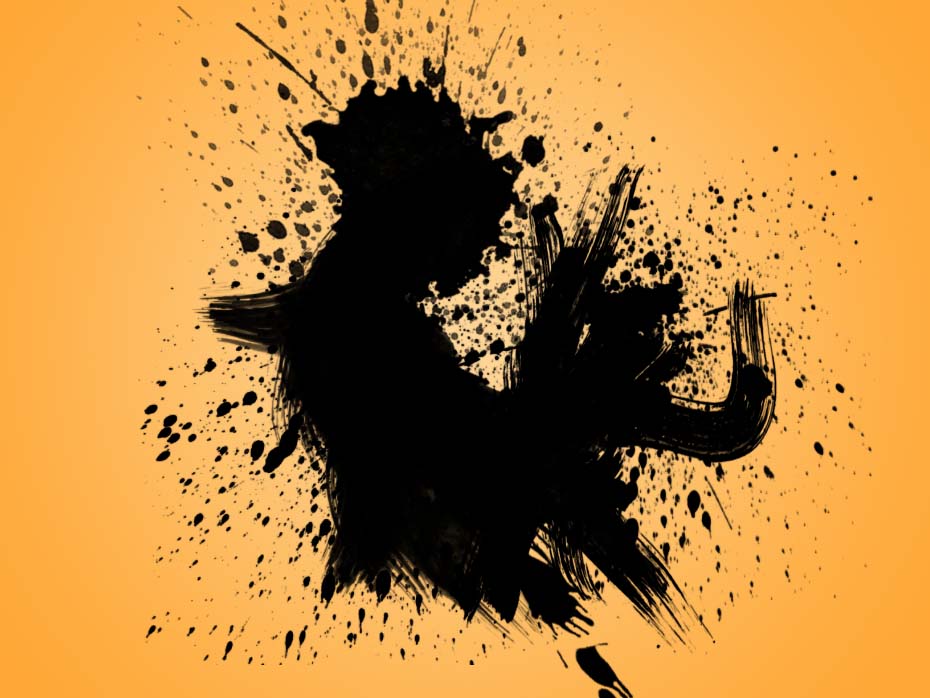
Now visible the layer 1 and layer 8. And add Text .
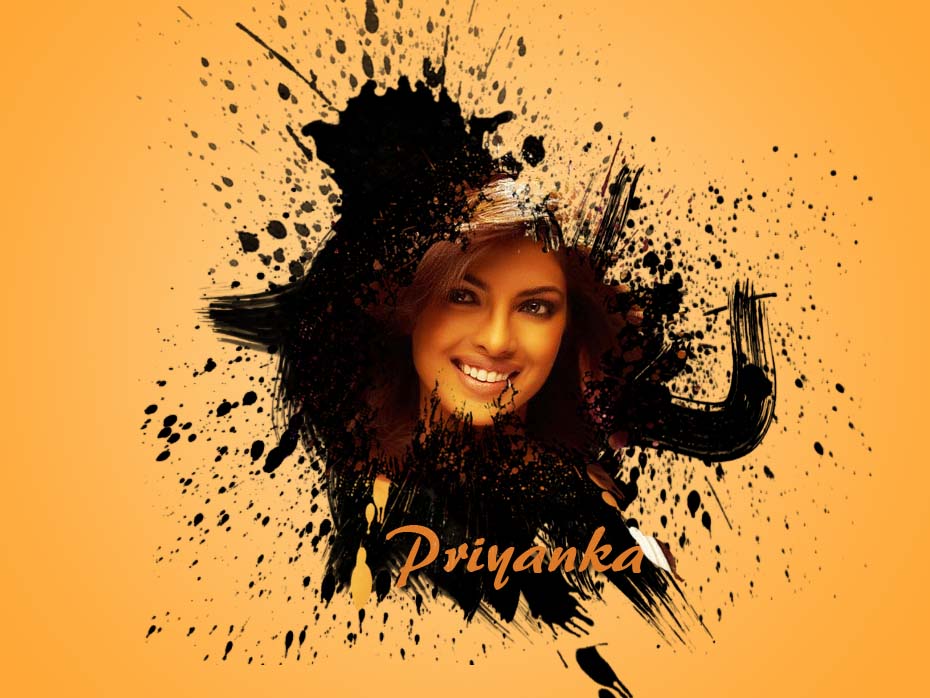
Done..!!
Subscribe to:
Posts (Atom)


- Follow Us on Twitter!
- "Join Us on Facebook!
- RSS
Contact