Thursday, June 11, 2015
2014,
6,
and,
fixes,
photoshop,
tips,
tricks,
vol
0
comments
Photoshop Tips Tricks and Fixes Vol 6 2014
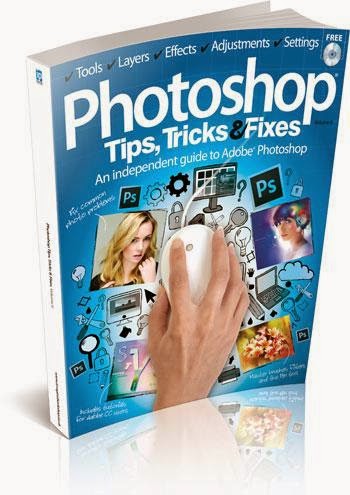
Photoshop Tips, Tricks and Fixes - Vol.6, 2014
Product Description
In this bookazine...
An independent guide to Adobe Photoshop
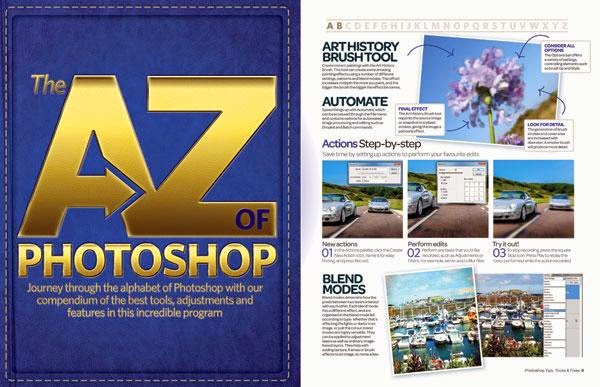
A-Z of Photoshop
- Journey through the alphabet of Photoshop with our compendium of the best tools, adjustments and
features in this incredible program.
Tips
- Bitesize information and detailed tutorials on getting more out of Photoshop
Tricks
- In-depth tutorials helping you to get more creative with your photo projects
Fixes
- Restore photos, enhance colours, retouch portraits and much more
Also inside...
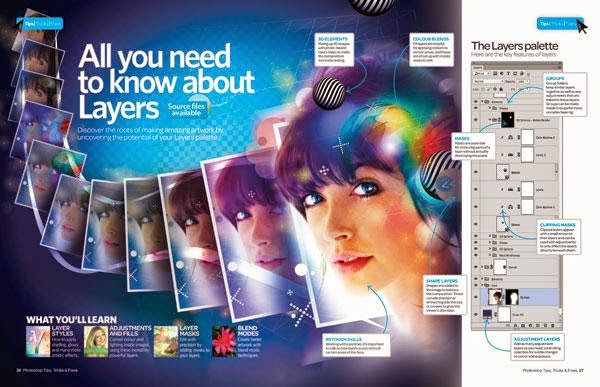
- All you need to know about Layers
- Use levels & curves histograms
- Use Refine Edge for perfect selections
- Understand Quick edits
- Master Content-Aware options
- Match colour in different images
- Understand image resolution
- The Magic Wand
- Understand 3D essentials
- Use Wet Media brushes
- Get to grips with the Pen Tool
- How to use textures
- Use the Sponge tool
- 5 Fantastic projects for filters
- Conquer layers and masks
- Build a new landscape
- Use Warp for creative edits
- Recreate long exposure
- Create your own jigsaw
- Get the oil-pastel look
- Learn to retouch any image
- Restore old photos
- Boost your colours
- Improve your exposures
- Whiten teeth and eyes
- Fix your smartphone photos


Monday, May 25, 2015
8,
create,
flames,
how,
pse,
to,
using
0
comments
How to create flames using PSE 8
Here is my first attempt in creating flames :
1. Open a blank document with black background.
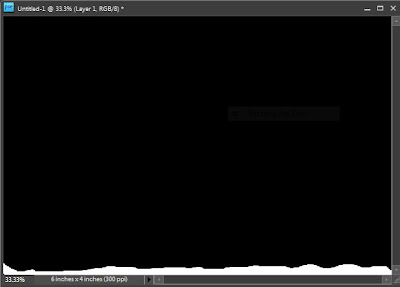
2. Create a new blank layer and paint the lower bottom area as white with brush tool as shown below
3. Now rotate it right by 90 from Image>Rotate > 90 Right.
5. Filter> Stylize> Wind . Repeat it thrice using Control+F to achieve the following result
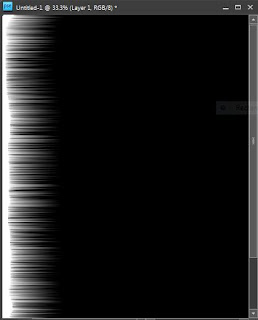
Rotate it back by 90 Left from Image>Rotate > 90 Left.
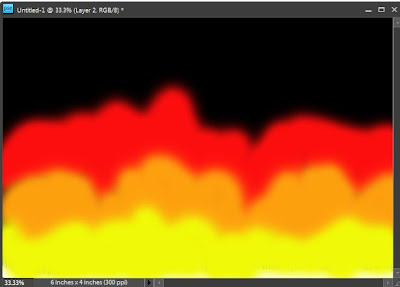
6. Now create another blank layer and use hard brush to paint the area with red, orange and yellow as shown in the figure below. Select topmost layer and go to Filter>Gaussian Blur. Set the radius to 8. Here is how it looks like after this step.
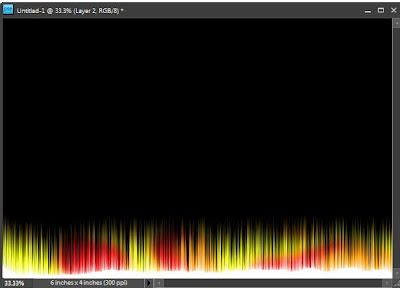
7. And now change the blending mode of this layer to Overlay (from Blending modes dropdown in layer palette). The output looks as shown below :
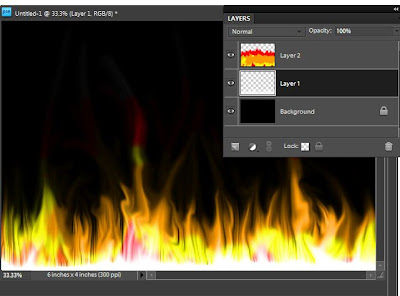
8. Now select the layer below(with wind effect, 2nd layer from bottom) and select Smudge tool from the left toolbar and start smudging it from bottom through up. It looks like this :
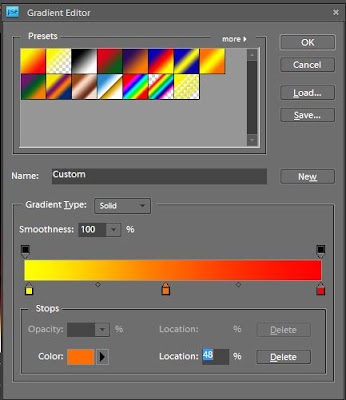
9. Now select the gradient tool and click on Edit button on topbar to define three gradient colors as shown in figure. Move the color stops such that left most is yello, middle stop is at Orange and right most at Red.
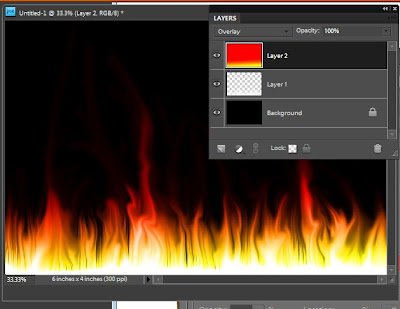
10. Now select the topmost layer in the layer palette and strike the gradient from bottom to middle.
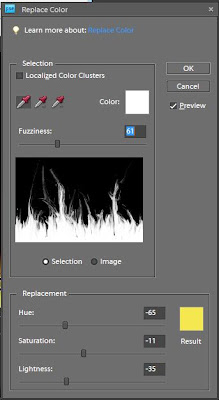
11. Now Control+click on the middle layer(Wind layer) and go to Enhance> Adjust Color> Replace Color. Replace the white color with yellow by selecting respective colors from the color swatches in the dialog.
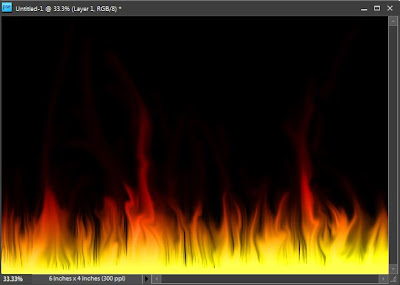
12. Click Ok and here is the final output which I got.
Read more »
1. Open a blank document with black background.
2. Create a new blank layer and paint the lower bottom area as white with brush tool as shown below
3. Now rotate it right by 90 from Image>Rotate > 90 Right.
5. Filter> Stylize> Wind . Repeat it thrice using Control+F to achieve the following result
6. Now create another blank layer and use hard brush to paint the area with red, orange and yellow as shown in the figure below. Select topmost layer and go to Filter>Gaussian Blur. Set the radius to 8. Here is how it looks like after this step.
7. And now change the blending mode of this layer to Overlay (from Blending modes dropdown in layer palette). The output looks as shown below :
8. Now select the layer below(with wind effect, 2nd layer from bottom) and select Smudge tool from the left toolbar and start smudging it from bottom through up. It looks like this :
9. Now select the gradient tool and click on Edit button on topbar to define three gradient colors as shown in figure. Move the color stops such that left most is yello, middle stop is at Orange and right most at Red.
10. Now select the topmost layer in the layer palette and strike the gradient from bottom to middle.
11. Now Control+click on the middle layer(Wind layer) and go to Enhance> Adjust Color> Replace Color. Replace the white color with yellow by selecting respective colors from the color swatches in the dialog.
12. Click Ok and here is the final output which I got.
Sunday, May 24, 2015
11,
edit,
how,
iptc,
metadata,
multiple,
of,
organizer,
photos,
pse,
to,
using
0
comments
How to edit IPTC metadata of multiple photos using PSE 11 Organizer
PSE Editor provides a way to edit IPTC metadata of an image at a time. However, Organizer did not have a way to edit IPTC metadata till Elements 11 version. With PSE 11, Organizer provides a way to edit IPTC metadata of multiple photos at a time as well.
Here is how you can achieve that:
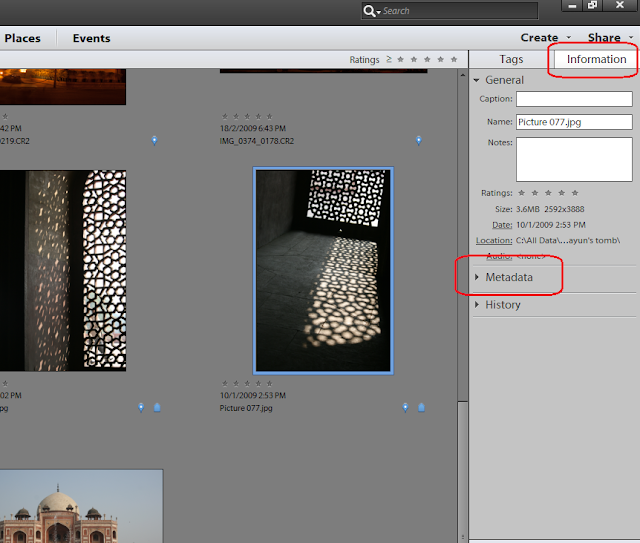
1. For a single image, select a file in Image grid in Organizer. Click on Information tab in right panel as shown, followed by expanding metadata panel as shown in the image below:
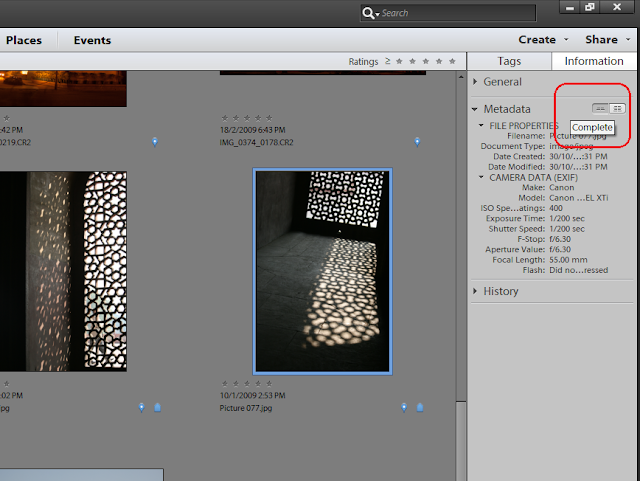
2. Click on the icon shown on right to view Complete metadata of the image selected.
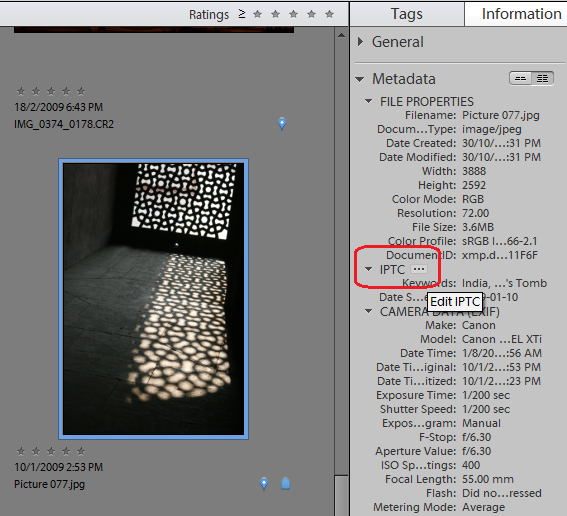
3. Under IPTC header, select the button that shows 3 dots "..."
This launches the following dialog showing IPTC metadata fields. Fill in the metadata and Click Save.
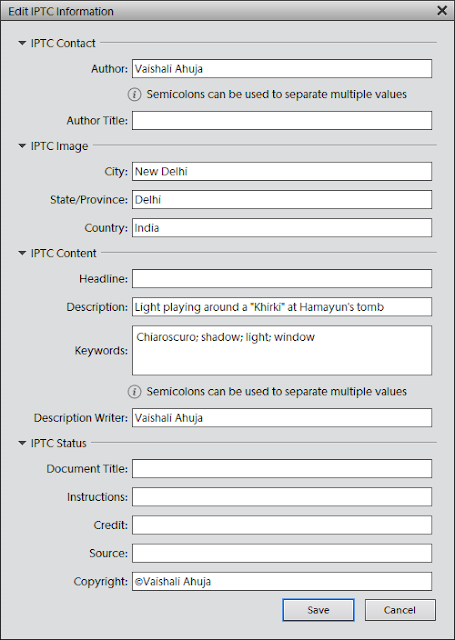
The saved metadata should now appear in metadata panel under IPTC header. To edit this metadata, go to the same dialog with the same steps as above and you can then append or overwrite the existing metadata.
To edit metadata of multiple files, you just need to select multiple files in the image grid and select "Add IPTC information: button in Information panel :
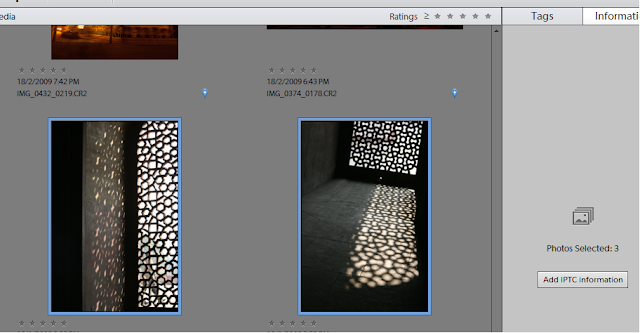
The dialog you see for multiple files is a bit different as it provides a radio button option for Author and Keywords fields to overwrite or append existing values as shown. You can use these options as desired.
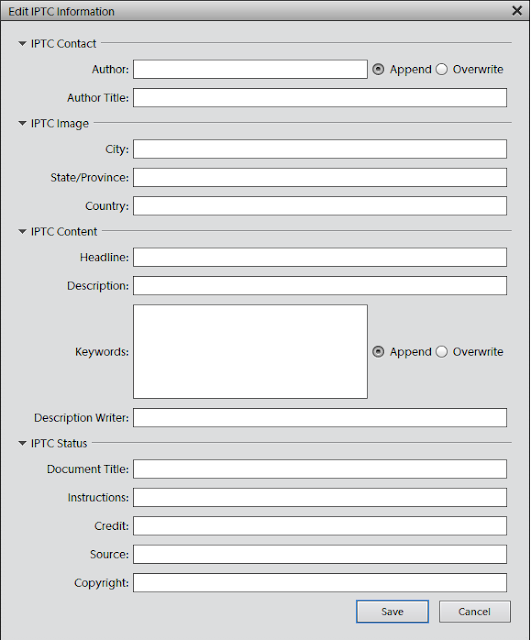
Click Save and here you go!
Here is how you can achieve that:
1. For a single image, select a file in Image grid in Organizer. Click on Information tab in right panel as shown, followed by expanding metadata panel as shown in the image below:
2. Click on the icon shown on right to view Complete metadata of the image selected.
3. Under IPTC header, select the button that shows 3 dots "..."
This launches the following dialog showing IPTC metadata fields. Fill in the metadata and Click Save.
The saved metadata should now appear in metadata panel under IPTC header. To edit this metadata, go to the same dialog with the same steps as above and you can then append or overwrite the existing metadata.
To edit metadata of multiple files, you just need to select multiple files in the image grid and select "Add IPTC information: button in Information panel :
The dialog you see for multiple files is a bit different as it provides a radio button option for Author and Keywords fields to overwrite or append existing values as shown. You can use these options as desired.
Click Save and here you go!
Saturday, May 23, 2015
a,
bring,
eyes,
focus,
how,
in,
more,
on,
potrait,
pse,
to,
using
1 comments
How to bring more focus on eyes in a potrait using PSE
1. Select Background layer in layers palette
2. Select the complete eye area ( including the white part ) using any selection tool (i used quick selection tool). Right click over the selected portion and say Layer via Copy. Name this layer in layers palette as Eyes by double clicking the layer in the palette.
3. Now select the background layer again and make a selection for the eye ball regions only. And right click and select Layer via Copy and name this layer as Eye ball.
4. Now Conrol+Click on the layer Eyes to show the eyes selected in the image. Click on Background layer and Select Inverse from right click on image area followed by Layer via Copy. Name this new layer as Blur. This constitutes the whole image except the eye region.
5. Now select the layer Blur and Filter>Blur>Gaussian Blur. Modify the blur to something like 2.5 or lesser. This is done to rest of the image leaving eyes so that eyes are prominent in the image. Click Ok. You can later on modify the opacity of the layer making it more transparent if you want to decrease the blur effect. You can do that by selecting this layer in the layer palette and moving the opacity slider on right top of layers palette.
6. Now select the layer Eyes. Go to Enhance>Adjust Sharpness. Now make changes to the amount and radius. Click Ok. You can vary the sliders as per your needs and preview it side by side in image area or preview area in the dialog. Do not oversharpen as it makes the eyes look artificial.
7. Now select only the layer Eye ball and select Enhance >Unsharp mask.
I changed the amount to near 50% and radius to near 16. This details out the pattern inside the eye ball and brings more focus to the eye region.
8. You can now also increase the saturation of this layer by Enhance>Adjust color>Adjust Hue/Saturation. You can select the Grrens from the combo box if you obly want to saturate the Green of the eyes using the Saturation slider.
Click Ok.
Here are the initial and the final images :


(Click to have larger views to see differences)
Friday, May 22, 2015
awesomeness,
elements,
folders,
in,
of,
organizer,
photoshop,
watch
0
comments
Awesomeness of Watch Folders in Photoshop Elements Organizer
Watch Folders : This functionality is a little hidden in Elements Organizer (File>Watch Folders) and not many know about it usefulness. It is one quick way to get media into your Organizer catalog without bothering about manually importing into it.
To use it, just make the parent folder (of all your photo folders) as the watch folder and it auto imports the media into your Organizer catalog. As soon as any new picture is added to your watch folder in windows explore or to any child of your watch folder, it would be auto-imported to your Organizer catalog.
For example, mostly all my pictures are dumped to one of following three folders (shown in screenshot). So i have made all three as my watch folders. Hence I never need to import any media to my Organizer catalog.
Awesomeness is added if you say exchange photos or receive photos through dropbox. You can add dropbox as your watch folder. Hence all media comes to your Organizer catalog automatically.

I find this feature very useful as it saves a lot of my time. The dropbox idea was shared by one of the Elements user(Thanks Mellissa) and I really found it useful. So just thought to share this tip with everyone!
Thursday, May 21, 2015
bring,
effect,
how,
ice,
in,
text,
to
1 comments
How to bring Ice effect in text
I looked at few tutorials on this for Photoshop and tried the same in PSE. Its simple and cool effect.
1. Open a blank document with black background. Write some text with Black color on it.
2. Now Control click on the text layer so that the text gets selected as shown.

3. Go to Filter>Artistic>Plastic Wrap. Now repeat this filter 10 times by pressing Control+F 10 times. The result may look something as shown below.

4. Now go to Layer>Layer Style>Style settings. Select Glow>Outer glow and select the color from color swatch to be "79d9f9". The output may look like as shown below :
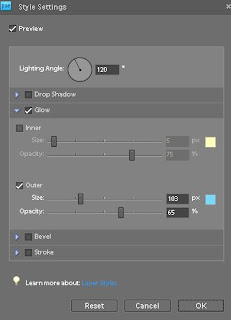
5. Now rotate the image by 90 Right from Image>Rotate>90 Right. Now from Filter menu>Stylize>Wind. Click Ok. The output text would appear like this :

Now rotate Left 90 to bring it back.
6. Now go to Filter >Distort>Liquify. Use the Warp tool at some of the places to warp some areas of the text to given more frozen ice effect. The output may appear like this :
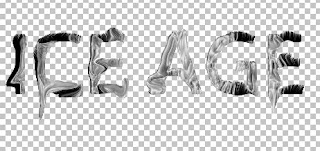
7. You may add a little Bevel from Layer Setting dialog.

8. Now go to Enhance>Adjust Color>Adjust Hue/Saturation. And change the color of the text to some less saturated bluish grey.
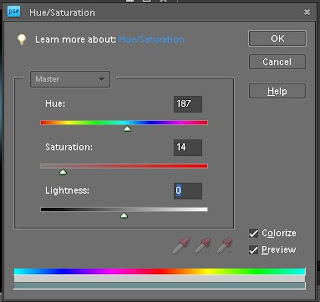
Check the checkbox "Colorize". Here is how it will look after that :
Check the checkbox "Colorize". Here is how it will look after that :

One may add Wind effect again by rotating as we did in step 5. Here is my final output after applying the effect again :

Interactive Distortion Tool – Corel X3 Tutorial
In this tutorial we will show you how to use the interactive distortion tool for you to make designs for your envelopes, letters, etc in Corel X3.
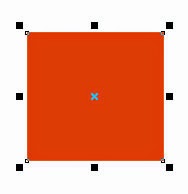.jpg)
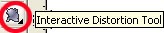
Then, select the Interactive distortion Tool:
After that select the down left corner of the rectangle and start releasing it to the top, look:
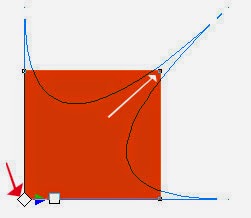
Keep releasing until you have the shape you desire:

Now you can apply this shape to letters, envelopes, etc.
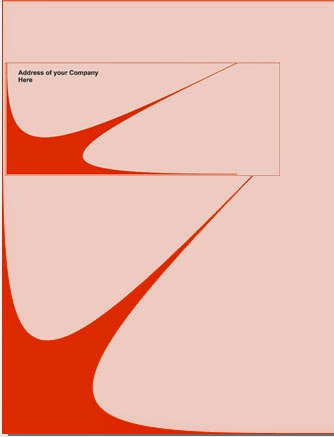
Just use your imagination =)
Download the original source files from this tutorial in Zip format Here
Subscribe to:
Posts (Atom)


- Follow Us on Twitter!
- "Join Us on Facebook!
- RSS
Contact