Showing posts with label login. Show all posts
Showing posts with label login. Show all posts
Making Login Form
Color Combination is the main thing in web-Design, Making Forms , web-pages.. Use proper and effective color combinations for web design for better looking.. Here we can see how to Design a Login page for your website..
Final view
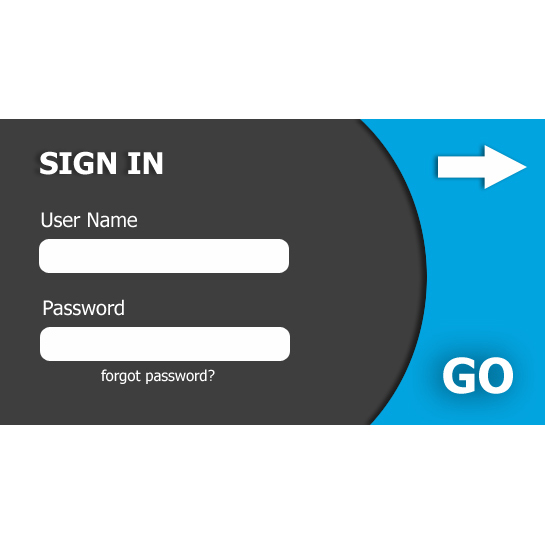
Step 1:
Create new file and fill the background with #3E3E3E color.
Create new file and fill the background with #3E3E3E color.

Step 2:
Make a new layer (Ctrl+Shft+N)
Select circular select tool and create circle on the Layer.
Select circular select tool and create circle on the Layer.

Right click on circle ---> Select Inverse.
And fill the Selected area withe color #02A4E0(Shft+f5 ---> color).
And fill the Selected area withe color #02A4E0(Shft+f5 ---> color).

Select eraser tool and erase the left side area.

Step 3:
Now Go to Blending Options ---> Drop Shadow.
Change the angle to 0 degree.
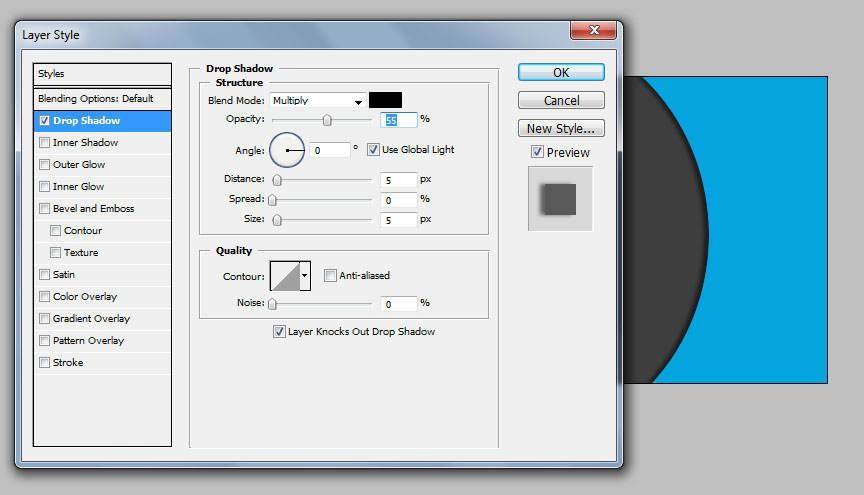
Change the angle to 0 degree.
Now select Horizontal text tool and Type the Sign In text at left corner with weight Bold..

Now with regular font weight type "User name" and "Password" Text.
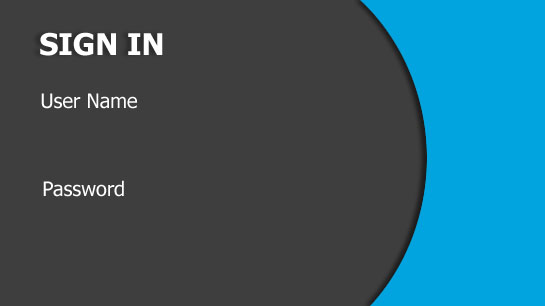
Step 4:
Make New Layer (Ctrl+Shft+N).
Select Shape tool ---> Select Rounded corner rectangle .
And drag mouse below User name and Password field with white color.
Make New Layer (Ctrl+Shft+N).
Select Shape tool ---> Select Rounded corner rectangle .
And drag mouse below User name and Password field with white color.

Step 5:
Select Horizontal type text tool, Select larger font ant Type GO/Sign In/ Login.
Drop shadow to this button/text with increase in size.
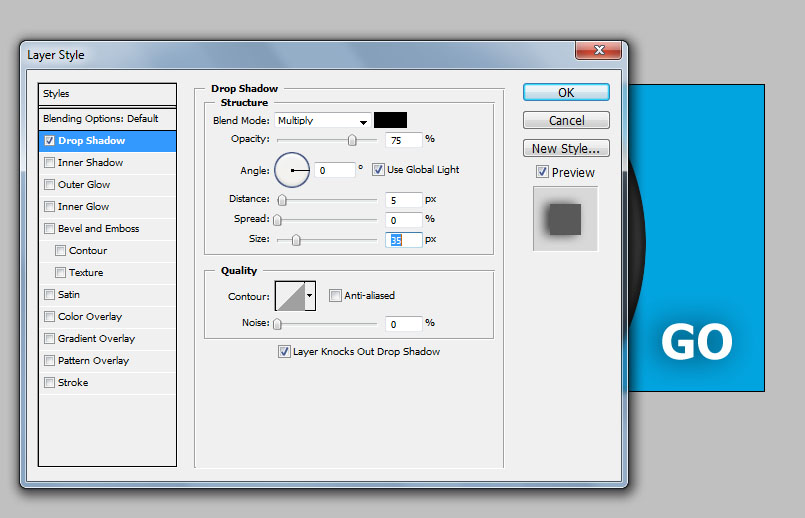

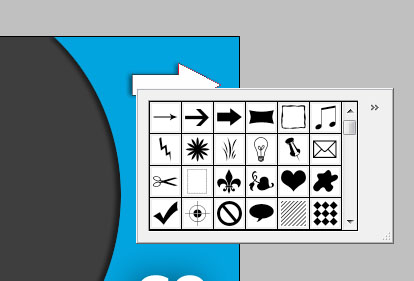
Select Shape tool and Select arrow from shapes, drag mouse on right corner.
Now select text tool and type forgot password below input Password field.
Drop shadow to this button/text with increase in size.
Drop shadow to arrow from Blending options ---> Drop Shadow.
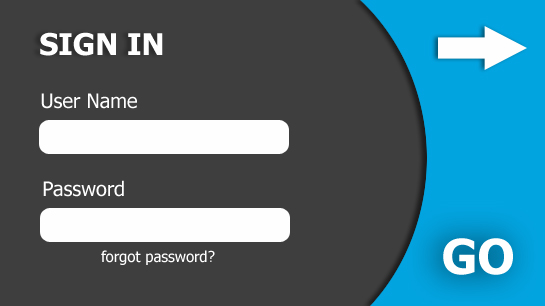
Done..!!

Wednesday, April 1, 2015
10,
image,
ipad,
login,
same,
screens,
using
0
comments
10 iPad Login Screens Using Same Image
iPad Login screens using same image

Subscribe to:
Posts (Atom)


- Follow Us on Twitter!
- "Join Us on Facebook!
- RSS
Contact