Showing posts with label cover. Show all posts
Showing posts with label cover. Show all posts
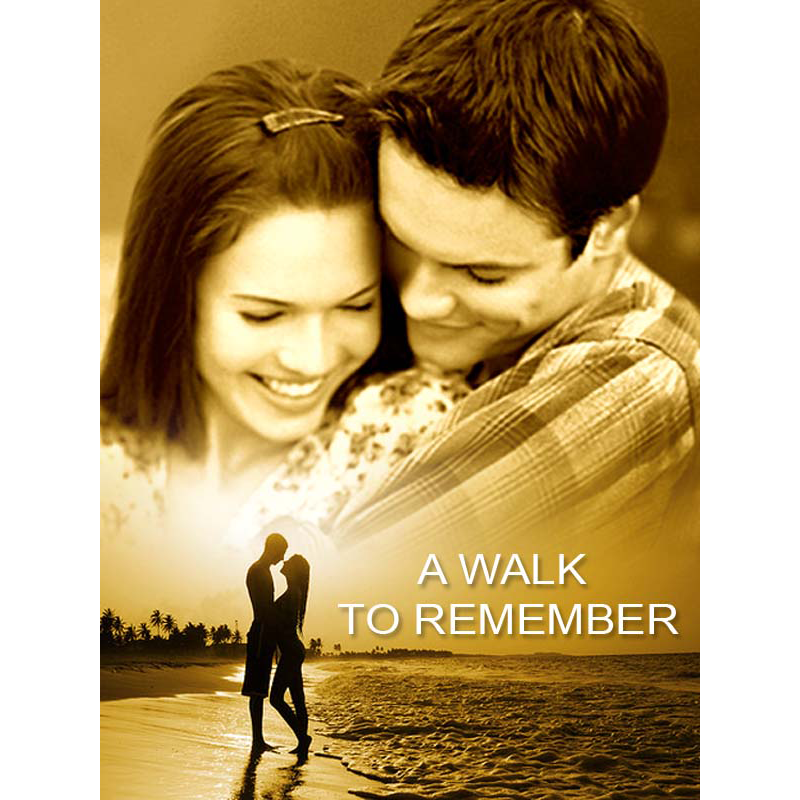
Making Movie Album Cover
Final view
Step 1:
Create New File.
Get the two images for cover.
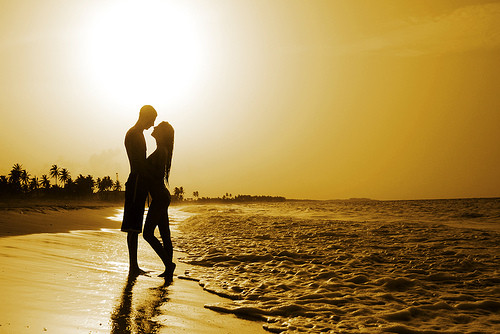

Step 2:
Take both the images on newly created file by copy-paste. (Layer 1 and Layer 2)
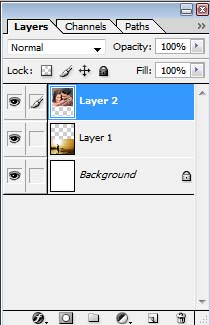
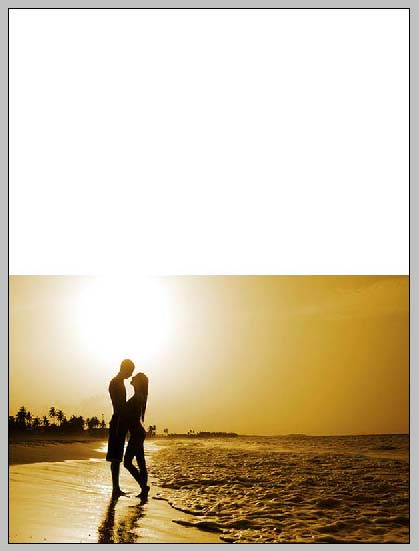

Transform the images to the middle By pressing Ctrl+T.
Step 3:
Now Select layer 2 and make it black-white (Image ---> adjustment ---> Gradient Map --> Select Black-White ---> OK).
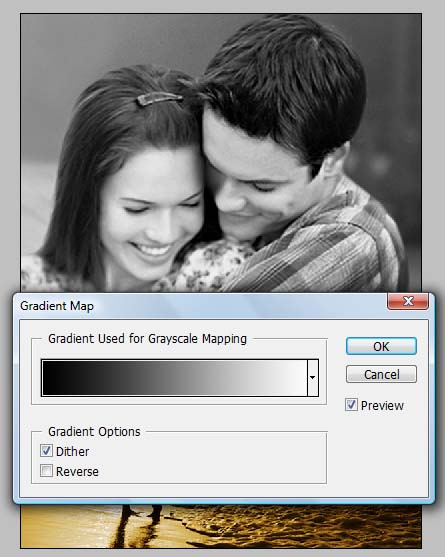
Step 4:
Now Now press Ctrl+B (color balance).
and adjust the Layer 2s color to orange so that it matches nearly to Layer 1 Image color.
and adjust the Layer 2s color to orange so that it matches nearly to Layer 1 Image color.
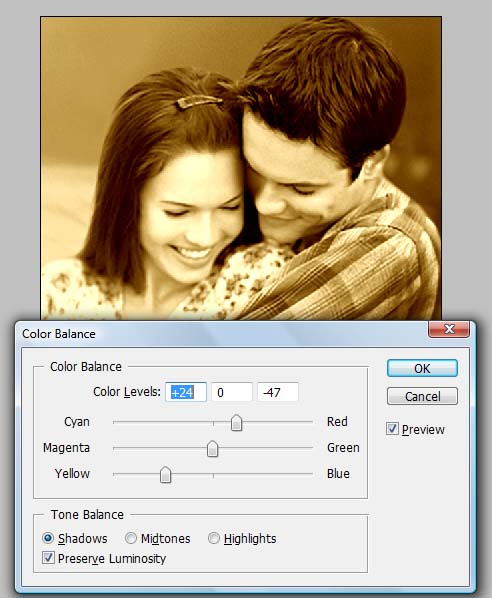
Step 5:
Select the masked layer and go to the Gradient fill tool Select the Black-transparent color combination and click ok.
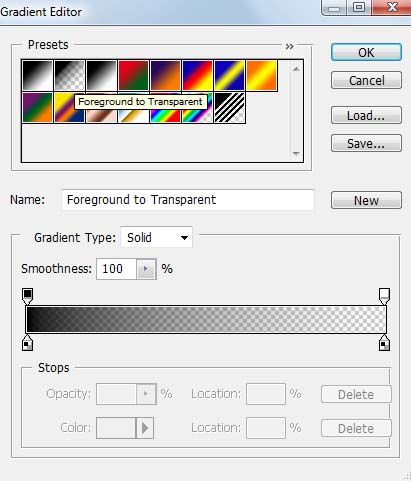
Drag the mouse over top of Layer 1.


Step 5:
Make New layer (Ctrl + Shft + N). fill layer with orange color. add mask to it and set layer to "color mode"
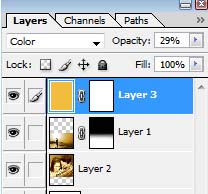
Add Title/Text.


Wednesday, April 1, 2015
a,
book,
cover,
create,
magazine,
or,
retro,
style
0
comments
Create A Retro Style Book OR Magazine Cover
Create A Retro Style Book OR Magazine Cover
We see previously that how to create a simple Magazine cover. Here we can see a very simple but attractive retro style magazine cover making only in few steps..
Final view

Step 1:
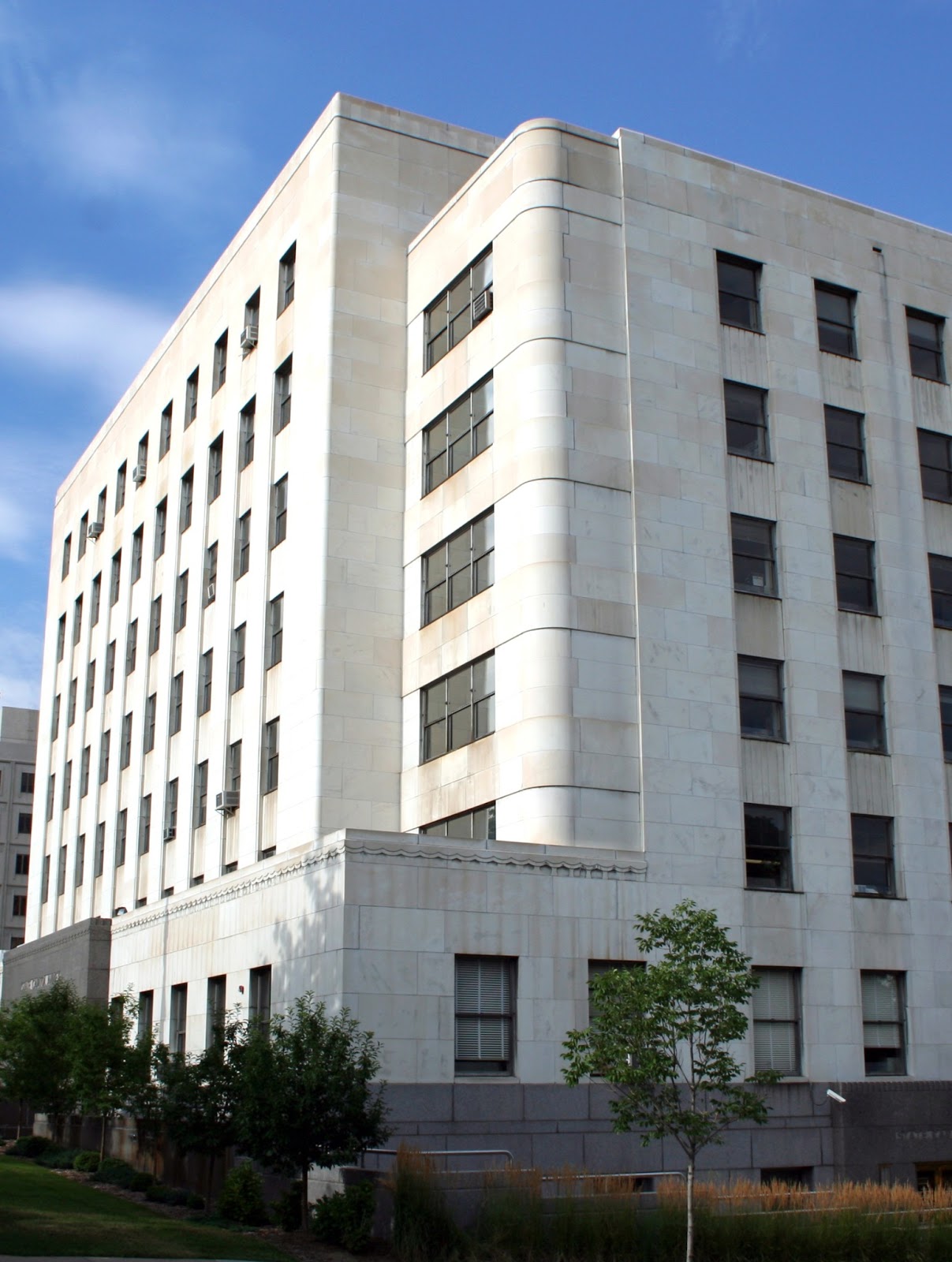
Create new file and get your content related photo as a background.. Ive make a architects magazine cover so I choose a Building photo..
( Click Here to take this image )
.jpg)
Make a new layer (Ctrl_Shft+N)
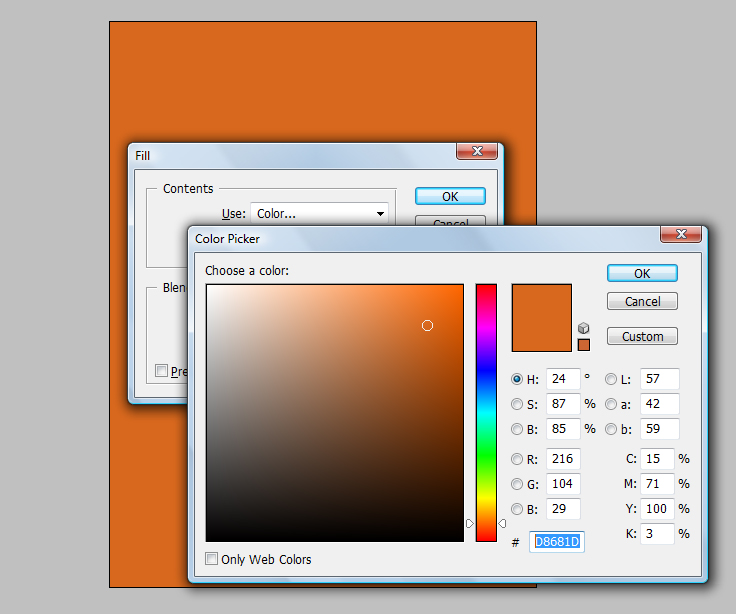
And fill the background with "#D8681D" color. (Shft+f5)
Step 3:
Now download some vector buildings from google..
and take them in the project.. Ive choose one vector building..

Create new file and get your content related photo as a background.. Ive make a architects magazine cover so I choose a Building photo..
( Click Here to take this image )
And fill the background with "#D8681D" color. (Shft+f5)
Make the opacity of layer to 85% - 90% .
Step 2:
Now select your font (Use Slandered fonts used for cover design) and add title and subtitle.
Remember that Title has larger font size than Subtitle.

Step 2:
Now select your font (Use Slandered fonts used for cover design) and add title and subtitle.
Remember that Title has larger font size than Subtitle.
Step 3:
Now download some vector buildings from google..
and take them in the project.. Ive choose one vector building..
Make this Layer property to "Multiply"

Done..!!
Saturday, March 28, 2015
but,
cover,
immpresive,
magazine,
simple
0
comments
Simple But Immpresive Magazine Cover
Making Simple Magazine Cover
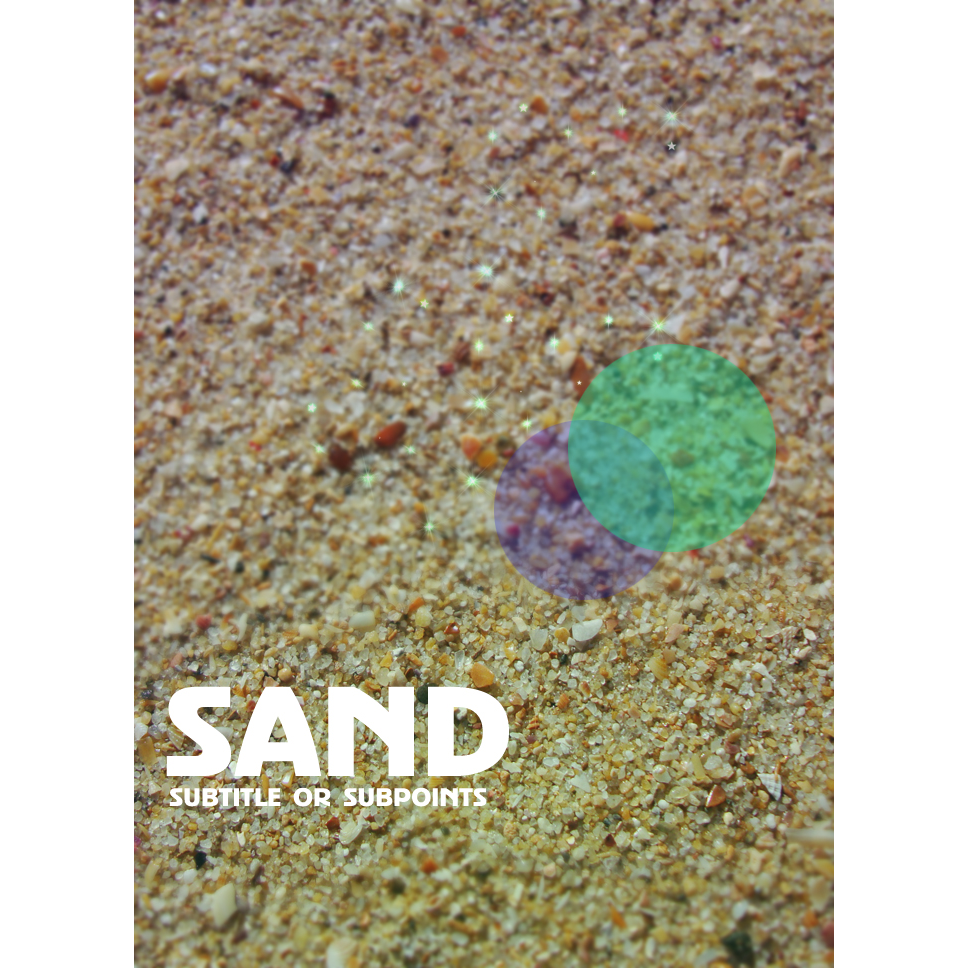
Final view
Step 1:
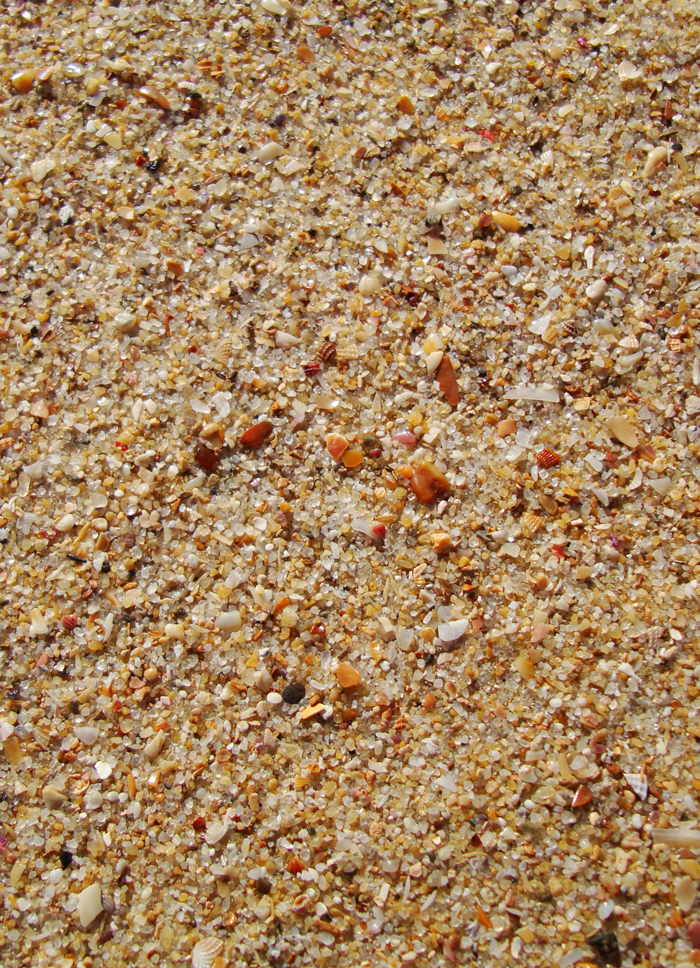
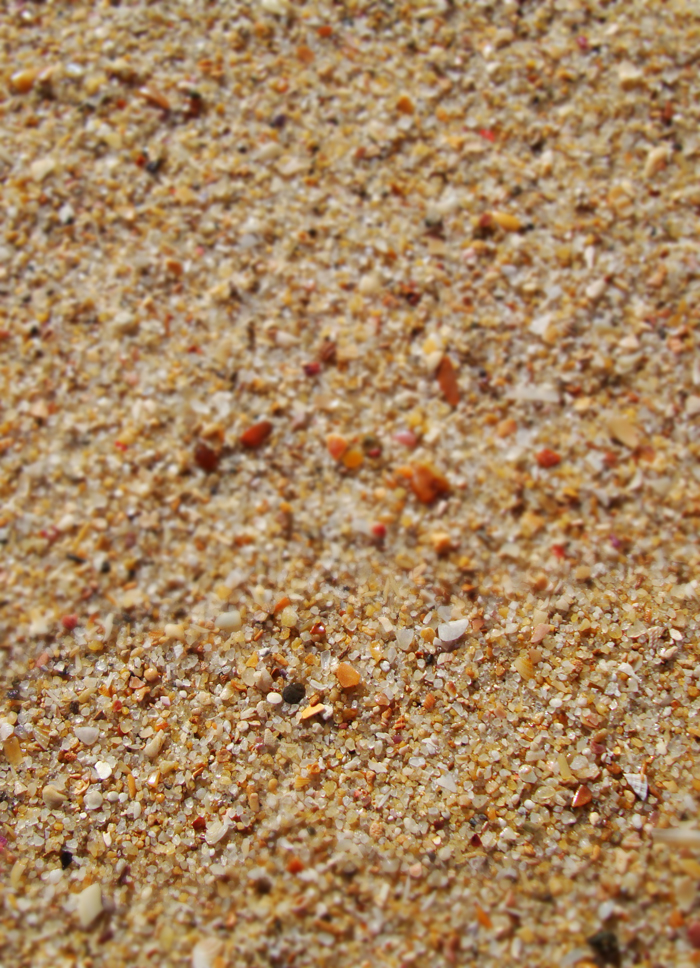
Choose photo for background.
Choose photo for background.
Step 2:
Select the Blur tool from tool box and blur some area.
Step 3:
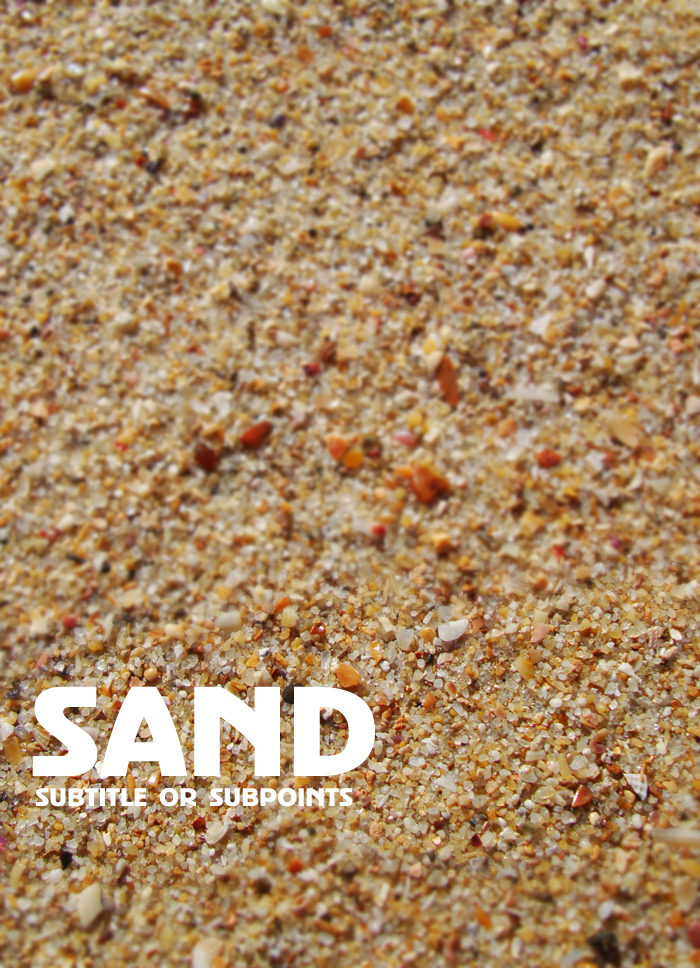
Now select Horizontal Type Text Tool and add magazine cover title and subtitle.
Step 4:
Now Make a new layer (Ctrl+Shft+N).
Select Elliptical Marquee tool and drag cursor on layer.
Now Make a new layer (Ctrl+Shft+N).
Select Elliptical Marquee tool and drag cursor on layer.
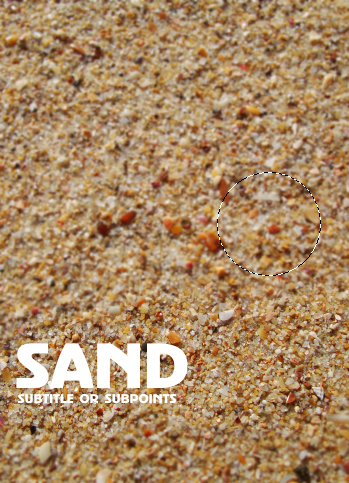
Press Shft+f5 (color fill). and fill color.
fi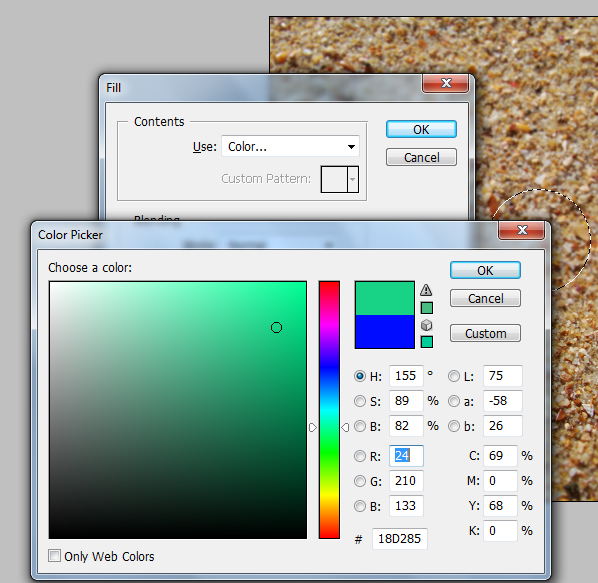
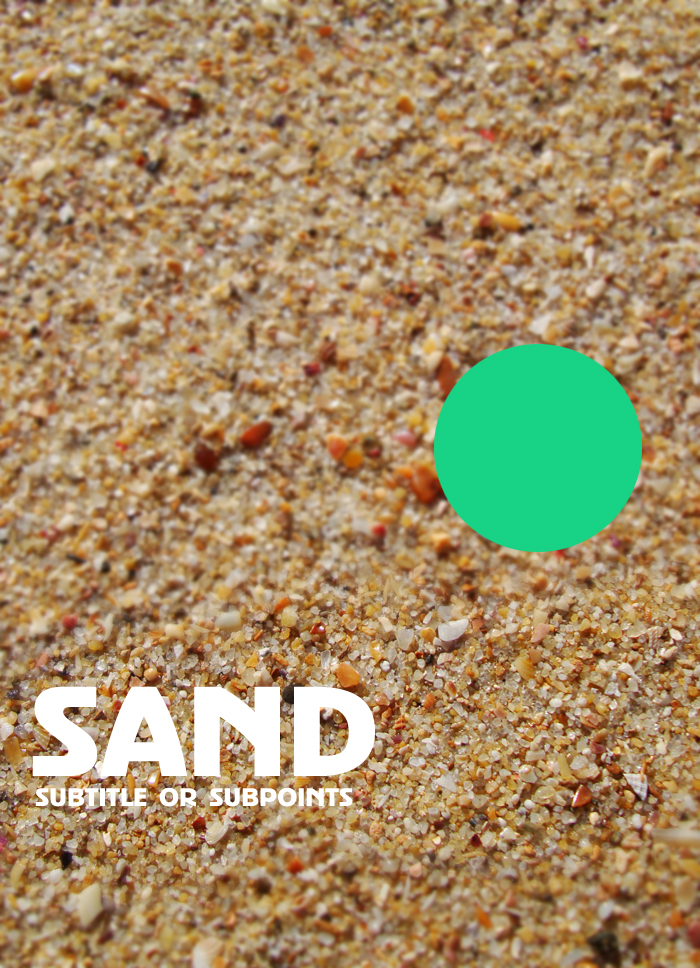
Make the layer opacity to 50% to 60%.
Again make a new layer ---> select Elliptical marquee tool ---> draw a circle --> fill it with different color(Shft+f5) ---> and make opacity to 50%.
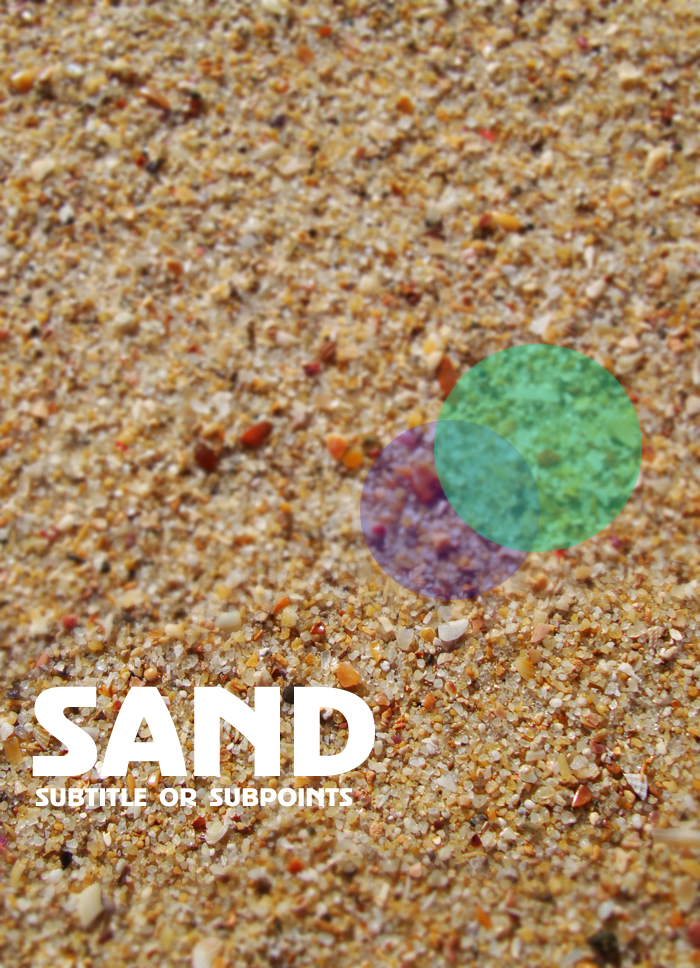
Step 5:
Make a new layer above the background layer(Ctrl+Shft+N).
Select Gradient Fill tool and select the two colors which you are selected for the two circles.
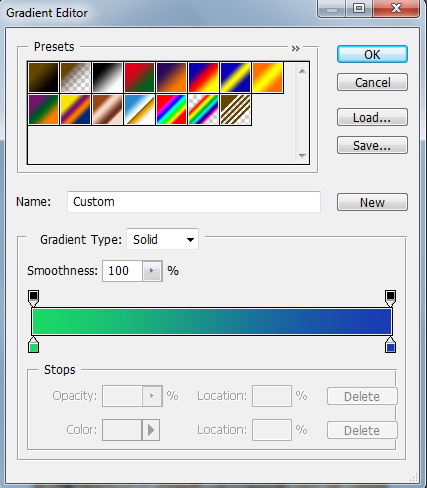
Drag the pointer on layer and make the opacity of the layer to 30%.
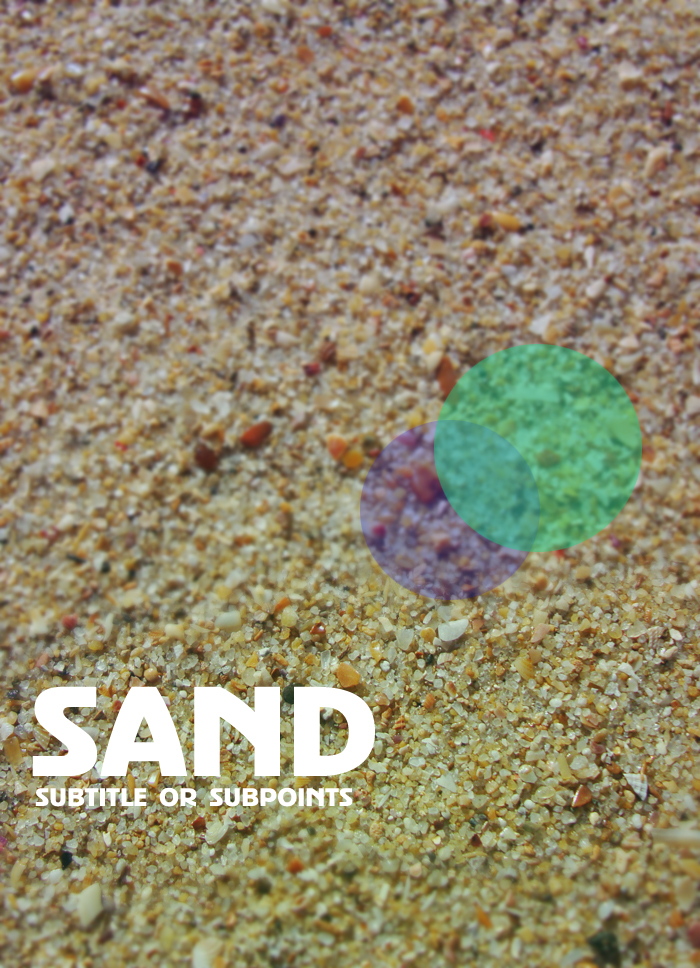
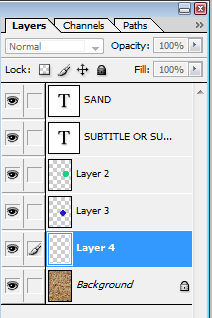
Now select Brush tool and drop some stars on new layer.
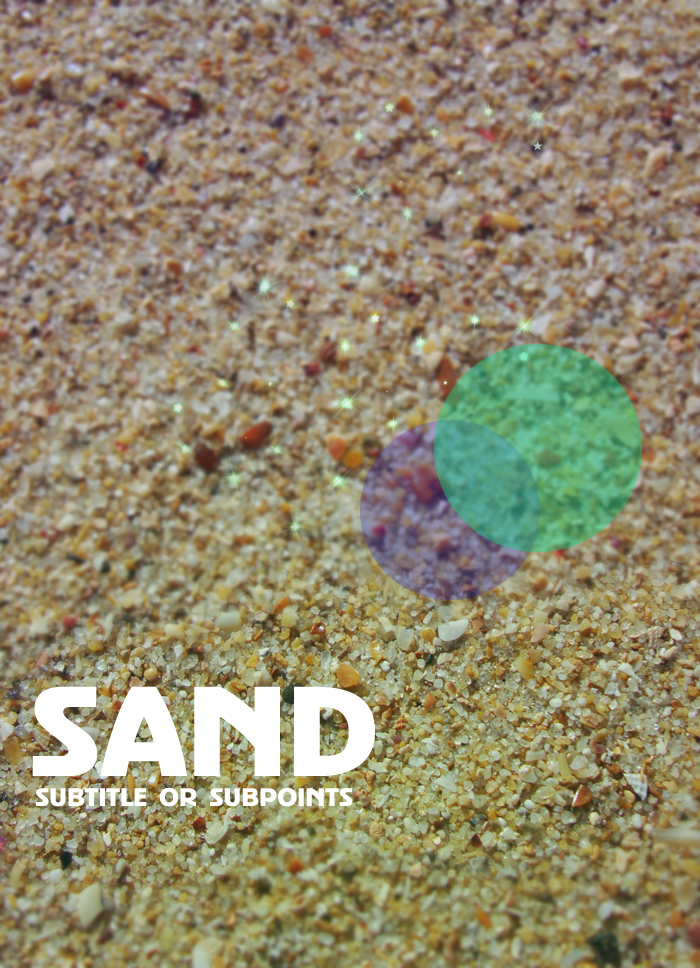
Done..!!
Subscribe to:
Posts (Atom)


- Follow Us on Twitter!
- "Join Us on Facebook!
- RSS
Contact