Showing posts with label gothic. Show all posts
Showing posts with label gothic. Show all posts
Gothic Text Effect
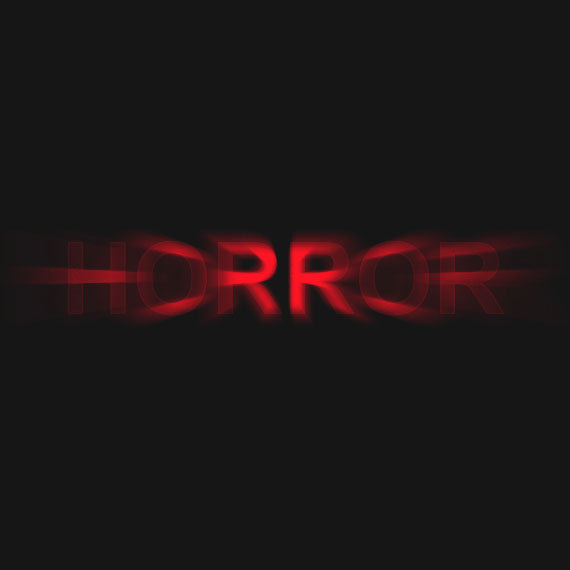
The Gothic text Effect Used for making horror photos, ghost photos, Horror movie posters, danger, warning banners and more ..
Final view
Step 1:
Create new file and fill the background with Black color.
Create new file and fill the background with Black color.

Step 2:
Make a new layer (Ctrl+Shft+N) Name it "layer 1".
Select Horizontal type Mask Tool from tool box by right clicking on text tool.
Type HORROR or your text.
Select Horizontal type Mask Tool from tool box by right clicking on text tool.
Type HORROR or your text.

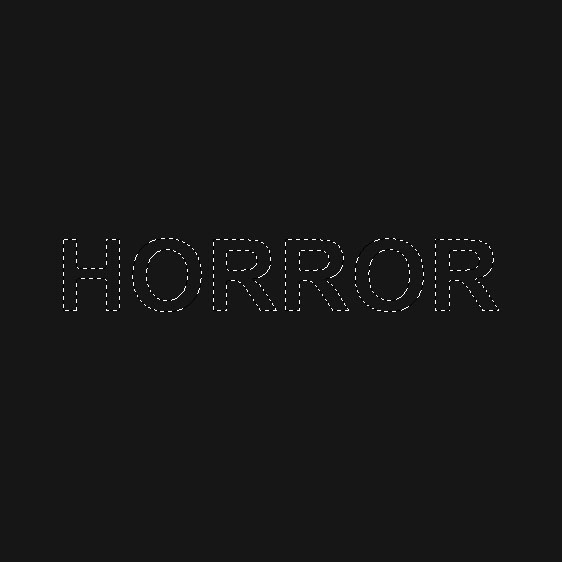
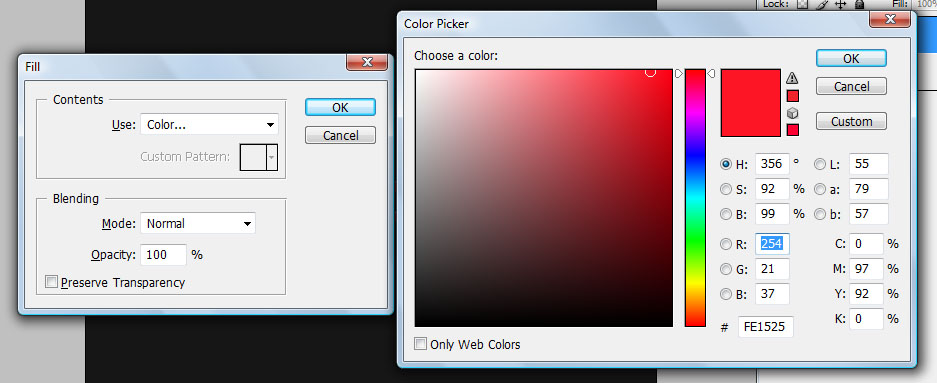
Now Press Shft+f5 to fill the color in selected text.And add red color.
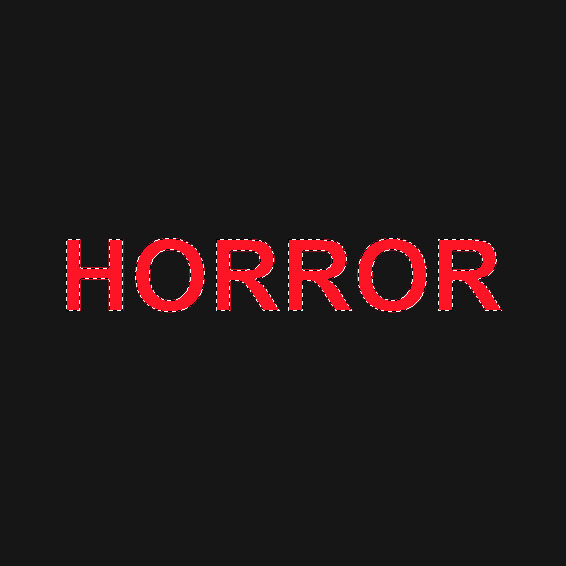
Select eraser tool and erase the left side area.
Step 3:
Go to Select ---> Feather ---> set radius to "1" ---> OK.
Now Go to filter ---> Blur ---> Radial Blur.
Select Blur method to "Zoom", Quality to "Best", and set amount to 100.
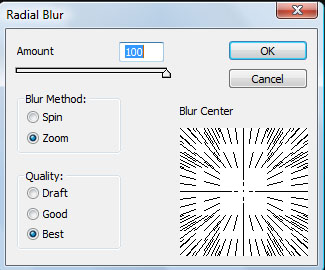
Select Blur method to "Zoom", Quality to "Best", and set amount to 100.
Hit OK.
NOTE : For better effect you can apply radial blur 2 times.
NOTE : For better effect you can apply radial blur 2 times.
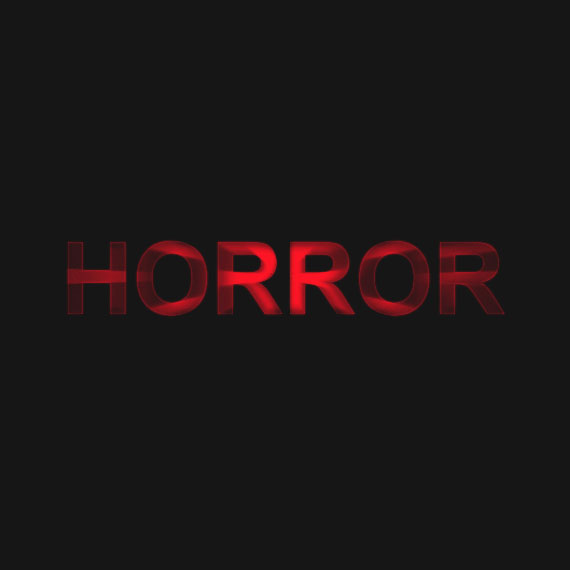
Step 4:
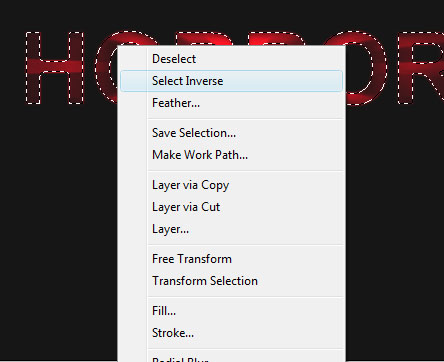
Now right click on the Layer and click on "Select Inverse".
Now right click on the Layer and click on "Select Inverse".
Doing this the remaining area will get selected.
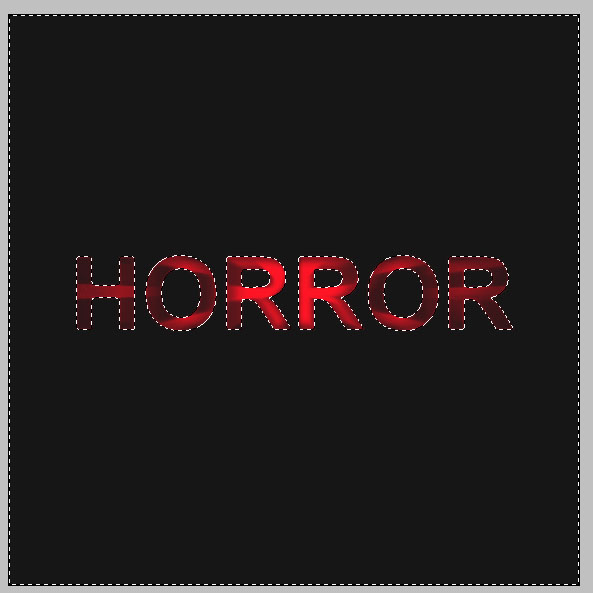
Step 5:
Now Go to filter ---> Blur ---> Radial Blur.
Select Blur method to "Zoom", Quality to "Best", and set amount to 100. and hit OK
Done..!!

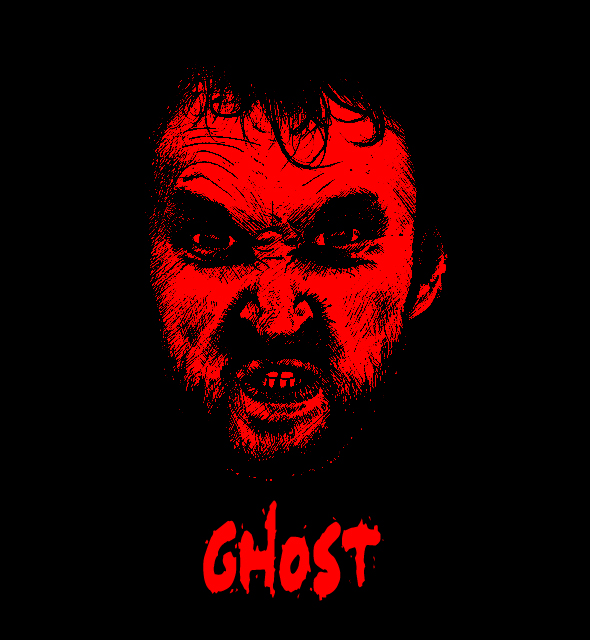
Ghost Photo Effect
Final view
Step 1:
Select Angry photo to edit.
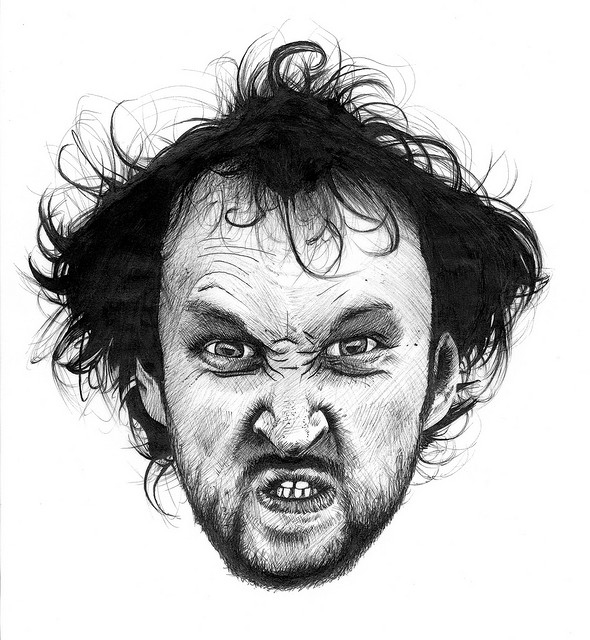
Select Angry photo to edit.
Step 2:
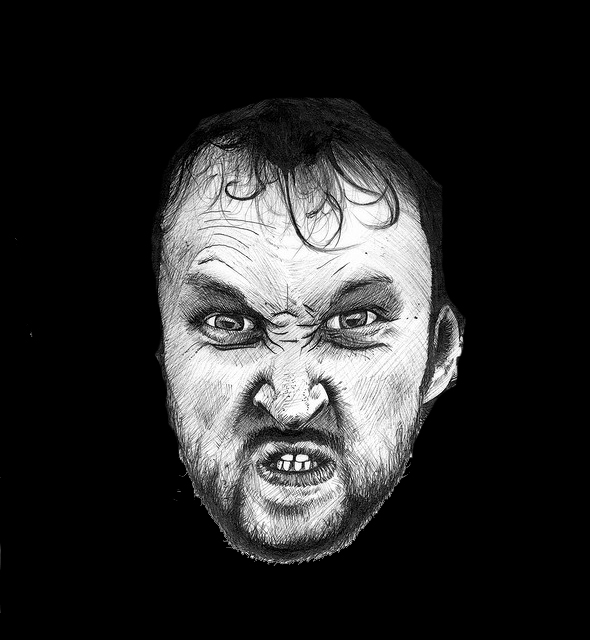
For giving Gothic effect, First Paint your background with Black color..
and copy the angry mans image on it.
Select eraser tool and erase white area of the image..
Press Ctrl+L (levels) and increase darkness of the image..
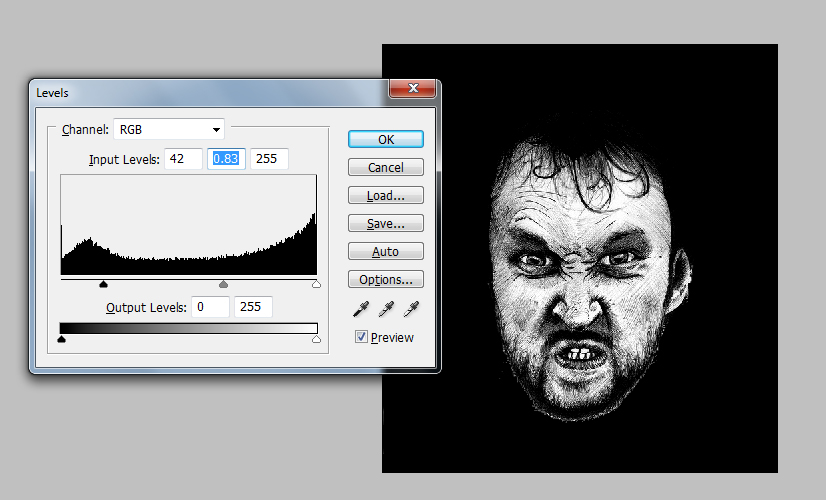
Hit OK.
Step 3:
Now go to Select ---> Color Range.
Select Highlight from combo and press OK.
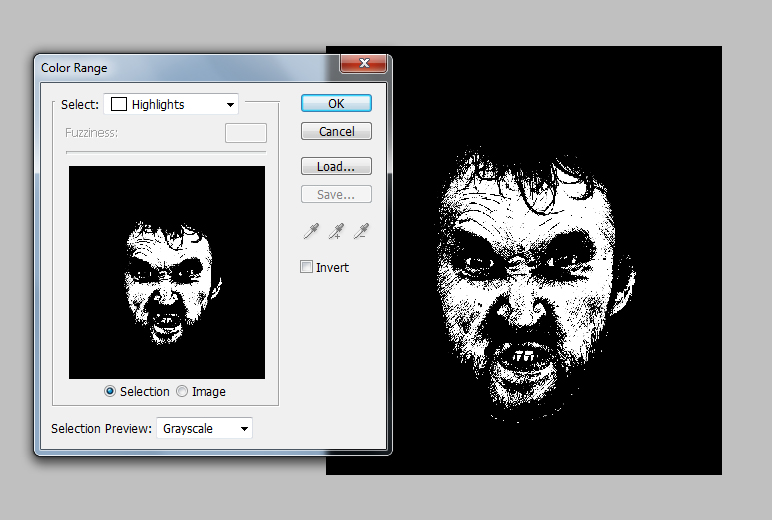
When you press OK, The highlighted area get selected..
Copy and Paste this selected area.. Now your layers will looks like this..
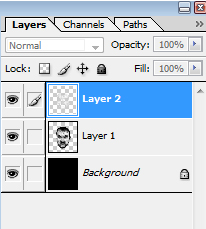
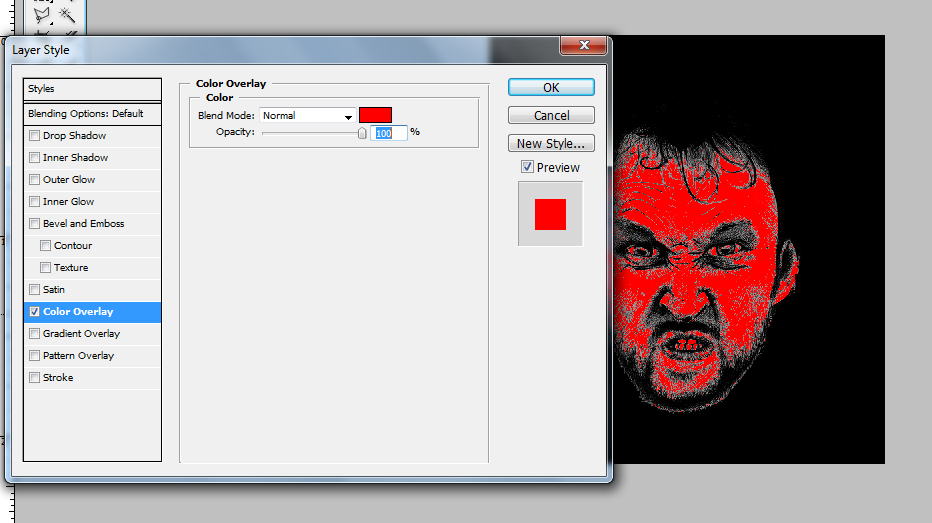
Select the Upper layer (layer2), and go to Blending Options ---> Color Overlay.
Select Red color and Hit OK.
Step 4:
Now Hide layer1... you will get the horror photo.
Select any ghost font and add your text..
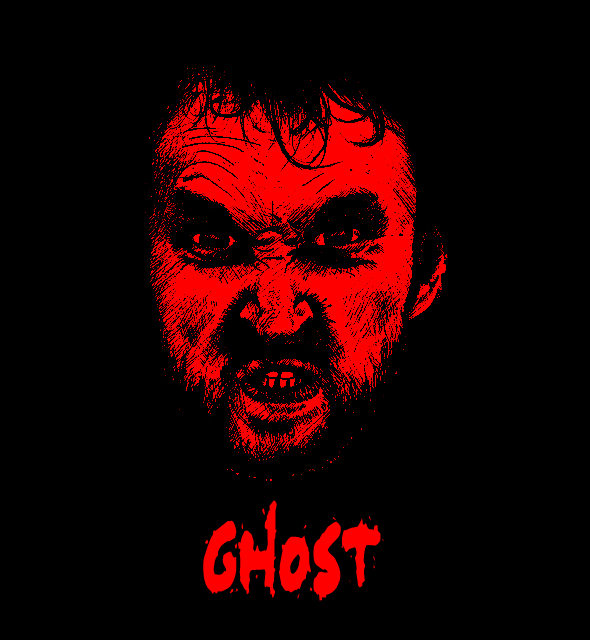
Now Hide layer1... you will get the horror photo.
Select any ghost font and add your text..
Done..!!
Wednesday, March 18, 2015
best,
effect,
gothic,
make,
photo,
picture
0
comments
Make Gothic Picture Best Photo Effect
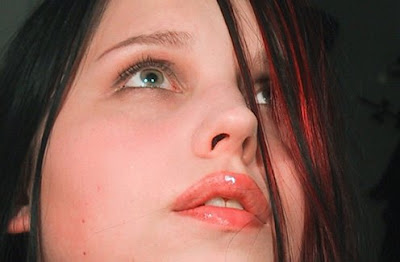
To get started, pick a picture you want to manipulate, or use this same one.
1. Use the tool named Dodge Tool to get a whiter effect over the skin. You can find it in the left tool bar.
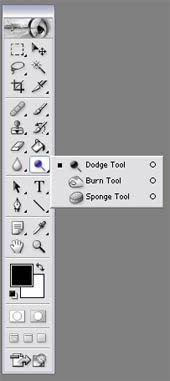
I usually use that tool in a %45 exposure.
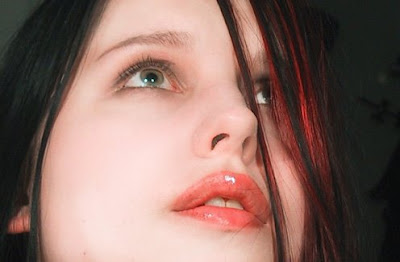
2. Now we will desaturate the skin color with the Sponge Tool also in the left tool bar. %100 flow.
Look for it in the same place where the Dodge Tool is, you just have to click over it, and you will see another two options hidden in the same place. (my english sucks, I know it, but try to follow…)
Now that the skin looks dead enough, will work on the eyes.
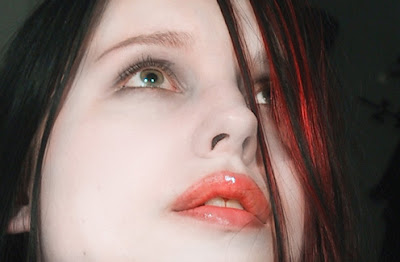
3. Now pick the Dodge Tool again, and apply it over the eyes.
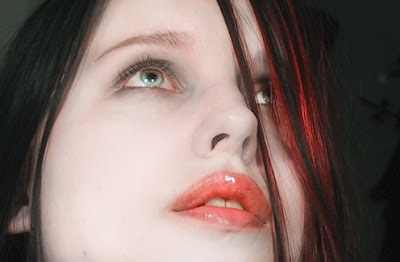
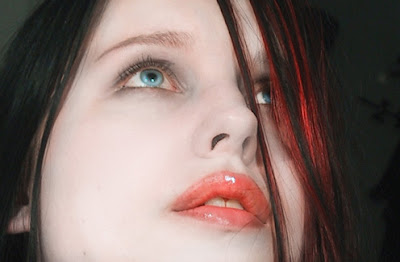
4. Pick a color you like for the eyes. I like light blue…
Use the color with an opacity of %18, we dont want to lose all the little details of the eye.
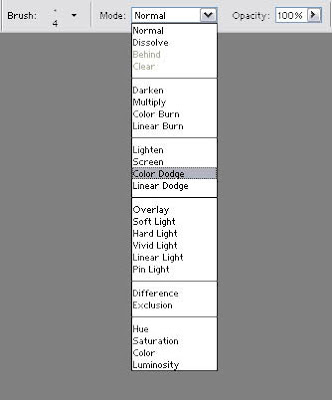
5. If you want to add more light to the eye, use a regular brush, white color, and select Mode: Color Dodge %35 opacity.
Like this…
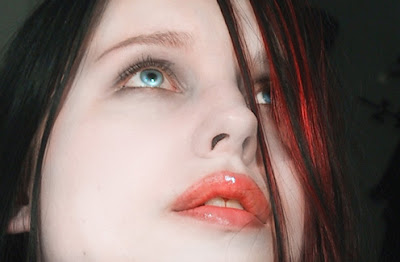
6. Now the make up…
Black color, opacity %18, and apply it around the eye a few times. Darker in the center, and softer on the edges.
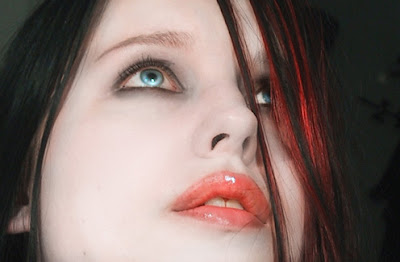
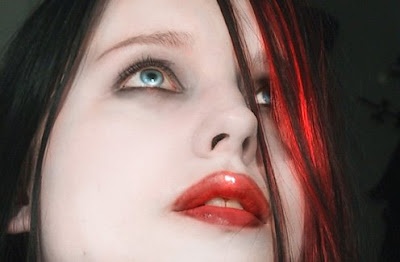
7. You can also work on the mouth with the Burn Tool also placed below the Dodge Tool.
This tool is very good when you need to add shadows or you want something to look darker. Also, dont forget to use the Blur Tool to correct the skin, and make it look softer and silky.
Read more »
1. Use the tool named Dodge Tool to get a whiter effect over the skin. You can find it in the left tool bar.
I usually use that tool in a %45 exposure.
2. Now we will desaturate the skin color with the Sponge Tool also in the left tool bar. %100 flow.
Look for it in the same place where the Dodge Tool is, you just have to click over it, and you will see another two options hidden in the same place. (my english sucks, I know it, but try to follow…)
Now that the skin looks dead enough, will work on the eyes.
3. Now pick the Dodge Tool again, and apply it over the eyes.
4. Pick a color you like for the eyes. I like light blue…
Use the color with an opacity of %18, we dont want to lose all the little details of the eye.
5. If you want to add more light to the eye, use a regular brush, white color, and select Mode: Color Dodge %35 opacity.
Like this…
6. Now the make up…
Black color, opacity %18, and apply it around the eye a few times. Darker in the center, and softer on the edges.
7. You can also work on the mouth with the Burn Tool also placed below the Dodge Tool.
This tool is very good when you need to add shadows or you want something to look darker. Also, dont forget to use the Blur Tool to correct the skin, and make it look softer and silky.
Subscribe to:
Posts (Atom)


- Follow Us on Twitter!
- "Join Us on Facebook!
- RSS
Contact