Showing posts with label artistic. Show all posts
Showing posts with label artistic. Show all posts
Wednesday, April 1, 2015
artistic,
black,
making,
photo,
white
0
comments
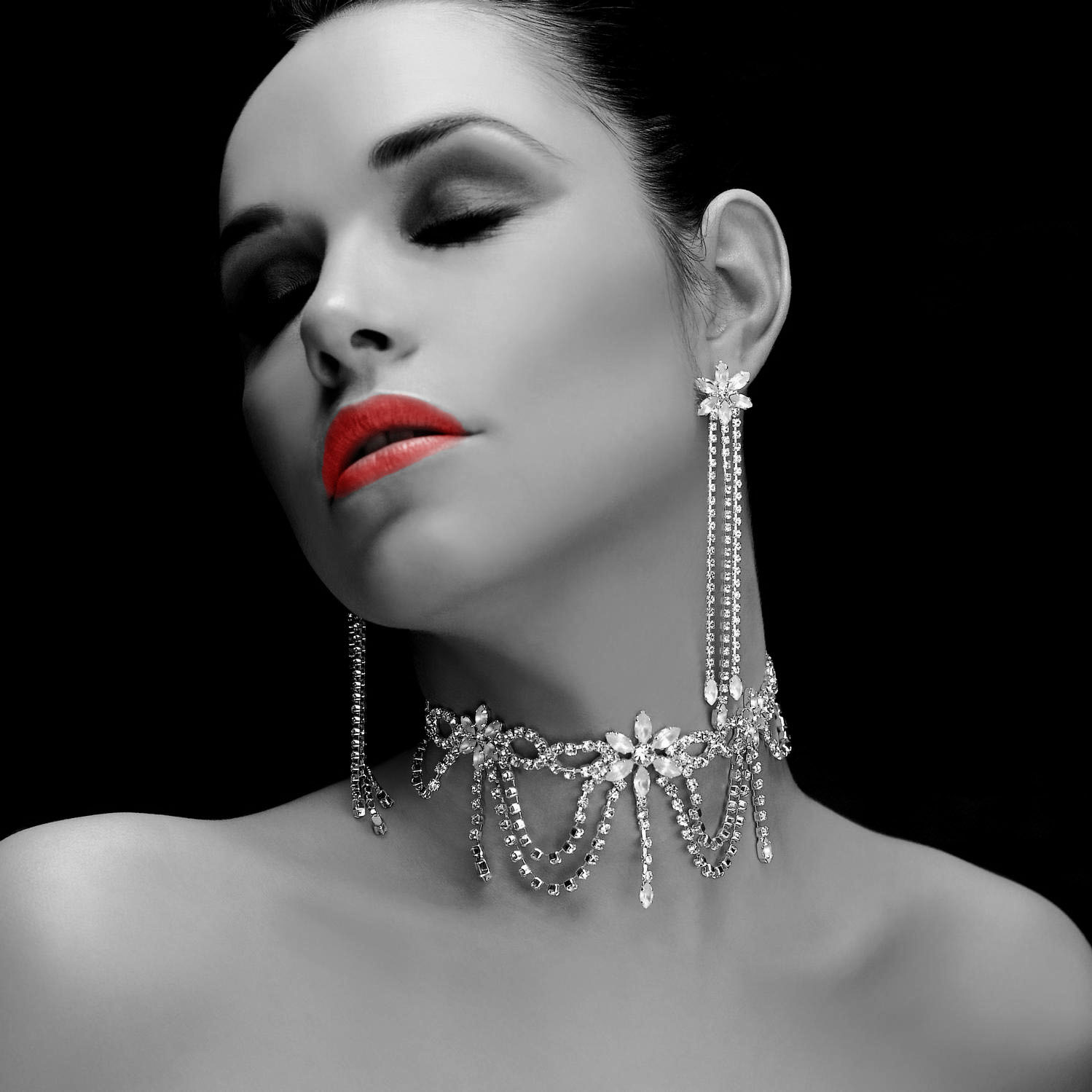
Making Artistic Black White Photo
Making Artistic Photo
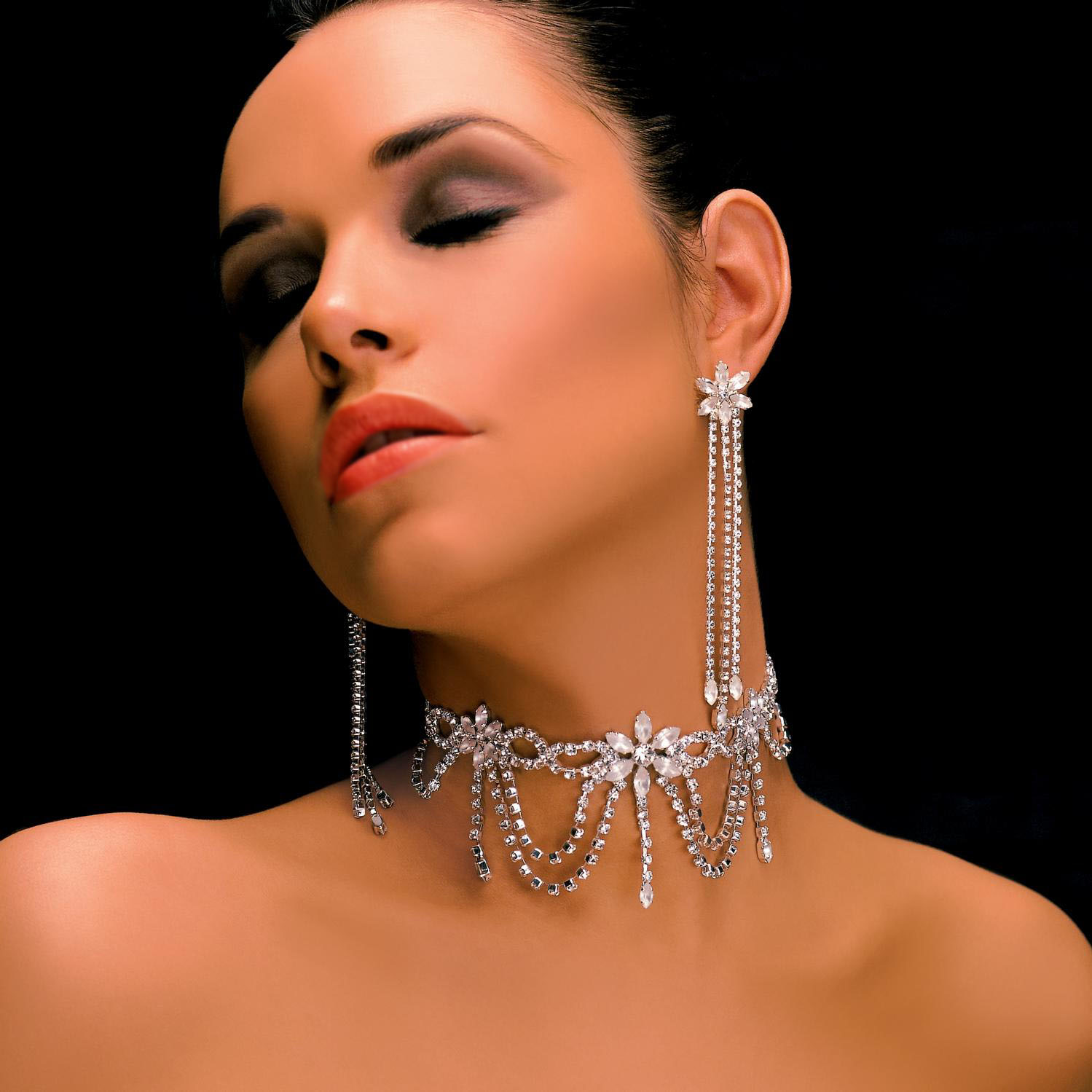
Final view
Final view
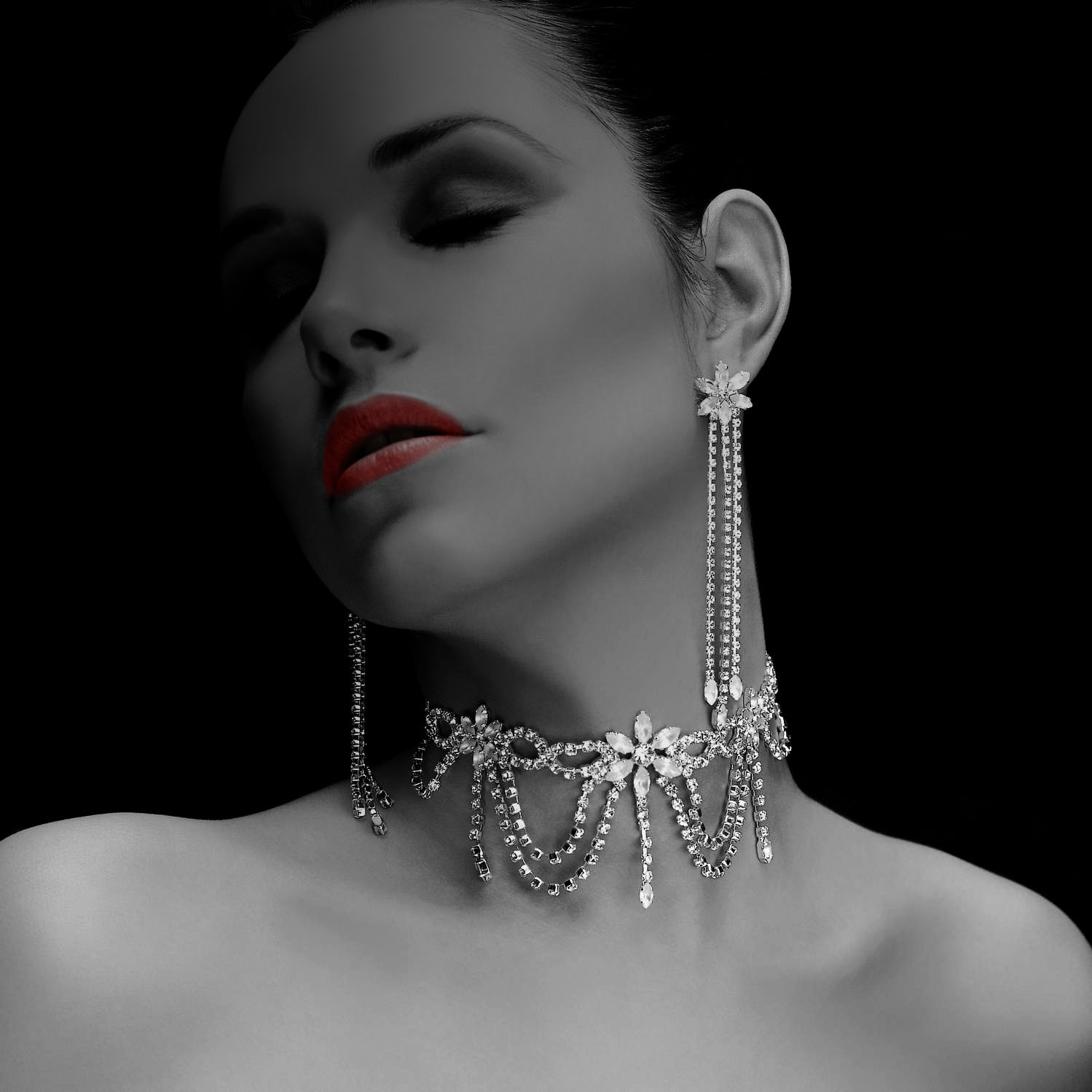
Step 1:
Take/Choose photo to giving artistic effect.
Take/Choose photo to giving artistic effect.
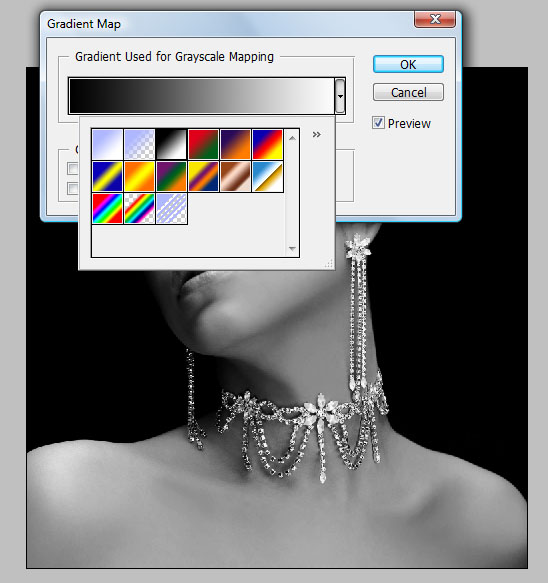
Step 2:
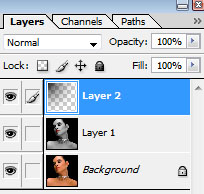
Make a Duplicate layer by pressing Ctrl+J.
Select upper layer and go to Image ---> Adjustments ---> Gradient Map.
Select upper layer and go to Image ---> Adjustments ---> Gradient Map.
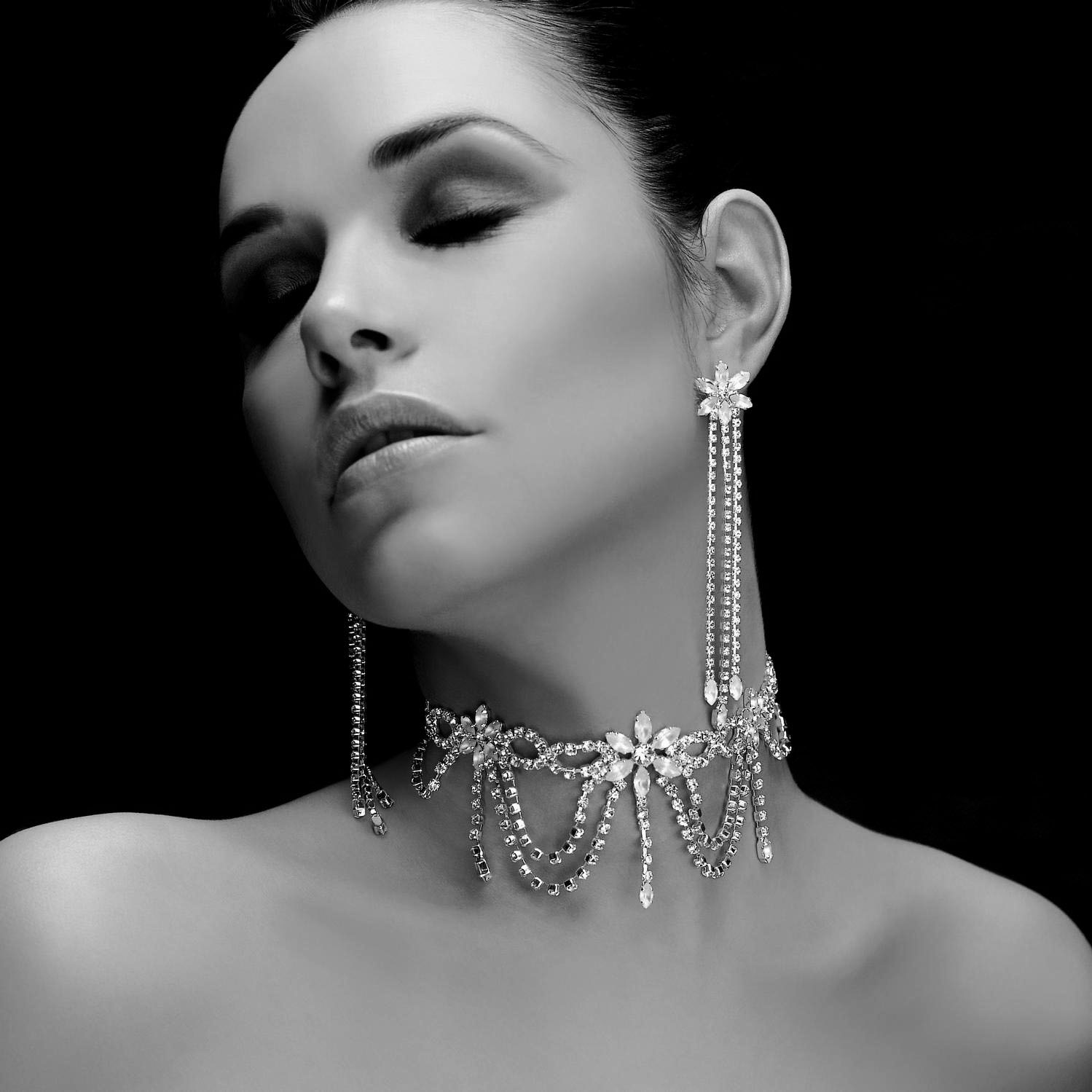
Step 3:
Now select Only Lips By "Plygon Lesso Tool" and Press "Ctrl+B(color balance)".
Increase the red color.
Increase the red color.
Step 4:
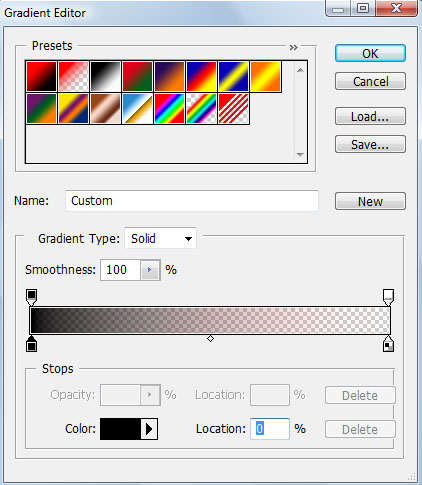
Now Make a new layer (Ctrl+Shft+N).
Select Gradient fill tool from tool box. and select only one color pattern (Black + Transparent).
Now Make a new layer (Ctrl+Shft+N).
Select Gradient fill tool from tool box. and select only one color pattern (Black + Transparent).
Done..!!

Sunday, March 29, 2015
a,
artistic,
cutout,
effect,
giving,
or,
photo,
to
0
comments
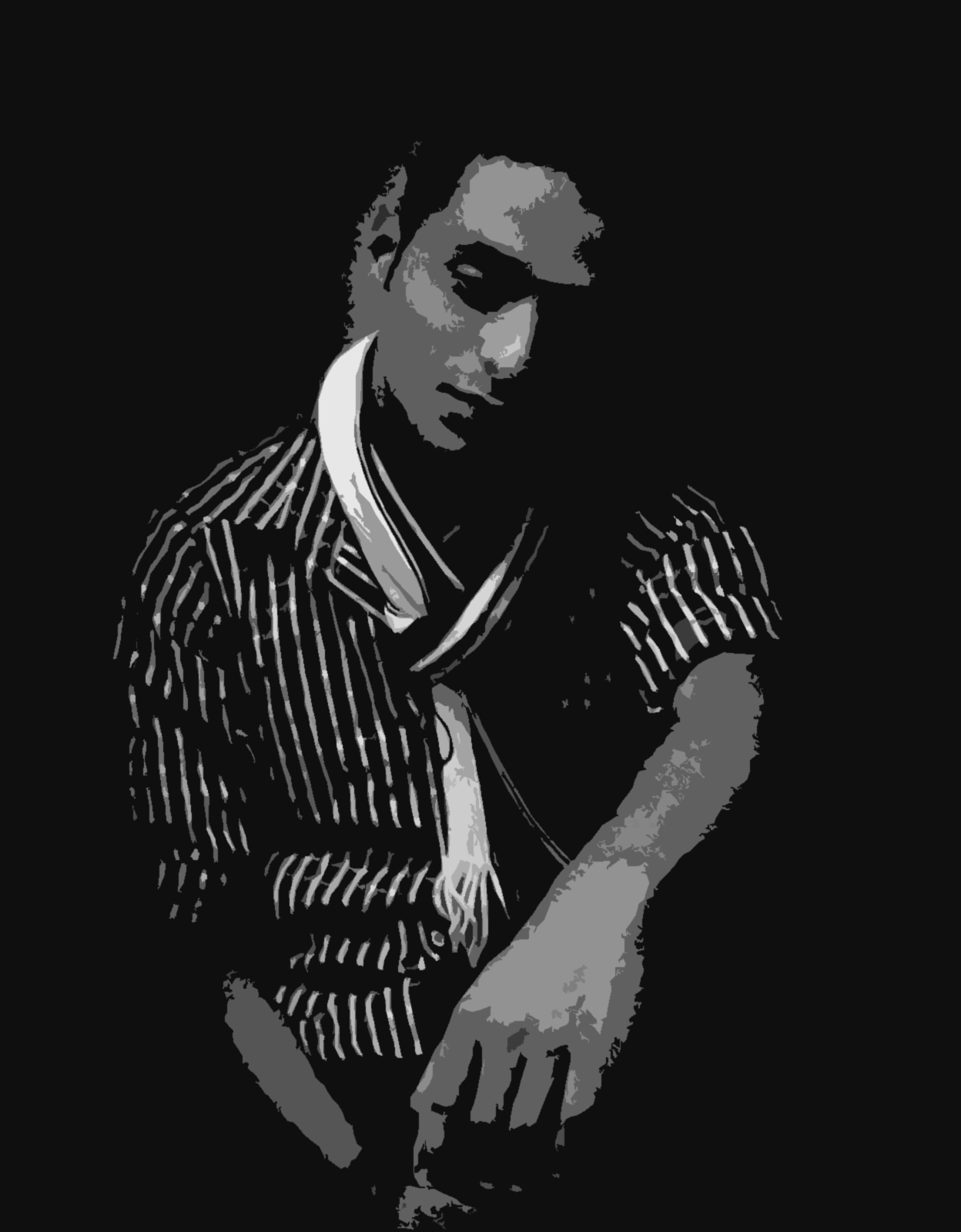
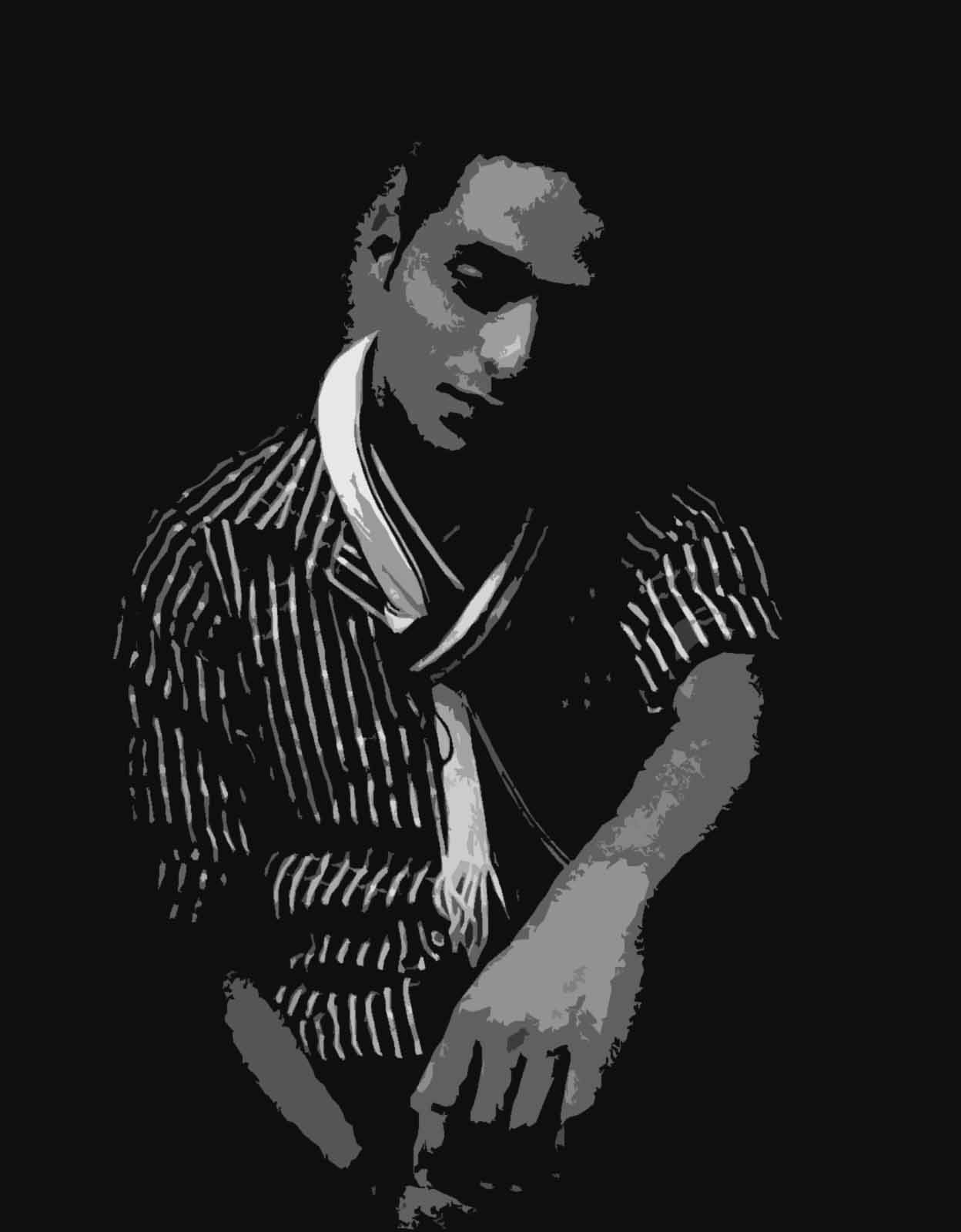
Giving Cutout Effect or Artistic Effect to a Photo
Cutout Effect Tutorial
Final View
First get the images
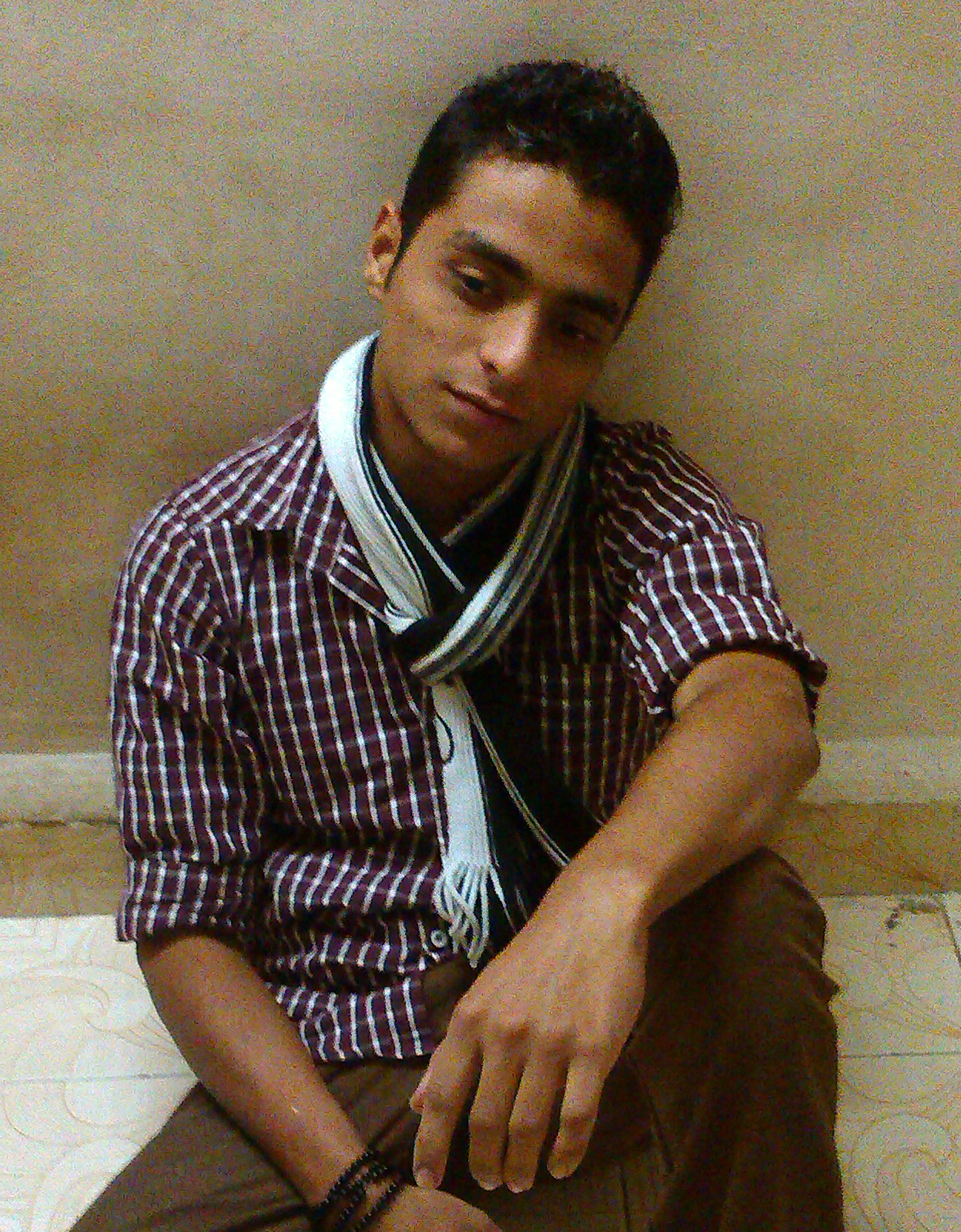
Step 2 :-
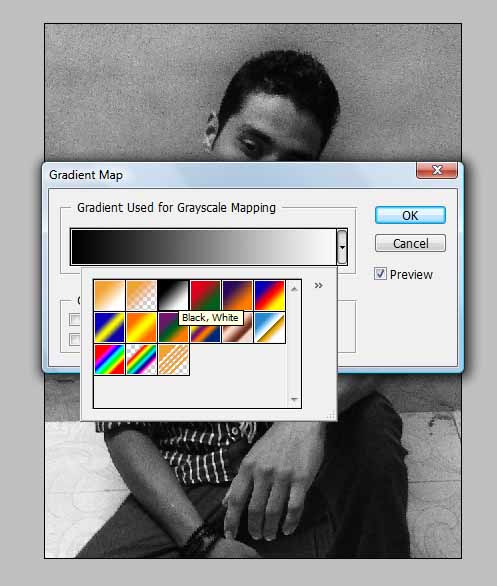
Select the image and go to "Image---> Adjustments---> Gradient Map.
Select the Black and White color (2 color combination). and click OK.
Step 3 :-
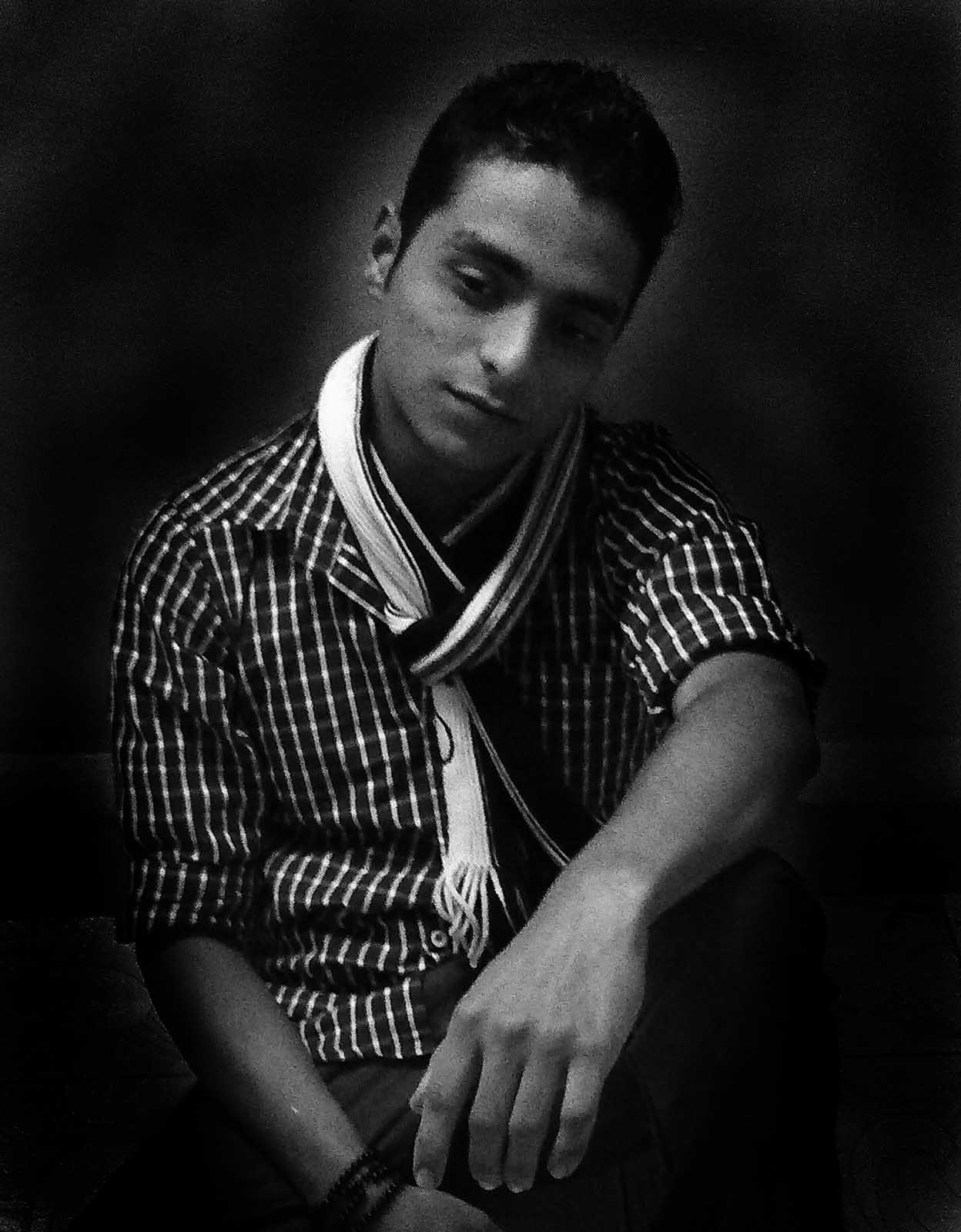
Now select the Burn tool from tool box, and burn the background of the image.
Note :- While Burning the background, remember that the Object or person remains as it is, burn only background.
Step 4 :-
Now go to "Filter ---> Artistic ---> Cutout"
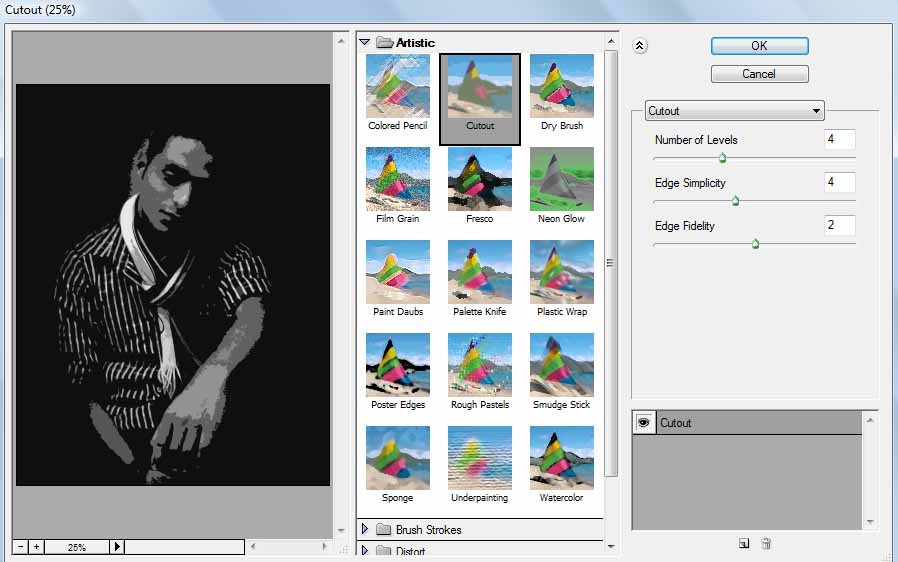
Click "OK"
and youll get final image.
Step 5 :-
You can add the name or color in it if you want..
Adjust the color balance by pressing Ctrl+B.
increase the color which you want and insert the text with your favorite font..

Done...!! :-)
Subscribe to:
Posts (Atom)


- Follow Us on Twitter!
- "Join Us on Facebook!
- RSS
Contact