Showing posts with label organizer. Show all posts
Showing posts with label organizer. Show all posts
Sunday, May 24, 2015
11,
edit,
how,
iptc,
metadata,
multiple,
of,
organizer,
photos,
pse,
to,
using
0
comments
How to edit IPTC metadata of multiple photos using PSE 11 Organizer
PSE Editor provides a way to edit IPTC metadata of an image at a time. However, Organizer did not have a way to edit IPTC metadata till Elements 11 version. With PSE 11, Organizer provides a way to edit IPTC metadata of multiple photos at a time as well.
Here is how you can achieve that:
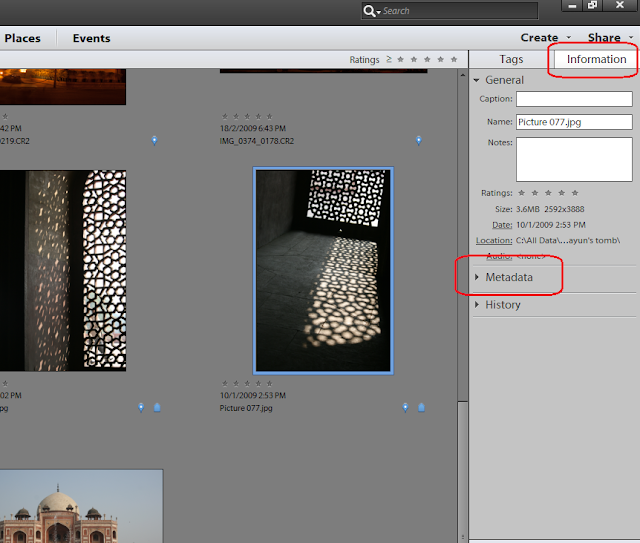
1. For a single image, select a file in Image grid in Organizer. Click on Information tab in right panel as shown, followed by expanding metadata panel as shown in the image below:
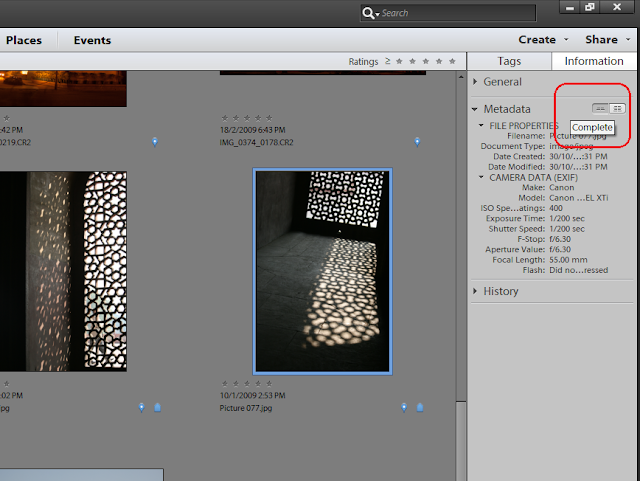
2. Click on the icon shown on right to view Complete metadata of the image selected.
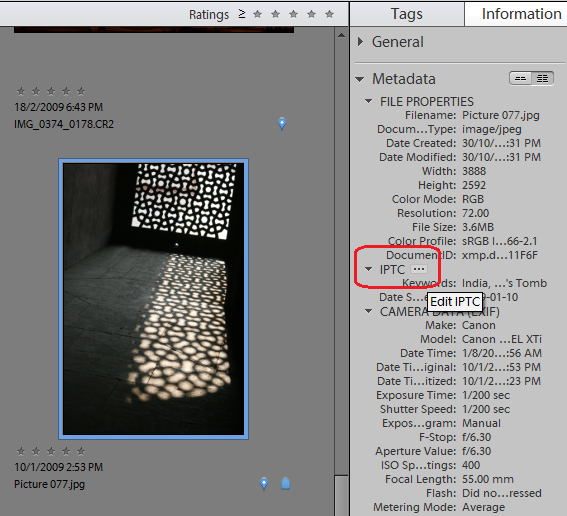
3. Under IPTC header, select the button that shows 3 dots "..."
This launches the following dialog showing IPTC metadata fields. Fill in the metadata and Click Save.
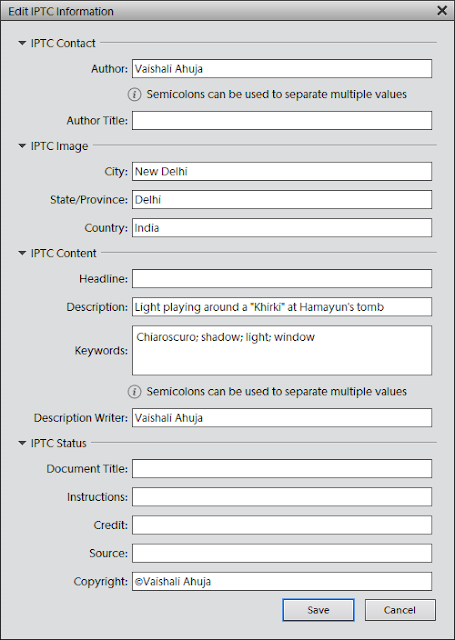
The saved metadata should now appear in metadata panel under IPTC header. To edit this metadata, go to the same dialog with the same steps as above and you can then append or overwrite the existing metadata.
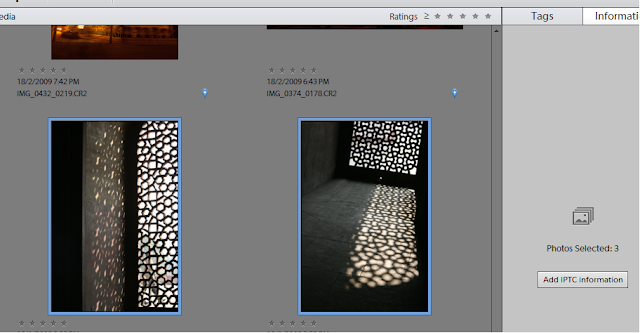
To edit metadata of multiple files, you just need to select multiple files in the image grid and select "Add IPTC information: button in Information panel :
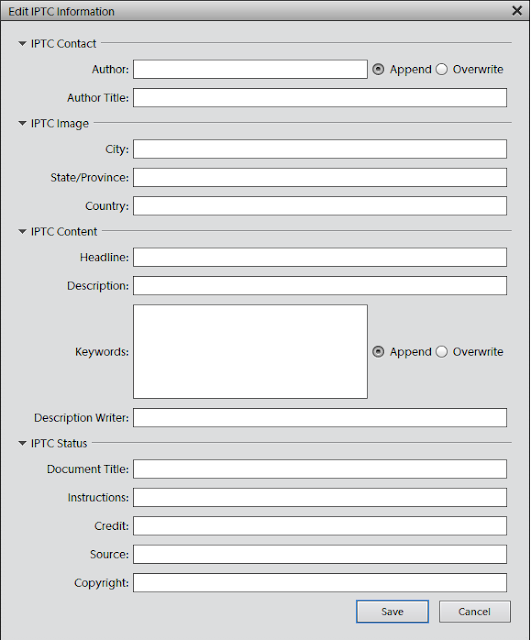
The dialog you see for multiple files is a bit different as it provides a radio button option for Author and Keywords fields to overwrite or append existing values as shown. You can use these options as desired.
Click Save and here you go!
Here is how you can achieve that:
1. For a single image, select a file in Image grid in Organizer. Click on Information tab in right panel as shown, followed by expanding metadata panel as shown in the image below:
2. Click on the icon shown on right to view Complete metadata of the image selected.
3. Under IPTC header, select the button that shows 3 dots "..."
This launches the following dialog showing IPTC metadata fields. Fill in the metadata and Click Save.
The saved metadata should now appear in metadata panel under IPTC header. To edit this metadata, go to the same dialog with the same steps as above and you can then append or overwrite the existing metadata.
To edit metadata of multiple files, you just need to select multiple files in the image grid and select "Add IPTC information: button in Information panel :
The dialog you see for multiple files is a bit different as it provides a radio button option for Author and Keywords fields to overwrite or append existing values as shown. You can use these options as desired.
Click Save and here you go!

Friday, May 22, 2015
awesomeness,
elements,
folders,
in,
of,
organizer,
photoshop,
watch
0
comments
Awesomeness of Watch Folders in Photoshop Elements Organizer
Watch Folders : This functionality is a little hidden in Elements Organizer (File>Watch Folders) and not many know about it usefulness. It is one quick way to get media into your Organizer catalog without bothering about manually importing into it.
To use it, just make the parent folder (of all your photo folders) as the watch folder and it auto imports the media into your Organizer catalog. As soon as any new picture is added to your watch folder in windows explore or to any child of your watch folder, it would be auto-imported to your Organizer catalog.
For example, mostly all my pictures are dumped to one of following three folders (shown in screenshot). So i have made all three as my watch folders. Hence I never need to import any media to my Organizer catalog.
Awesomeness is added if you say exchange photos or receive photos through dropbox. You can add dropbox as your watch folder. Hence all media comes to your Organizer catalog automatically.

I find this feature very useful as it saves a lot of my time. The dropbox idea was shared by one of the Elements user(Thanks Mellissa) and I really found it useful. So just thought to share this tip with everyone!
Subscribe to:
Posts (Atom)


- Follow Us on Twitter!
- "Join Us on Facebook!
- RSS
Contact