
Step 1
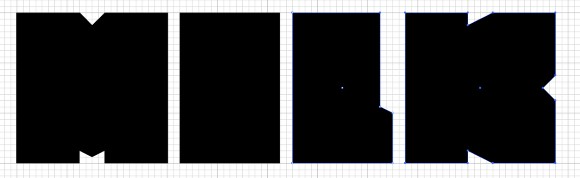
Open Adobe Illustrator and go to View>Show Grid. Then select the Rectangle Tool (M) and create 2 squares and 2 rectangels like the image below.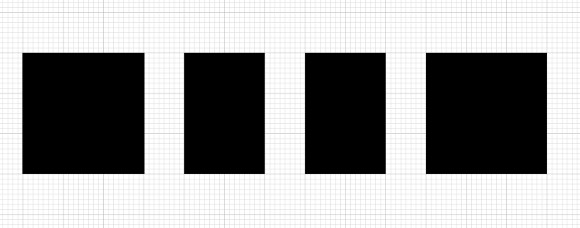
Step 2
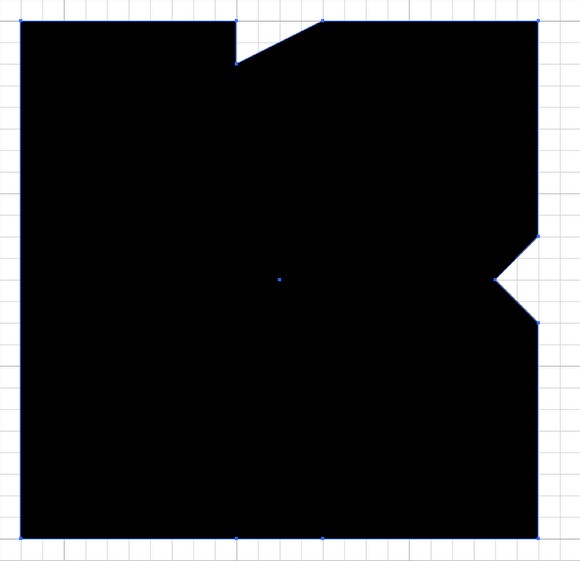
To create the M select the Pen Tool (P) and add 2 points 2 blocks away from the center.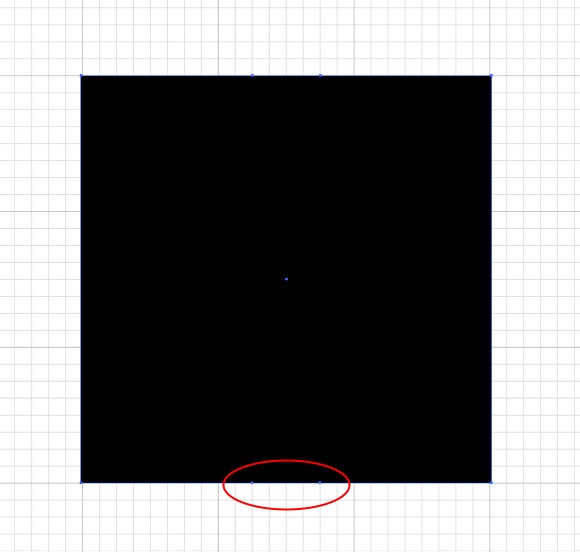
Step 3
Add 2 more points and the move then nudge them up 2 blocks.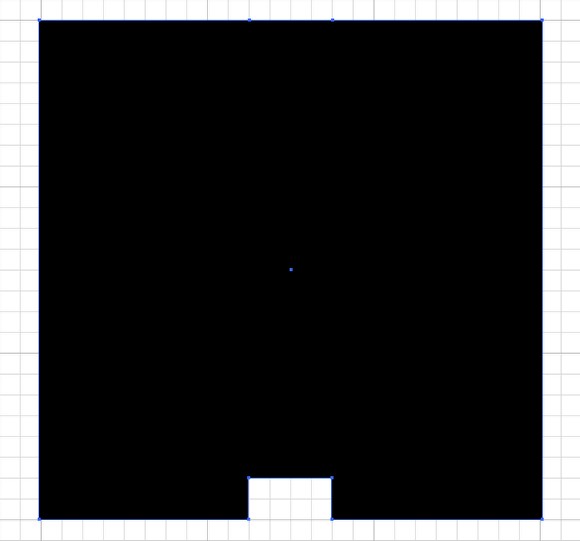
Step 4
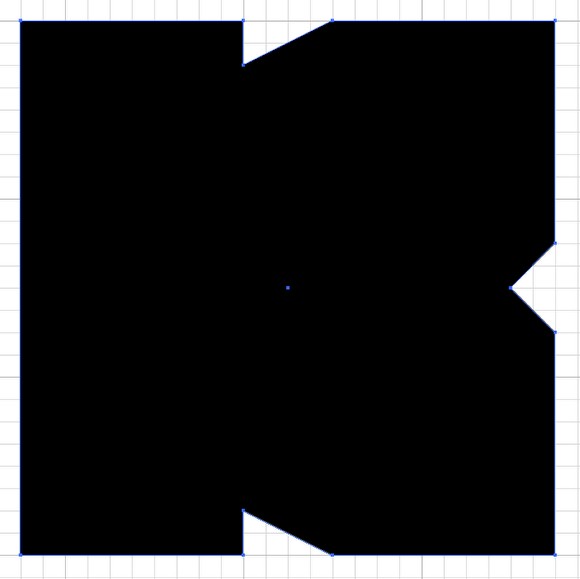
Now add another point in the very middle of the line and then nudge that point down 1 block. Use the image below for reference.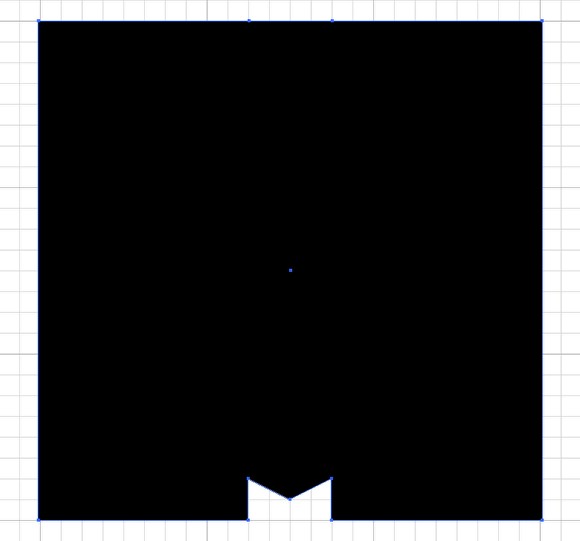
Step 5
To finish the M, again with the Pen Tool (P) add 3 new points but move only the middle one down.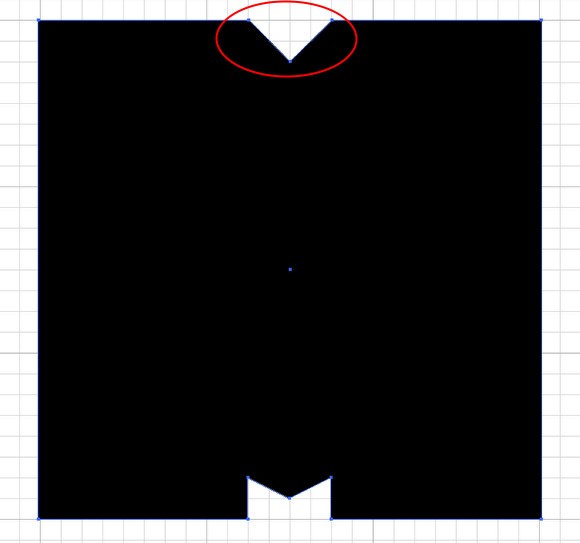
Step 6
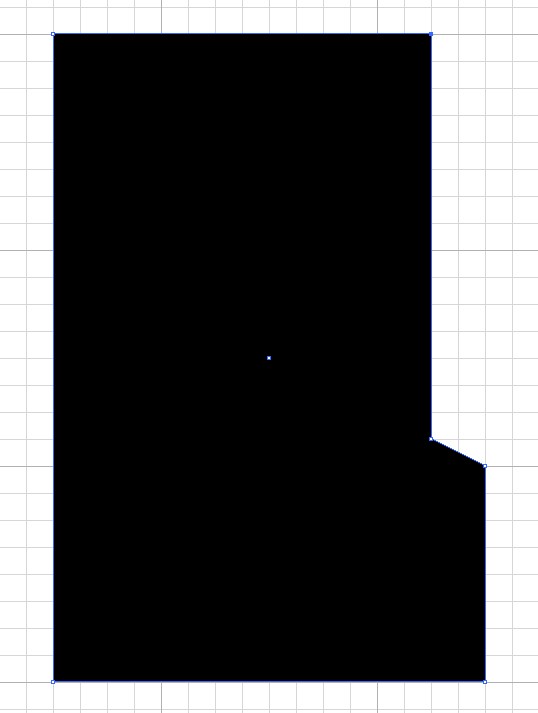
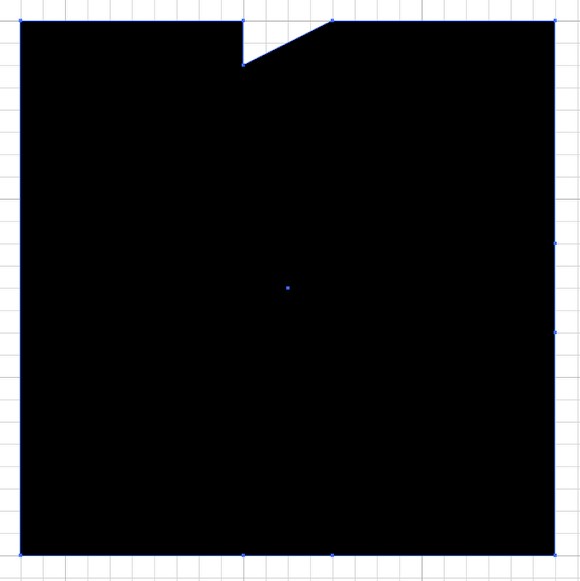
For the other letters its pretty much the same, use the Pen Tool (P) and use the same technique we used for the M. Use the image below for reference.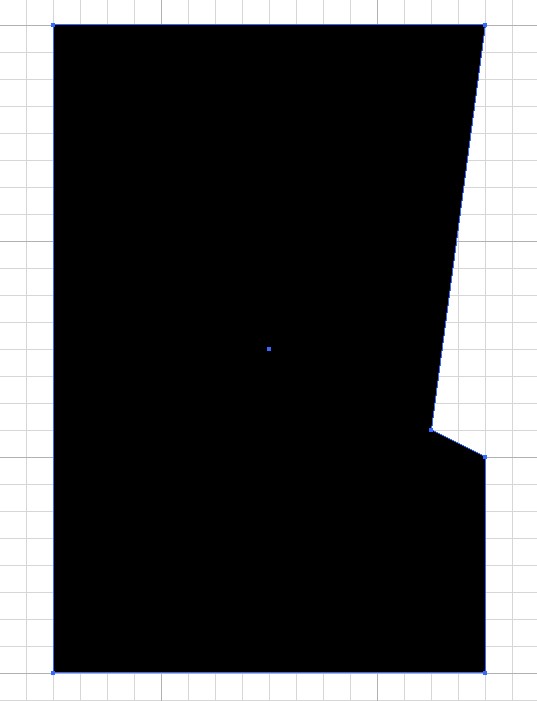
Step 7
Open Photoshop and create a new document, I used 1920x1200 pixels for the size. Then copy the letters from Illustrator and paste them in Photoshop. Each font has to be in one layer. The Background will be black white the word will be white.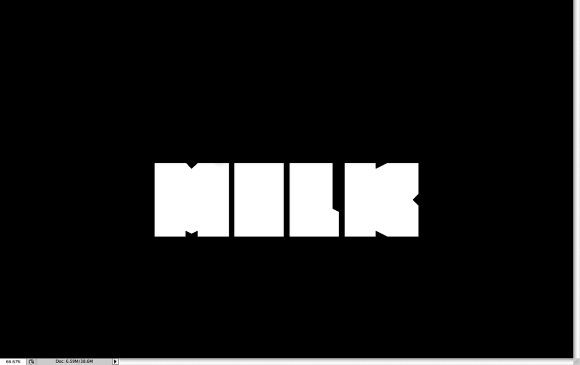
Step 8
To create the milk splashes I used some stock photos. You can download the first image at http://www.shutterstock.com/pic-27264406-splash-in-a-milk-glass.html.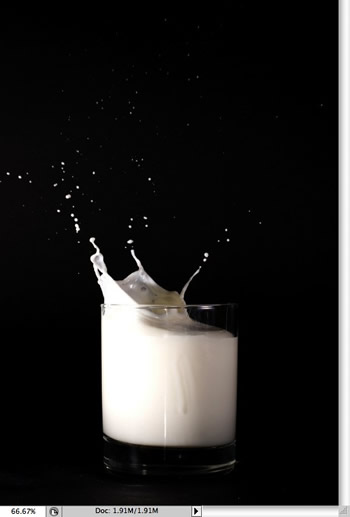
Step 9
Copy the image and paste in the document. Go to Edit>Transform>Scale and resize it so it fits the width of the M. With the Eraser Tool (E) delete some areas at the bottom of the photos. Also with the Stamp Tool (S) paint the parts where you can see the glass, the idea is to hide the glass and leave just the milk parts.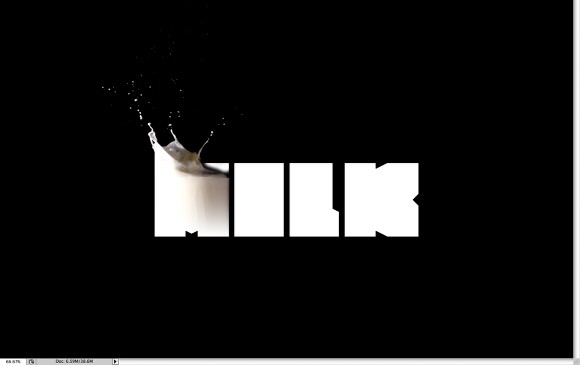
Step 10
With the Eraser Tool (E) erase the part of character M on the top right corner where the effect wasnt looking really nice with the milk spalsh.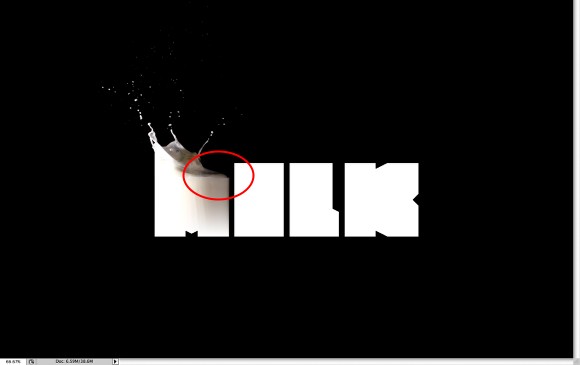
Step 11
For each character we will use a different photo, that way the effect will look more convincing. You can use only one and just tweak it with the warp tool as well. The photo I used for the "I" can be downloaded at http://www.shutterstock.com/pic-12058783-splash-in-a-milk-glass.html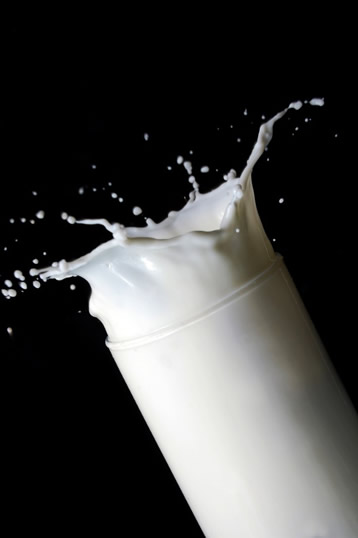
Step 12
Paste the image in the photoshop document then with the Magic Wand Tool (W) select the black area of the image and delete it. Go to Edit>Transform>Rotate. Also resize it so it fit with the width of the "I"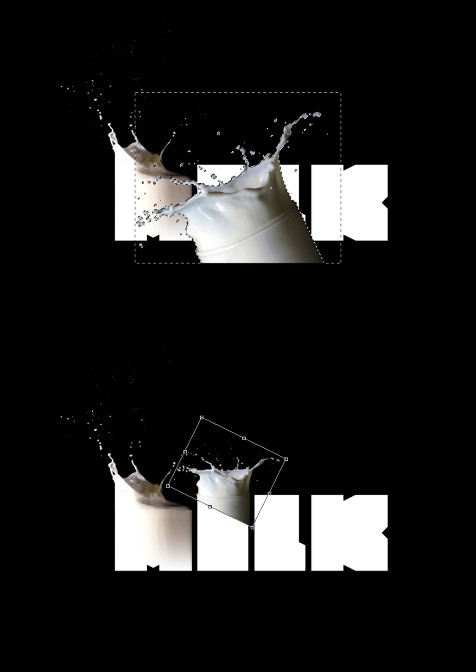
Step 13
With the Rectangular Marquee Tool (M) delete the bottom part of the image where you could see the glass, then select an area that is uniform and go to Edit>Transfor>Scale. Make the area much higher like the image below and then with the Eraser Tool (E) use a very soft brush and delete the bottom of the milk splahs until you have a very smooth transition. You can move down the whole splash a little bit as well.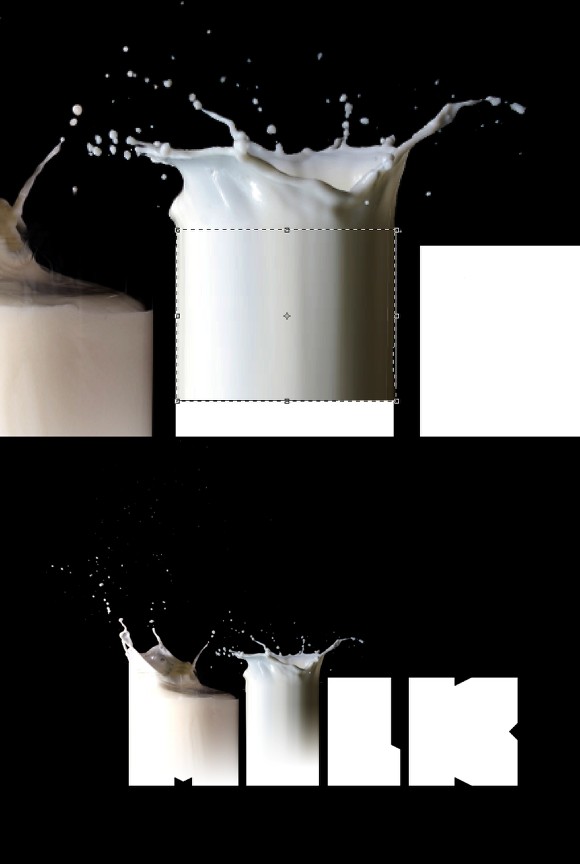
Step 14
Try to look for different images for each characters, for the L I used another photo from Shutterstock, you can download it at http://www.shutterstock.com/pic-10532656-milk-splash-against-dark-background.html. Then repeat the same thing we did for the other letters to match the image with the text.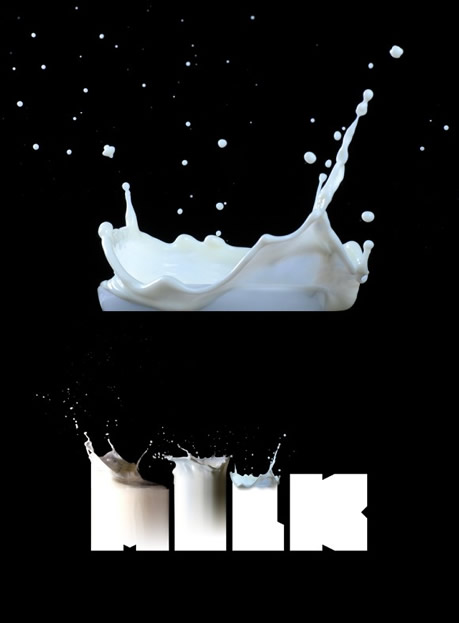
Step 15
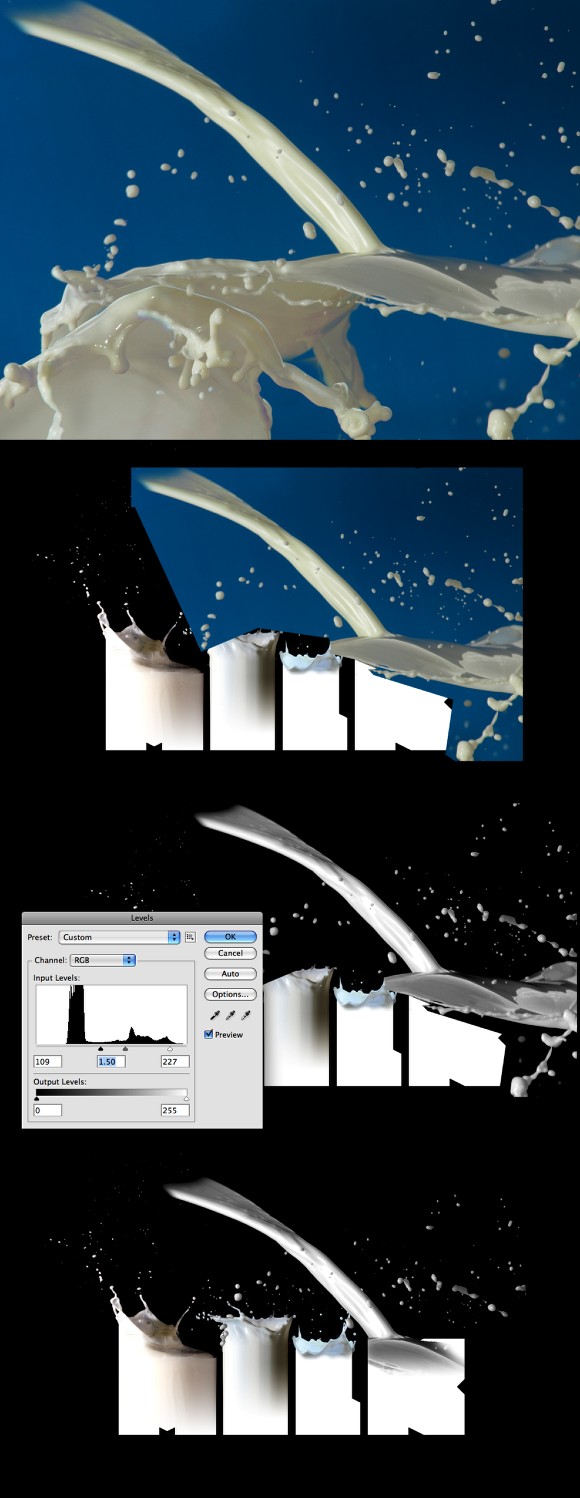
For the K I used another image that you can find at http://www.shutterstock.com/pic-15459070-milk-splash-on-a-blue-background.html.The first thing to do is convert it to greyscale. Go to Image>Adjustment>Desaturate. After that go to Image>Adjustment>Levels. Increase the Black Input until you have almost a black background, then with the Magic Wand Tool (W) select and delete the background of the splash image. Go to Edit>Transform>Scale and move it and resized it to match the width of the K, then with the Eraser Tool (E) delete some areas of the splash like the image below. Tip: use the [ and ] to increase or reduce the Eraser size, its very important to delete the right areas to make the effect more realistic. Try to follow the flow of the milk.
Step 16
Select the K and with the Eraser Tool (E) delete the top right corner of the letter.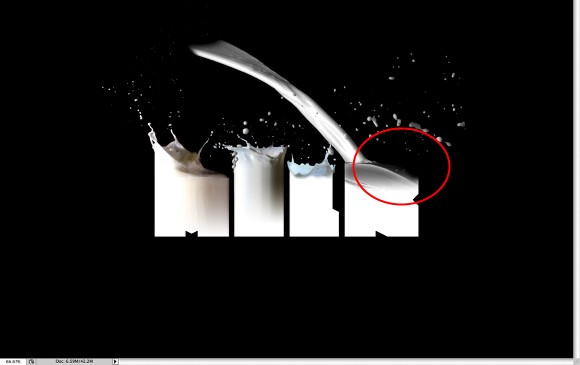
Step 17
As we used different images and some of them had some color variations, such as the images over the M and L. So to make them look more uniform go to Layer>New Adjustment Layer>Gradient Map. Select the Reverse option and that will be enough to make the splashes look the same.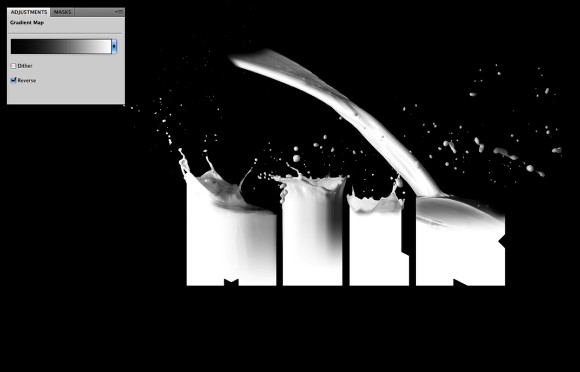
Step 18
To create the Depth of Field effect, just copy a part of one of those images that have quite a few drops and paste in the document, in my case I used the top right corner of the image used in the step 15. Copy and paste it in the document and again, go to Image>Adjustments>Desaturate, and Image>Adjustments>Levels increasing the Black Input to make the background turn to black. After that go to Edit>Transform>Scale and make it much bigger and go to Filter>Blur>Gaussian Blur. Use 15 for the amount.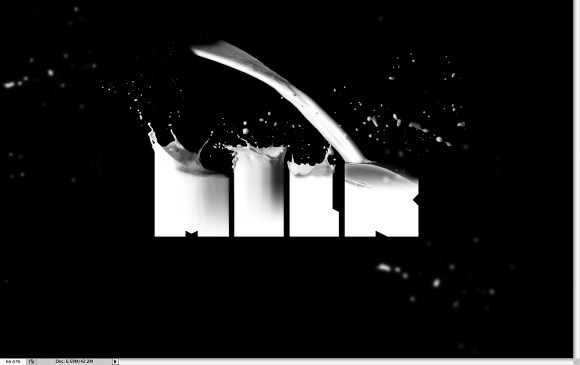
Conclusion
Click on Control/Command + Alt + Shift + E to create a new layer with all the layers merged. Then go again to Filter>Blur>Gaussian Blur. Use 10 pixels for the amount. After that change the Blend Mode to Screen and the Opacity to 50%.Also place your logo and the effect is practicaly done. You can add more splashes or try different colors. The idea is basicaly to learn how to mix the milk splashes with the vector text and make them look real. I hope you enjoyed the tutorial and let me know if you have suggestions for this or other tutorials.

Source : Abduzeedo
 About The Writer
Hello! My name is Tommy. Im a blogger, I love graphics design and now i went to Architechture Technical Senior High School. | Facebook |


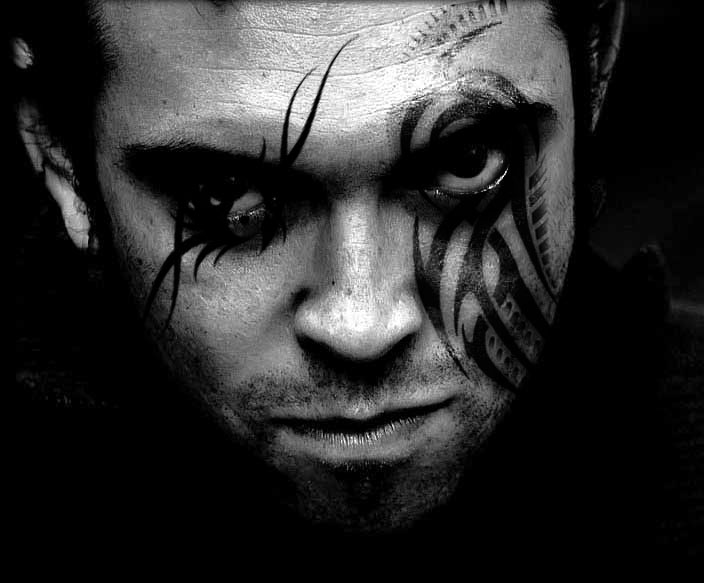
Adding real Tattoo on face
Final view
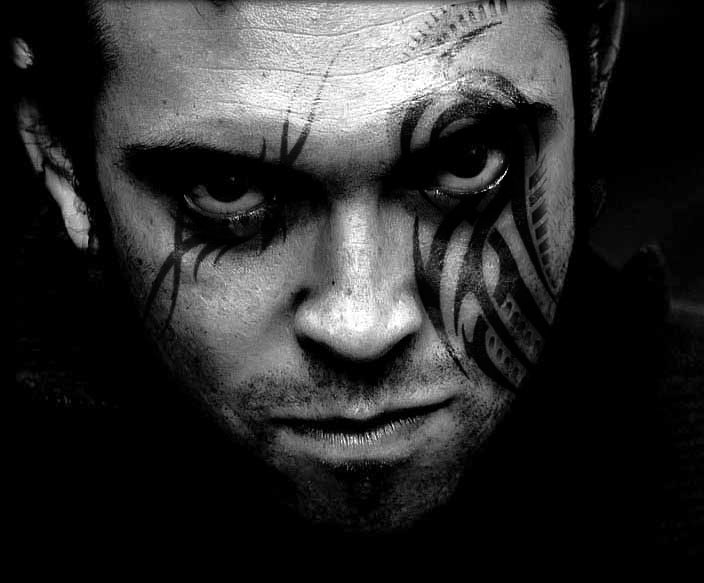
Step 1:
take the image in photoshop to edit and make it black-white.
(I took one of the image from Google)
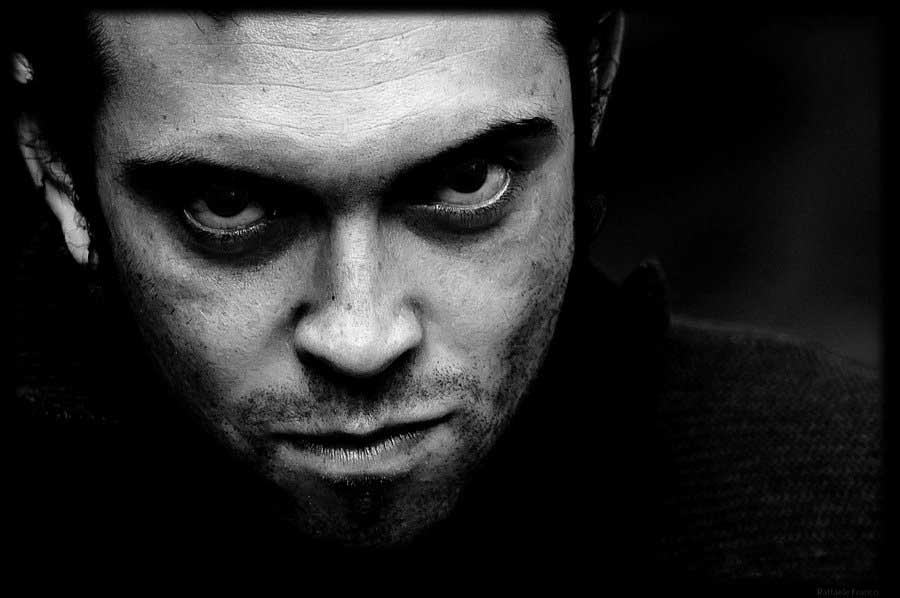
Step 2:
Crop the image so that object is in the middle.
Adjust the images brightness using curves (Ctrl + M) and Level(Ctrl + L).
Burn the shadows of the image by burn tool. (Keep Range=Shadows and Exposure=15-20).
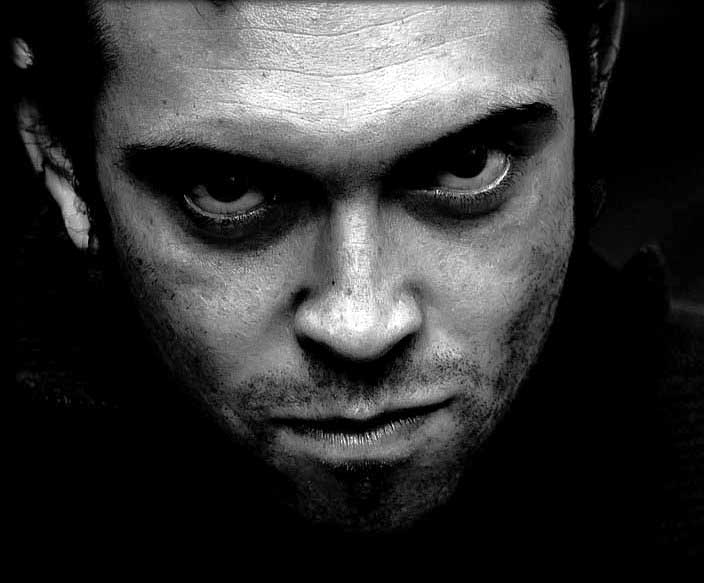
Step 3:
Create new blank layer (ctrl+shft+n), name it layer1.
Now select Brush tool and the tattoo brush of your choice. Click on the layer, where you want a tattoo.
(f you dont have Tattoo brush set, the download the set and copy it in to Adobe --> ps--> presets --> brushes).
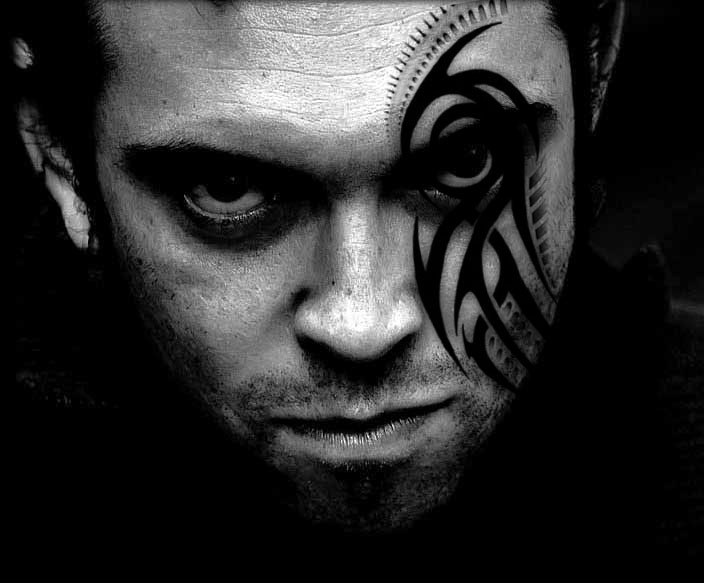
Now make a duplicate layer of the layer1 by right clicking on the layer (Ctrl+J).
the name of the layer is layer1 copy.
Step 4:
Set the property of the layer1 to overly 88%,
Set the property of the layer1 copy to soft light 70%.
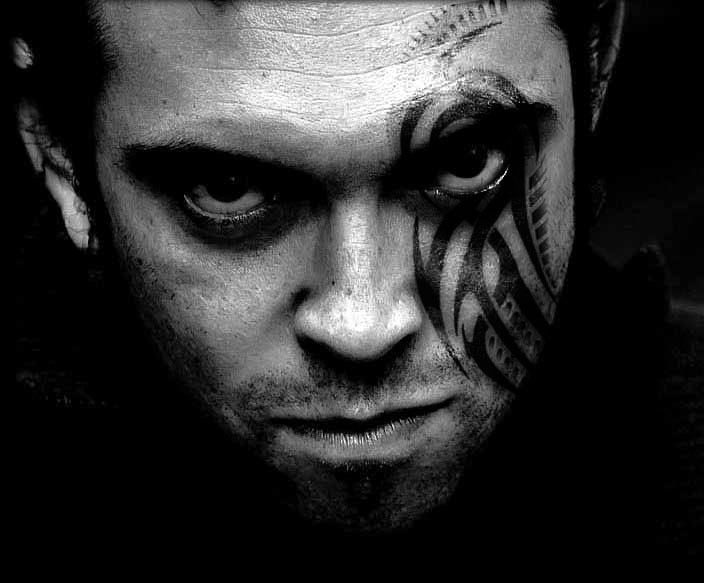
Step 5:
Same like this you can add more tattoos..
create new layer(ctrl+shft+n) name it layer2
select the another brush and set the position of tattoo.
Step 6:
Make a duplicate layer of it.. name will be layer2 copy.
set layer2 property to overly 88%, and layer2 copy property to soft light 70%;
You will get the final real tattoo.
Done..!!
a,
book,
cover,
create,
magazine,
or,
retro,
style
0
comments
Create A Retro Style Book OR Magazine Cover
Create A Retro Style Book OR Magazine Cover
We see previously that how to create a simple Magazine cover. Here we can see a very simple but attractive retro style magazine cover making only in few steps..
Final view

Step 1:
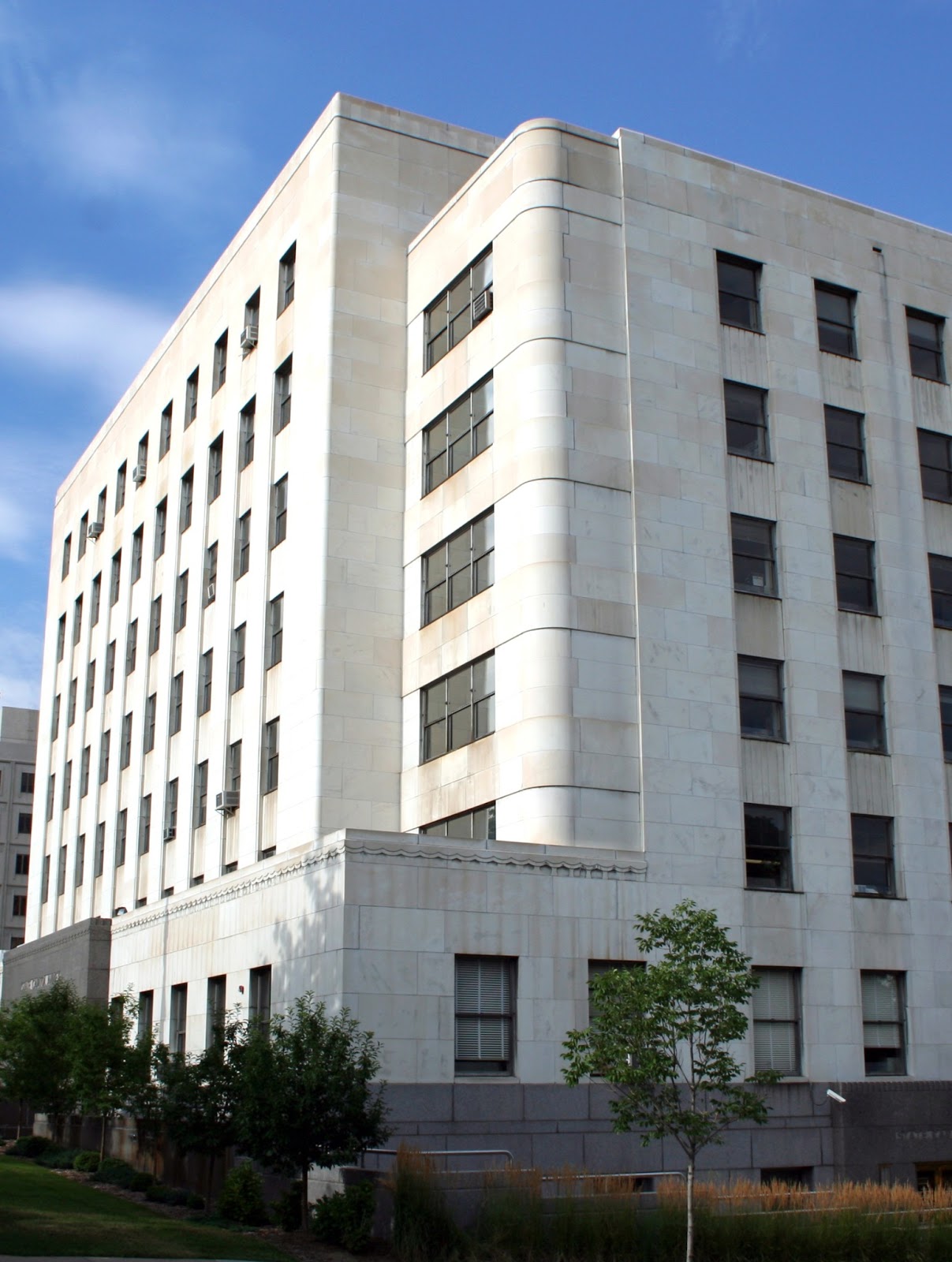
Create new file and get your content related photo as a background.. Ive make a architects magazine cover so I choose a Building photo..
( Click Here to take this image )
.jpg)
Make a new layer (Ctrl_Shft+N)
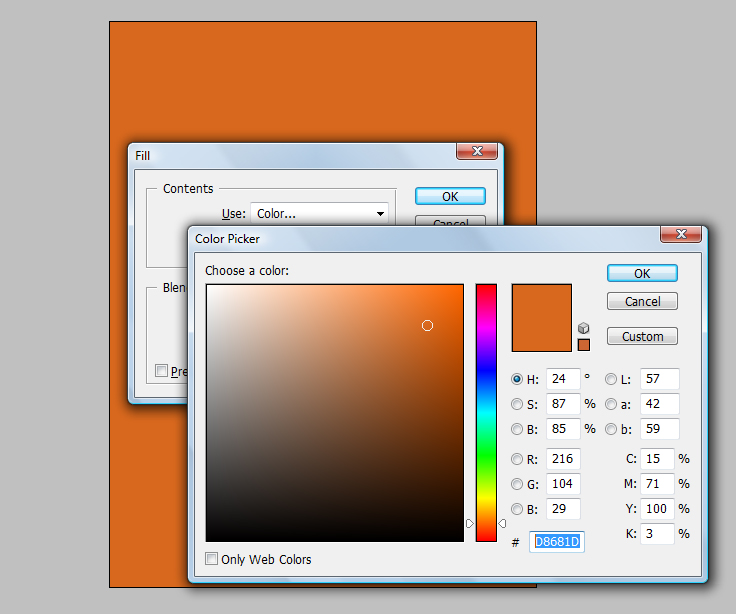
And fill the background with "#D8681D" color. (Shft+f5)
Step 3:
Now download some vector buildings from google..
and take them in the project.. Ive choose one vector building..

Create new file and get your content related photo as a background.. Ive make a architects magazine cover so I choose a Building photo..
( Click Here to take this image )
And fill the background with "#D8681D" color. (Shft+f5)
Make the opacity of layer to 85% - 90% .
Step 2:
Now select your font (Use Slandered fonts used for cover design) and add title and subtitle.
Remember that Title has larger font size than Subtitle.

Step 2:
Now select your font (Use Slandered fonts used for cover design) and add title and subtitle.
Remember that Title has larger font size than Subtitle.
Step 3:
Now download some vector buildings from google..
and take them in the project.. Ive choose one vector building..
Make this Layer property to "Multiply"

Done..!!
Making Artistic Photo
Final view
Final view
Step 1:
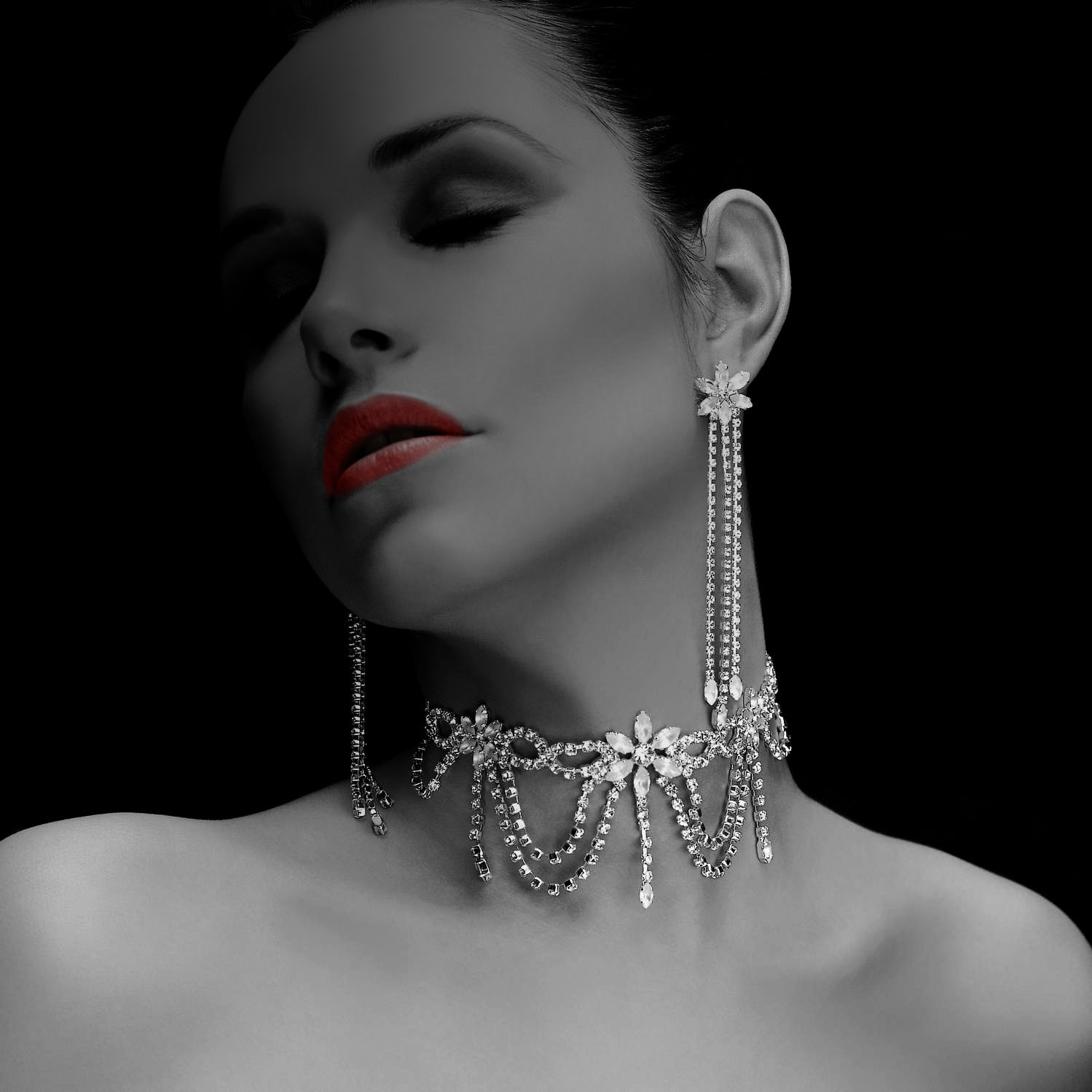
Take/Choose photo to giving artistic effect.
Take/Choose photo to giving artistic effect.
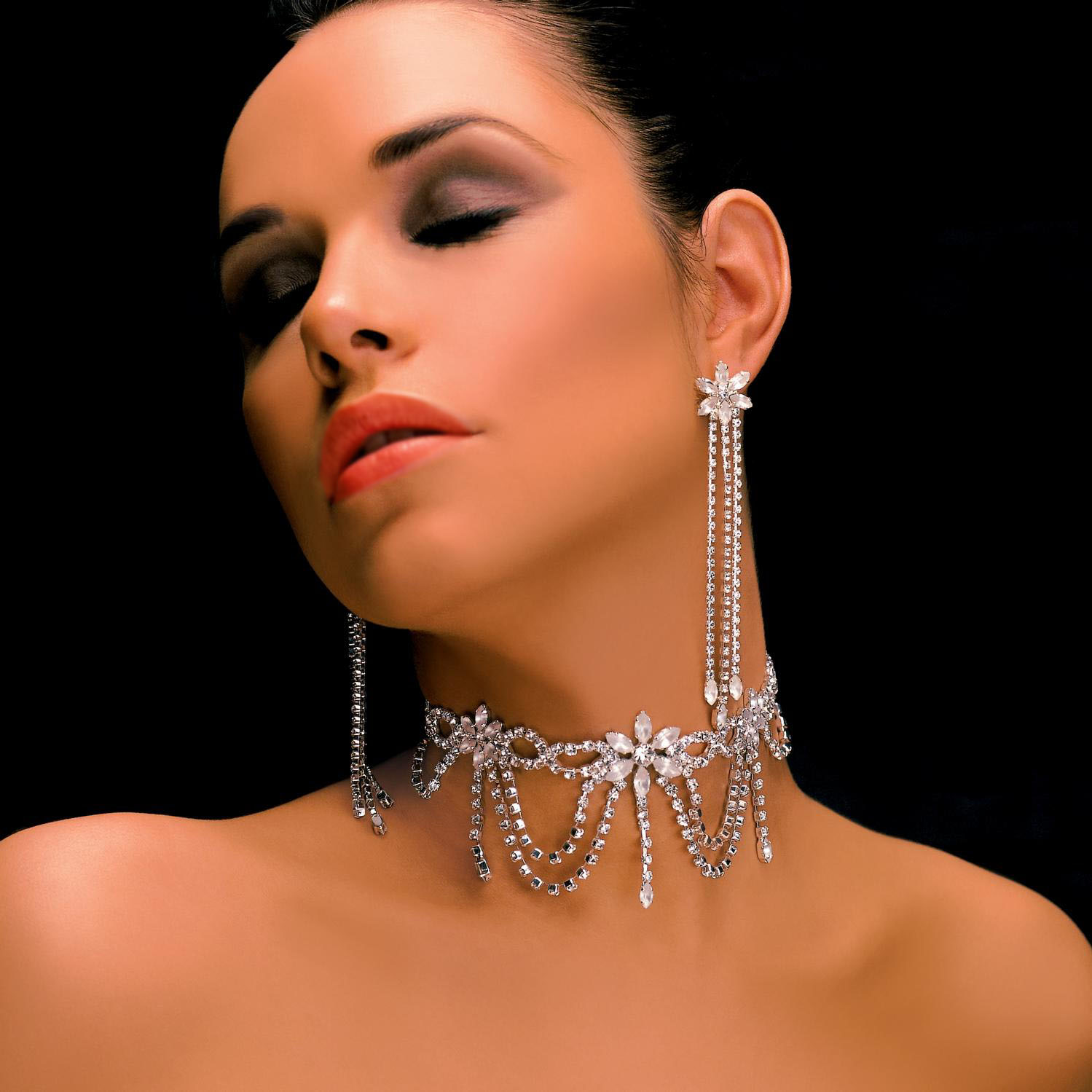
Step 2:
Make a Duplicate layer by pressing Ctrl+J.
Select upper layer and go to Image ---> Adjustments ---> Gradient Map.
Select upper layer and go to Image ---> Adjustments ---> Gradient Map.
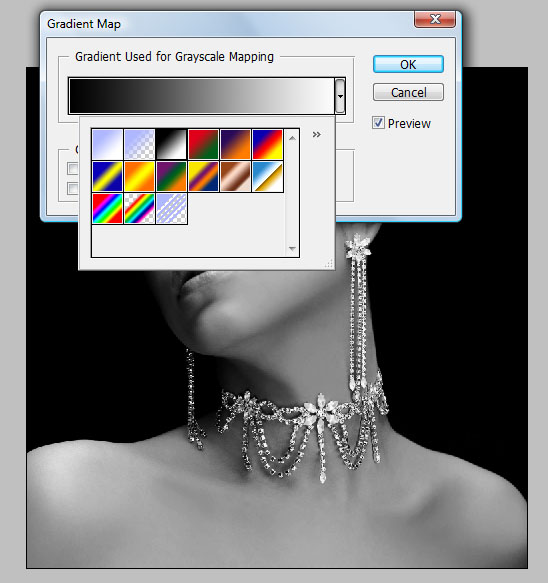
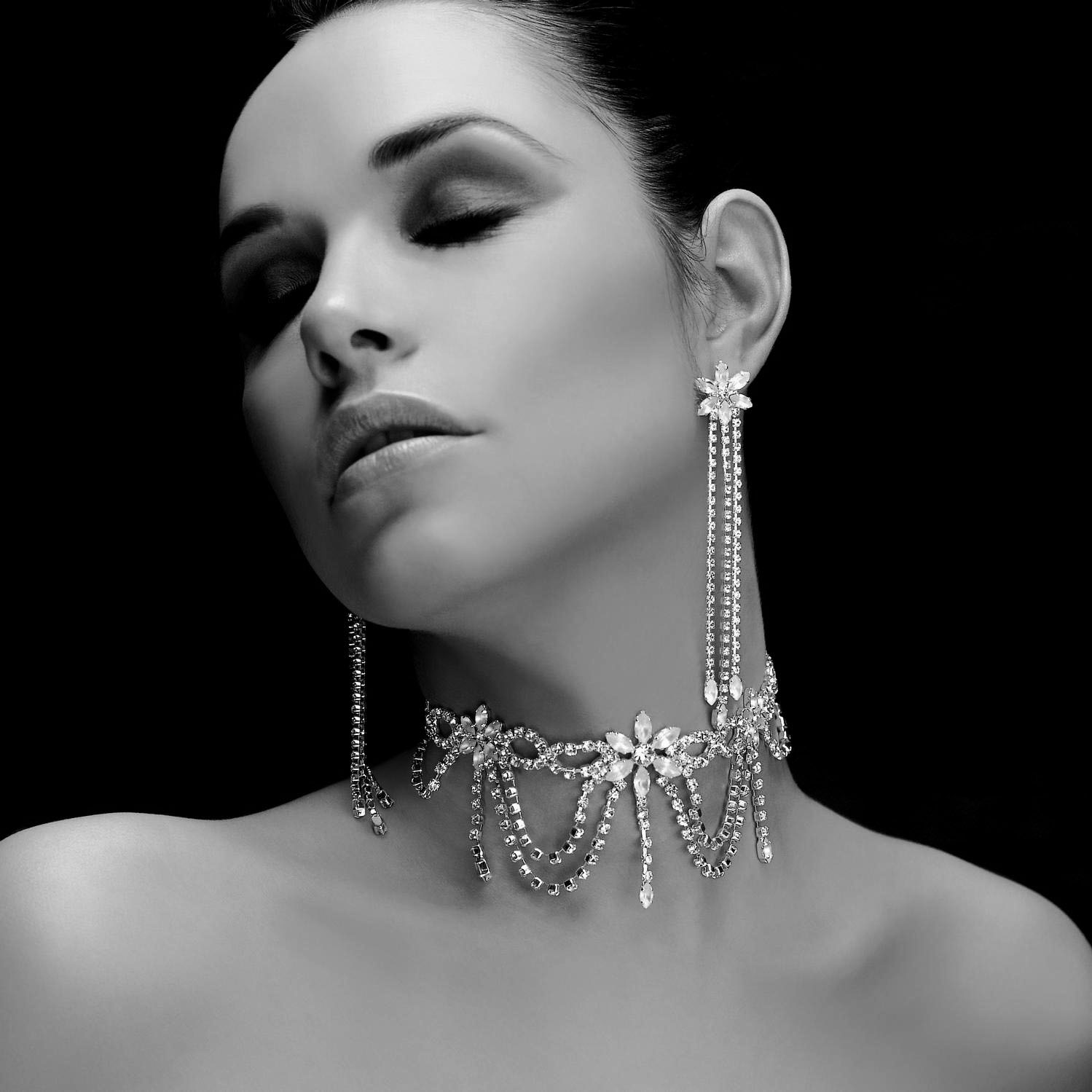
Step 3:
Now select Only Lips By "Plygon Lesso Tool" and Press "Ctrl+B(color balance)".
Increase the red color.
Increase the red color.
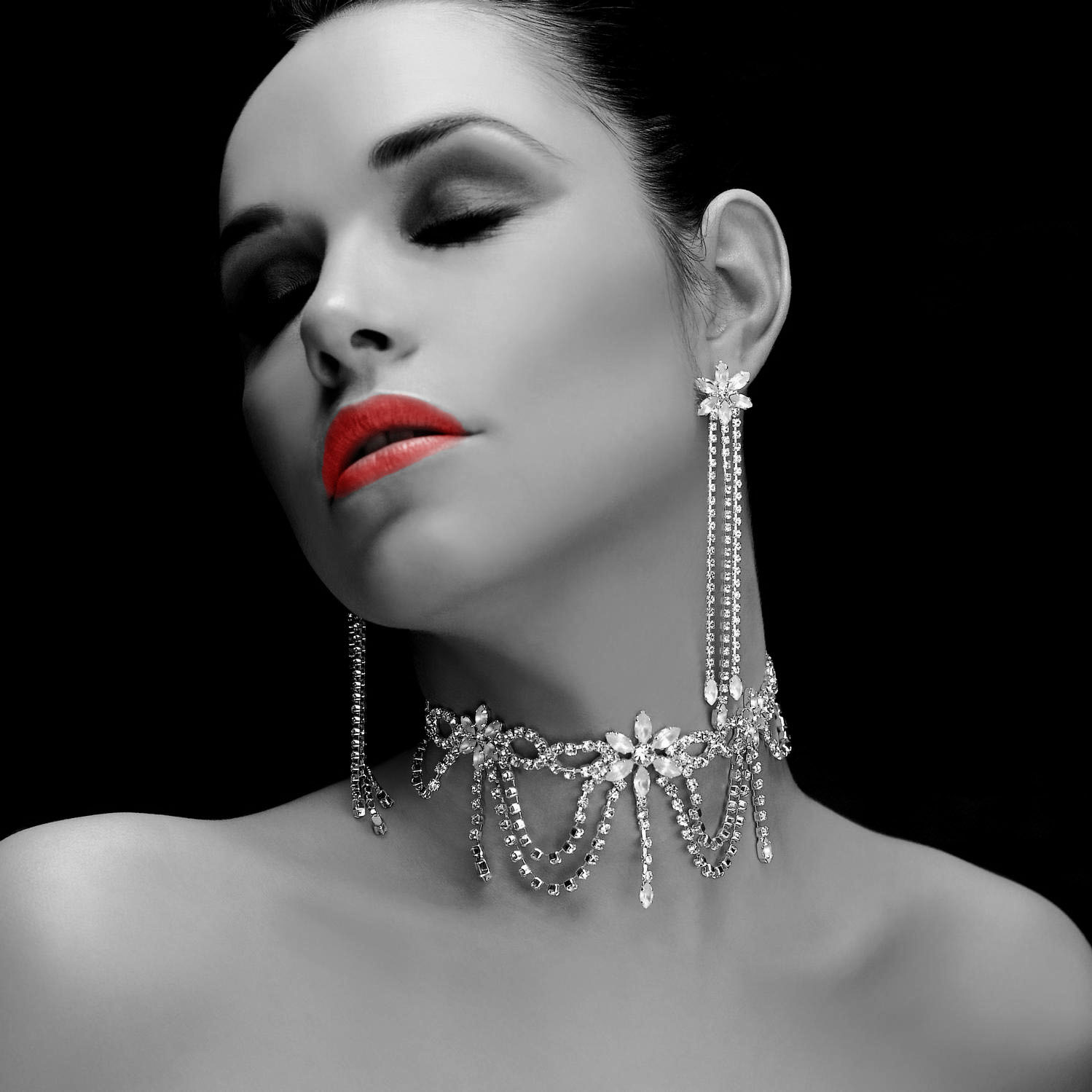
Step 4:
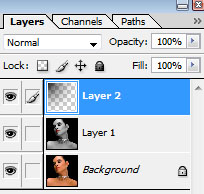
Now Make a new layer (Ctrl+Shft+N).
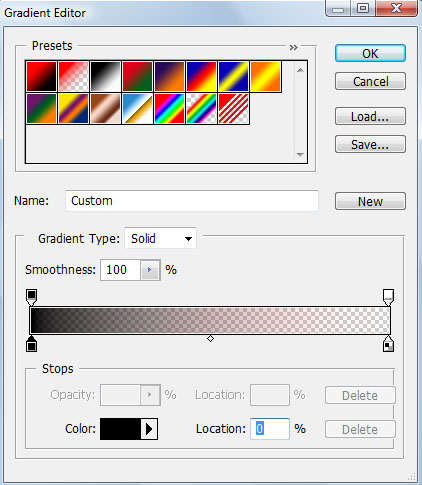
Select Gradient fill tool from tool box. and select only one color pattern (Black + Transparent).
Now Make a new layer (Ctrl+Shft+N).
Select Gradient fill tool from tool box. and select only one color pattern (Black + Transparent).
Done..!!
forming,
gambar,
image,
menyerupai,
resembling,
shape
0
comments
Image Resembling Shape Forming Gambar Menyerupai Shape
Photoshop Tutorials

English
First of all create a new document with a size of 750 x 350 pixels. You can change the size, in accordance with the number of images that you will use later. In order for the image to look more attractive given his background, here I use the image as you can see in the picture below, to see the pattern that I have a collection you can click here to use it too. Provide an easy way of background, you open the image you are going to use as a background image with Photoshop and drag it using the Move Tool to a new document that we created earlier, well if backgroudnya size can not cover the whole area we had new document, you can press ctrl + T on the keyboard and change the image size in accordance with your wishes.
Indonesia
Pertama-tama buat sebuah dokumen baru dengan ukuran 750 x 350 pixels . Kamu bisa merubah ukuranya sesuai dengan banyaknya gambar yang akan kamu gunakan nantinya. Agar gambar terlihat lebih menarik beri background nya, disini saya menggunakan gambar seperti yang bisa kamu lihat pada gambar dibawah ini, untuk melihat koleksi pattern yang saya punya kamu bisa klik disini untuk menggunakanya juga. Cara memberikan backgroundnya mudah, kamu buka gambar yang akan kamu gunakan sebagai background dengan Photoshop lalu drag gambar nya dengan menggunakan Move TOol ke dokumen baru yang kita buat tadi, nah jika ukuran backgroudnya tidak dapat menutupi seluruh area dokumen baru kita tadi, kamu bisa menekan ctrl + T pada keyboard lalu ubah ukuran gambar sesuai dengan keinginan kamu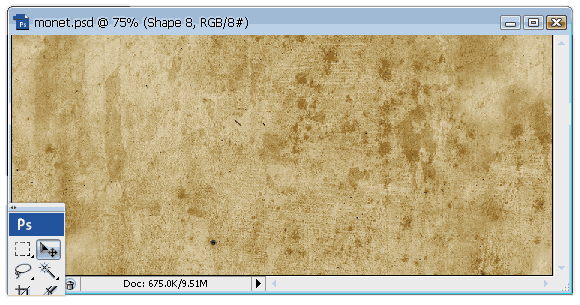
English
Next insert images or photos to be formed, the same way as inserting images backgroundya, but let her image size according to the size of the background picture or photo but want to set up not to meet our document
Indonesia
Selanjutnya masukkan gambar atau foto yang akan dibentuk, caranya sama seperti memasukkan gambar backgroundya, namun biarkan ukuran gambar nya sesuai dengan ukuran backgroundnya tapi gambar atau foto yang ingin dibentuk jangan sampai memenuhi dokumen kita |
Furthermore activate the Custom Shape Tool (U) and then right click on the document. select a shape that you like by double click here I use the leaf shape. then drag the document so we had her shape appear if it is you can use Free Transform (Ctrl + T) to resize and position
Indonesia
Selanjutnya aktifkan Custom shape Tool (U) lalu klik kanan pada dokumen. nah pilih shape yang kamu sukai dengan melakukan double klik disini saya menggunakan shape daun. lalu drag pada dokumen kita tadi sehingga shape nya muncul jika sudah kamu bisa menggunakan Free Transform (Ctrl + T) untuk mengubah ukuran dan posisinya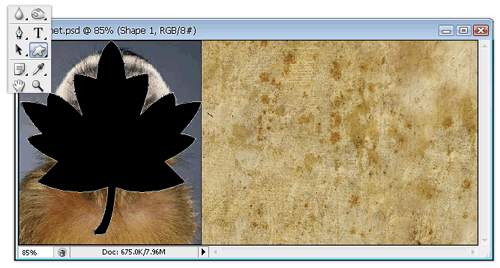
English
furthermore hold the ctrl key on the keyboard and then click appointed in the picture below it will display a selection of our documents before
Indonesia
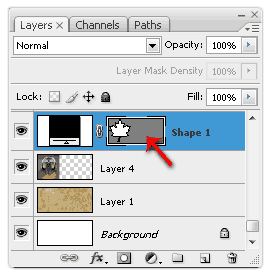
English
After the selection appears click image or photograph (on my documents marked with the name of the layer 4) who want to set up and press ctrl + J it will display a layer of photo-shaped shape but we chose earlier (I didokumen marked with layer 10) and then hidden or remove by clicking the eye on the rectangle layer and the initial photo
Indonesia

English
Then click on Layer 10 and then go to the menu Layer - Layer Style - Drop Shadow set its properties as shown below and then click Okay
Indonesia

English
then the picture will look like the image below
Indonesia
maka gambarnya akan terlihat seperti gambar dibawah ini

English
then by using a touch of magic then by following the above steps you can create as shown below
Indonesia
Subscribe to:
Posts (Atom)


- Follow Us on Twitter!
- "Join Us on Facebook!
- RSS
Contact