Showing posts with label page. Show all posts
Showing posts with label page. Show all posts
Thursday, April 30, 2015
adobe,
and,
cs6,
down,
illustrator,
keys,
page,
the,
up,
using
0
comments
Adobe Illustrator CS6 Using the Page Up and Page Down keys
In this movie, I am going to show you how to get around a document using the Page Up and Page Down keys.
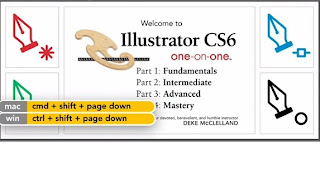
I am going to expect even the biggest shortcut fanatic to remember all of these.
Just remember this Page Up and Page Down combined with any of the modifier keys, does something in Illustrator cs6 .
So lets go ahead and zoom in quite a bit here, and then Ill press the Page Up key, and notice that I move almost a full screen upward.
And then if I press Page Down, I move almost a full screen downward.
If I want to move in smaller increments, then I press Alt+Page Up, this would be Option+Page Up on the Mac, or Alt+Page Down, this would be Option+Page Down on the Mac.
What if I want to move to the right? Well, then Ill press Ctrl+Page Down, thats Command+Page Down on the Mac.
If I want to move to the left, its Ctrl+Page Up, or Command+Page Up.
To move in smaller increments, once again, you add the Alt key.
So its Ctrl+Alt+Page Down, to move in small increments to the right, and Ctrl+Alt+Page
Illustrator CS6 Tutorial
Up, or Command+Option+Page up on the Mac, to move in smaller increments to the left.Now of course, that leaves the Shift key, and you may recall from the previous chapter that the Shift key combined with Page UP and Page Down actually moves you between artboards.
So Shift+Page Up, will take you to the previous artboard, as were seeing here.
And in my case, I am going all the way back to the first one.
And then Shift+Page Down is going to move me to the next artboard.
If I press Ctrl+Shift+Page Up, or Command+Shift+ Page Up on the Mac, I go to the first artboard,
and if I press Ctrl+Shift+Page Down, or Command+Shift +Page Down on the Mac, I go to last artboard, which
in my case is the big artboard that encompasses all the other ones.
And that for those of you who are interested is how you get around a document, using the Page Up and Page Down keys, combined with every modifier key you got.

Monday, March 30, 2015
home,
making,
page,
portfolio,
simple,
website
0
comments
Making Simple Portfolio Website Home Page
Making Simple Portfolio Website Home Page.
Final view

In the Last lesson we seen that how to make Blurred Background images for Web-form Design, Now we see a simple web-page Home screen design Using Blurred Background...
Step 1:
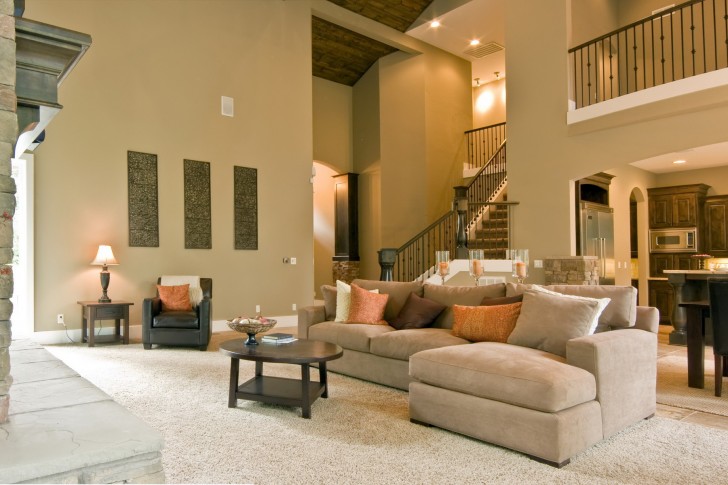
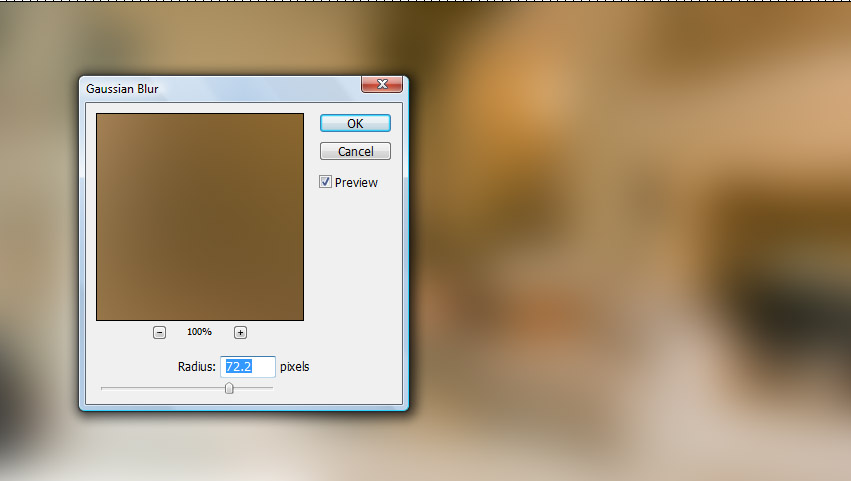
Get Image in Photoshop to Blur.. And add Gaussian Blur to the image so that it will be used as our home screen background.. (Click Here To download this image)
Step 2:
- Now we have our background..
- Go to View ---> Rulers make a arrangement of the layout columns and rows by dragging..
(You can also make web template without rulers but for accurate result, distance, spacing rulers are used).

Step 3:
- Add Your Title Or Logo between upper two rulers...

- Add Your Title Or Logo between upper two rulers...
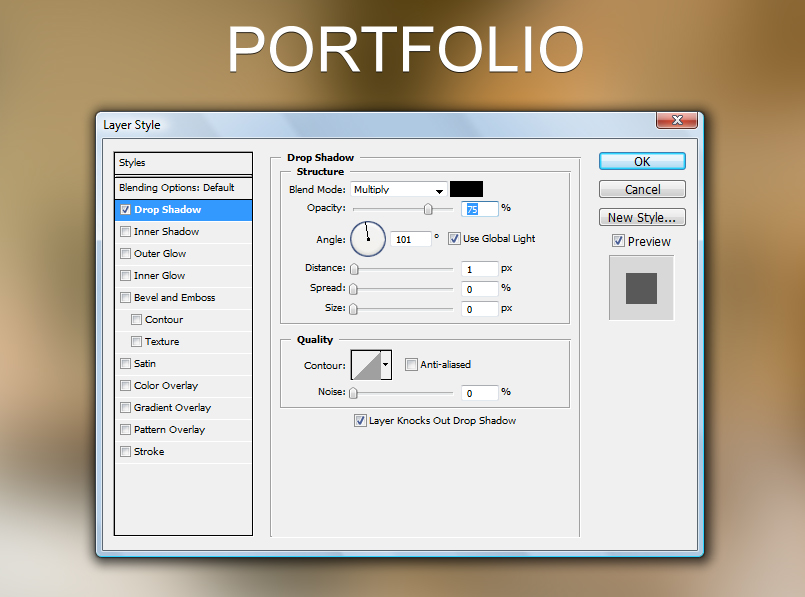
Drop Shadow to Title.. Go to Belnding Options (fx) ---> Drop Shadow.
And make following changes..
Step 4:
- Now make a new layer and Select the Custome Shape Tool From Tool box. (Right click on Shape tool)..
- Now Right Click on the Layer You will get different Shapes.. select One and Drag the cursor towards bottom.
- Note : Remember while dragging cursor press and hold Shift key for accurate Shape..
- (if necessary) Press Ctrl+T for transforming the image and adjust it in to middle two rulers..
- Add the different symbols as icons of your links..
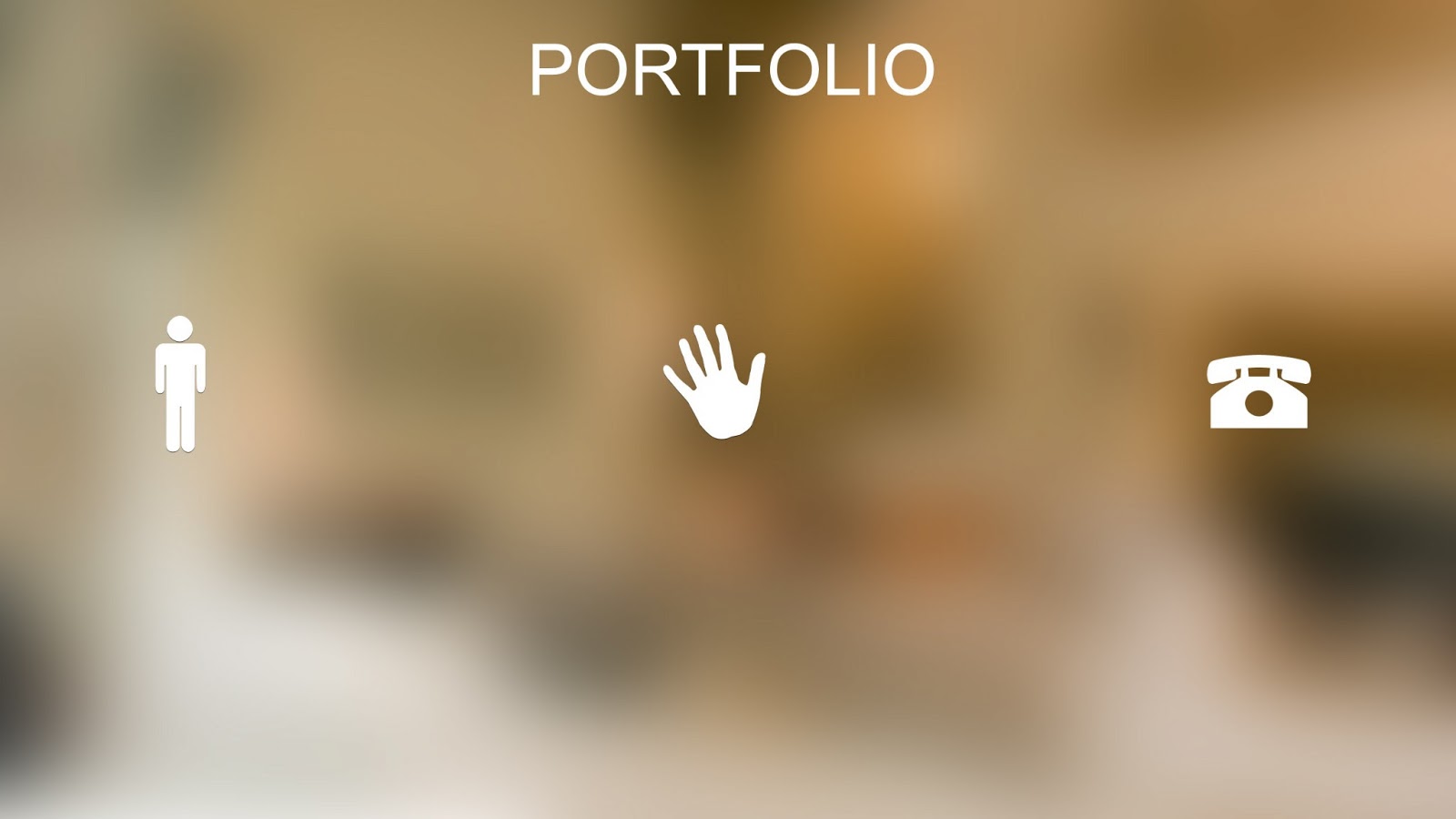
- Now Add the Link Text in the below ruler to shape we have added by selecting Horizontal Type Text tool..
- Make a new layer and select footer ruler by Rectangular marquee Tool and fill it with black color.. (Shft_f5 ---> color ---> select black color ---> OK).
- Make this layers opacity To 20%.
.jpg "Add text and Footer to home pahe")
As shown above drop shadow for each object we have added..
As this, You can also add many shapes and links to your homepage..
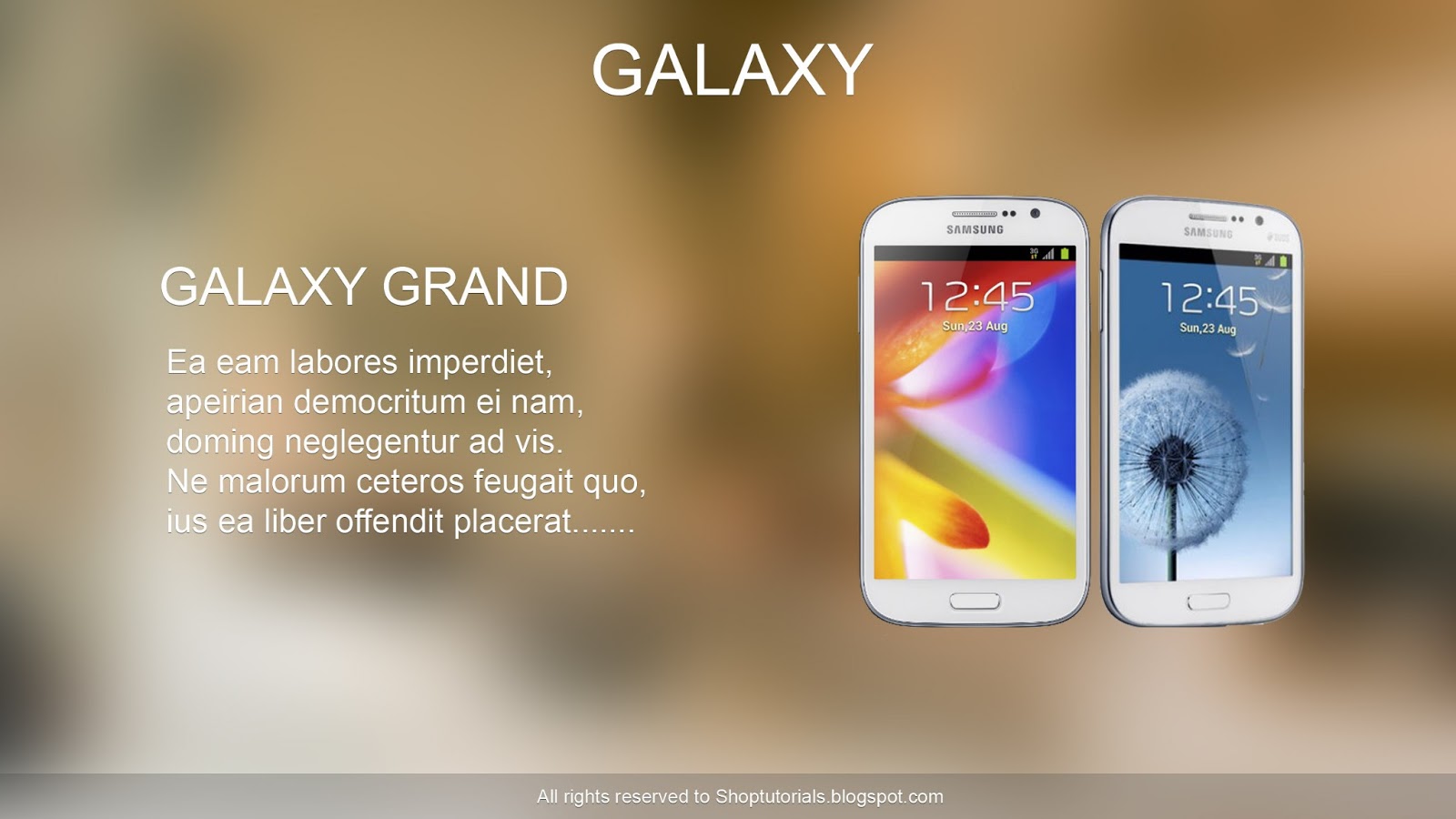
You can make any type of website home page using Blurred Images backgrounds.. The home page may have a Image in right and text in left , for better look slider etc..
Example..
Done..!!
Subscribe to:
Posts (Atom)


- Follow Us on Twitter!
- "Join Us on Facebook!
- RSS
Contact